Communication at Gradient
Working remotely and communicating asynchronously have a ton of upsides. However, it can have many downsides too. And at Gradient we try to actively avoid these downsides in order to maintain a healthy work-life balance for everyone.
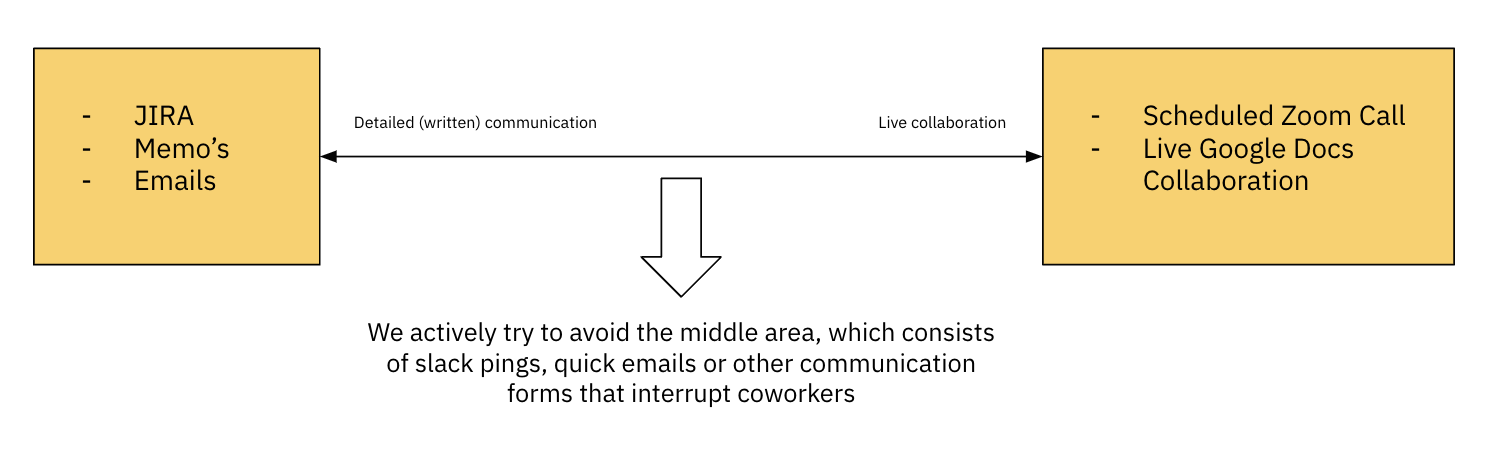
The only times that people need to work on the same thing at the same time are when what needs to be done isn’t clear; the only times it’s not clear what to do is (I) when there’s actually a novel problem to be solved (e.g., how to create a financial model for a panel) or (II) when the instructions were not written clearly enough (do I include this variable in the segmentation or not?) Case (II) needs to be totally eliminated from our business. Clarity and completeness of written communication will save us from synchronicity.
In the figure above, (I) would be completely on the right, where you schedule a call with a team member to collaborate in real time. (II) should be on the left, where whatever needs to be done, must have a very clear and detailed written or pre-recorded description. We have a detailed guide on High Quality Writing that should be integrated in the way you work.
Any communication in the middle area is likely going to be a quick message or ping, which will disturb the focus of your colleague. Think of this as stepping over to their desk, tapping on their shoulder and asking a question. It’s fine if you do this sporadically, but not if it’s happening constantly throughout the day. On top of that, with our asynchronous working hours, it may put employees in an awkward spot, where they don’t want to be responding, but feel like they have to.
With everything mentioned above taken into account, your go-to communication hierarchy should be;
- Detailed written communication
- JIRA issue
- Memo
- Scheduled live meeting
- Slack message or ping
- WhatsApp message
- Only in emergencies
Email communication should be reserved for external-facing communication only.
Every team member should have a set of working hours, when the rest of the team can generally expect you to be online (and offline). These hours should ideally be reflected in your Google Calender, Slack and on our Team Page. Everyone should try to respect these working hours as much as possible.
Notification overload is a real thing, especially with all the different software platforms that we use. You can find a few tips and tricks below to manage your notifications.
When opening a new Google Group or Slack Channel, only add team members directly involved with the project. For Slack, you can always add members in later and they’ll see the entire history.
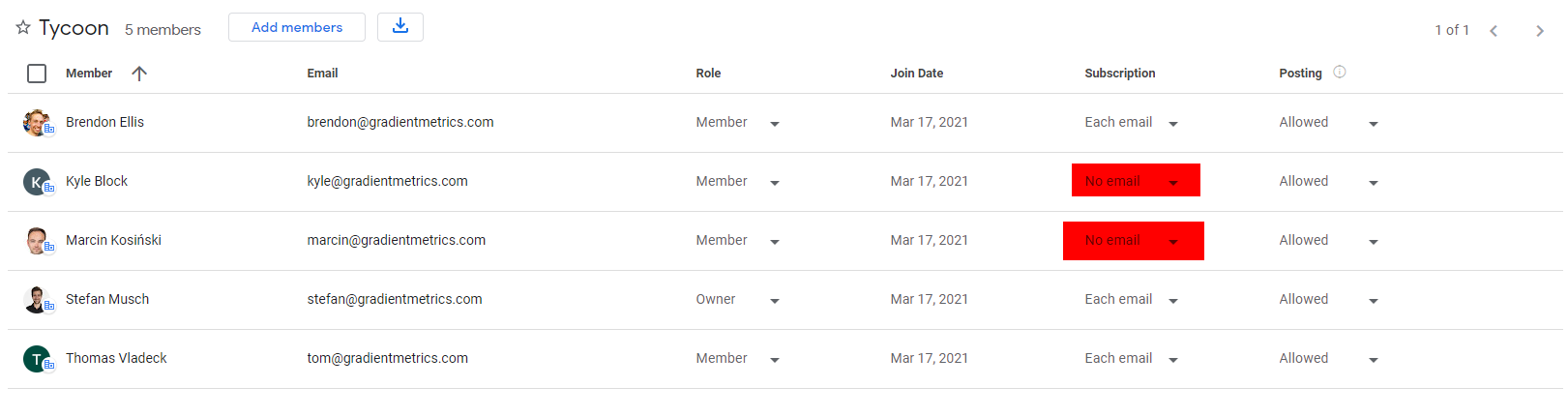
For Google Groups, you can add the entire team and adjust their subscription type. See below as an example where both Kyle and Marcin didn’t need to get constant updates on the project (but still could stroll through the group to see the emails if they needed to be looped in).
We typically have JIRA connected with SLACK. So any change to an issue will get updated on both these platforms. By default, JIRA also sends you an email, and sometimes even a push notification to your JIRA app. Instead, setup your notifications so it will only push this once to your preferred tool. E.g., just e-mails, just Slack or just the JIRA app.
If you want to use Slack as your main notification center, you can add the following integrations;
- Jira Integration Plus channel to your private setup. Do this by going to
Appsand addingJiraIntegration+. - Add Google Drive channel to your private setup. Do this by going to
Apssand addingGoogleDrive. - Add Google Calendar to your private setup. Do this by going to
Appsand addingGoogleCalendar.
Remember to consider the role you play in your colleague’s focus time when pinging them in Slack. Using @channel and @here trigger automatic push notifications which can be disruptive, so these should be used as sparingly as possible. For urgent communication where everyone in the channel needs to be notified right then you should use @channel and @here, otherwise it is best practice to only tag the person(s) you need to communicate with at that moment.
We’ve also set up specific user groups such as @research, @product, and @usa that allow you to tag multiple people at once while leaving the rest of a channel uninterrupted.
Consider any case using the @ function in Slack as worthy of collective attention at that moment.
Turn the notifications on your applications off when your workday is done. In some client-management related cases you may want to have your email notification still on, but any internal communications should be off. In case of an emergency, you’ll be contacted through a WhatsApp message or a call. It’s totally fine to go off the grid to get your well-deserved rest.