Inputs
The plethora of possibilities might seem too much to handle, but the Random, Shortcut, Balanced Overlap, Complete Enumeration, and Efficient have the same input menu. Only Partial profiles and Alternative Specific designs are different. Yet still, the input menu is very straightforward to use.
There are three common inputs for all of the algorithms: Questions per respondent, Versions and Sample size. This is pretty much self explanatory.
Questions and versions depend on the number of attributes, levels and alternatives we present in each question. How to know which numbers to use? Well, there is no good answer to this; you just need practice. We can start with a rule of thumb for Alternative Specific designs (it’s not a World and works well only with Alternative Specific but at least it provides a starting point). Making a good design is an iterated process, and there are no shortcuts. So back to the algorithm: We sum up the levels of attributes minus 1 and multiply by 3. Let’s say we have 4 attributes with 2, 3, 4 and 4 levels. So the number of tasks is ((2-1) + (3-1) + 2 * (4-1)) * 3 = 27. This will not be optimal for any other algorithm but it might be a good starting point. So, since we are aiming for 27 different tasks. We assume that we need more than 8 questions per respondent. So we can start with 9 questions per respondent and 3 versions. This will most likely not be good enough, so iteratively we can add versions or number of questions per respondent to achieve satisfying results. Usually, we would aim for something between 8-12 (choice tasks) per respondent.
The last common input is Sample size. It mainly affects the Standard errors and D-error (if we really cannot lower down the errors by altering the number of questions or versions, we need to grow the sample size).
When you decide to use any of these algorithms you will need to provide: Number of alternatives and None alternative. Next, choose how you will input attributes and levels and optionally provide prohibitions (not possible for Shortcut and Efficient). So, in the Number of alternatives field we indicate how many concepts we show in each conjoint task. This choice depends on:
- The complexity of concepts – for many attributes or lengthy levels we rather do not want to have a lot of competing concepts.
- Number of levels of attributes – if there are a lot of levels, we would rather have more than two competing concepts.
- None or Other alternatives – when there are lets say 5 brands and Other, showing just 3 alternatives and Other will probably result in respondents choosing Other any time their favorite brand is not an alternative. This will cause an overestimate of Other shares.
- Presence of interactions – if we assume that there are interactions, we probably should use at least 3 competing concepts so we get a better chance at properly estimating the interactions.
- Audience – when the target audience is more familiar, or even better highly interested with what we are asking, we can show more competing concepts without the risk of cognitive burndown (going with >4 concepts is possible and often works well, but every time the respondents answers needs to be deeply checked with interim data).
- When we are reaching 12 questions per respondent and still the diagnostics does not look good for our design, we should try to display more alternatives per question.
Those are most obvious from my perspective, but there always can be some research-specific considerations that can strongly influence the decision.
None alternatives: if there is no None option or we are going to use Dual Response None, leave this as 0. Note that we can have more than 1 None alternative. The reason is that in the model, the None alternative has all the attribute levels set as 0. For instance you have a conjoint on cars with 2 attributes: Brand and Transmission. Brands are: Audi, Mazda and Fiat. Transmission is Manual (yes dear Americans, this really exists!) or Automatic. You want to also have Other European Brand and Other Japanese Brand. These two others should be coded as separate None alternatives.
| Audi | Mazda | Fiat | Other European Brand | Othere Japanes Brand | |
|---|---|---|---|---|---|
| Transmission | AT | MT | MT |
If you decide to use None alternatives, in the follow up you need to indicate where to place them. Usually we place them on the right side of other concepts. So if you have 3 alternatives and 2 None alternatives, in the field None alternative positions type 4,5.
Next you are going to input the number of Attributes and Levels. From a dropdown menu you can pick up one of the options:
- Enter in spreadsheet
- Enter attributes individually
- Enter number of levels per attribute
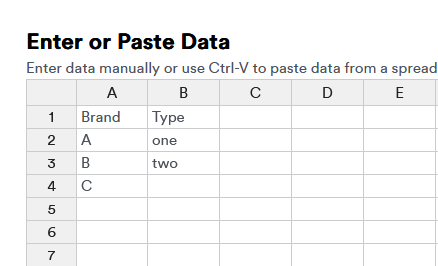
Enter Attributes and Levels
I strongly recommend using the first or third option. The second one is time consuming and annoying. So if you choose the first one, a button (Edit attributes and levels) will appear. It will open an Excel-like window where you can copy-paste attributes and level names. In the first row give the attribute names, then paste each attribute level in the next rows.
In case you just need to run quick checks, you can take the third option, and you will see an input field (Attribute levels), where you just put the number of levels for each attribute separated by commas. Let’s say you have 3 attributes, with 3,4,3 levels, so you just type 3,4,3.
Additionally for algorithms other than Shortcut and Effective, you can use prohibitions. If you tick the Enter prohibited alternatives, you will see the Edit data button. It also opens an Excel-like spreadsheet. You need to put each prohibited combination as a separate row. Each row needs to have the exact same number of columns as there are attributes. If an attribute can go with any combination of other attributes, leave the cell empty or write All. Below is an example of setting up prohibitions for design with 4 attributes.
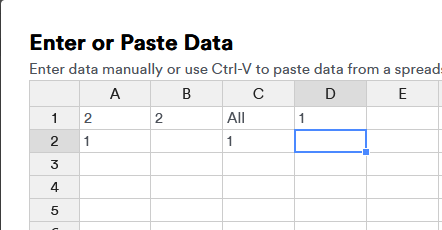
Enter Prohibitions
Setting up priors for effective algorithms is covered in this article: The Efficient Algorithm in Displayr
The partial profile algorithm has an additional input field: Constant attributes. Here you indicate how many attributes will be held constant in each question. Suppose you have 7 attributes and you think that displaying all of them might be a little bit overwhelming for respondents. You decide to go with 5. In this case you need to put 2 in this field.
For the Alternative specific algorithm we do not specify number of alternatives per question, since all the alternatives will be present. You need to specify the alternative labels in Labels of alternatives input field separated with comma. Then, you will see an input field Attributes per alternative. Each of the alternatives has distinct attributes and levels. Lets say your alternatives are: Book, E-book reader and Smartphone. Below there are attributes:
- Book: Weight, Size
- E-book reader: Weight, Size, Display, Memory
- Smartphone: Display, Size
So we see that the Size is common for each of the reading options, Weight is common for Book and E-book reader and Display is common for E-book reader and Smartphone. However the levels will be completely different. Lets define just the common ones:
| Book | E-book Reader | Smartphone | |
|---|---|---|---|
| Weight | 0.5 kg, 0.75 kg, 1 kg | 0.2 kg, 0.3 kg | |
| Size | A5 B5 A4 A5 | 17x12, 18x13, 20x14 | 5', 5.5', 6', 6.5' |
| Display | 300ppi with light, 300pp without light | Full HD, 4k |
So even if the attributes have the same names, they have either different ranges (like in the case of weight) or measure on completely different scales (Size and Display).
Getting back to input settings. After you define the names of the alternatives: Book, E-book reader and Smartphone, you need to pass the number of Attributes per alternative: 2,4,2.
Next you will see inputs (there will be as many as there are attributes for all of the alternatives). In each input field you need to set the name of the attribute, and follow it by the names of levels like in the example below:
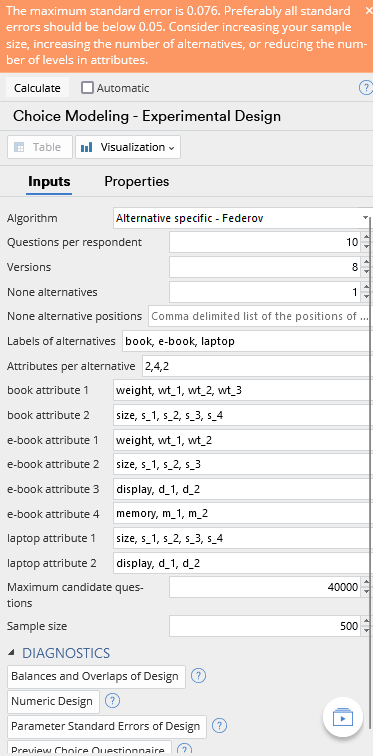
Alternative Specific Menu
There is one more specific input field: Maximum candidate questions. When we use Fedorov’s algorithm it might need to calculate a large number of possible questions, when the designs are complicated (AKA too many attributes and levels). Setting a lower value here might increase the speed of calculations, sacrificing the accuracy.