Working with R on AWS EC2
Amazon Elastic Compute Cloud (Amazon EC2) is a web service that provides secure, resizable compute capacity in the cloud. It is designed to make web-scale cloud computing easier for developers. Amazon EC2’s simple web service interface allows you to obtain and configure capacity with minimal friction. It provides you with complete control of your computing resources and lets you run on Amazon’s proven computing environment.
An Amazon Machine Image (AMI) provides the information required to launch an instance. You must specify an AMI when you launch an instance. You can launch multiple instances from a single AMI when you need multiple instances with the same configuration. You can use different AMIs to launch instances when you need instances with different configurations.
In short, it’s a stored template with pre-defined software that is used to launch an instance in the cloud anyone within the company can use.
- We have one baseline image (AMI) hosting our repository, all of our internal packages, and commonly used R packages. The AMI get’s updated when one of the internal packages gets released on
internal CRAN.
- The newest image is always the one with
gradient amiand the recent date in the name on this list - This image contains
- RStudio Server
- Shiny Server
- Gradient git monorepo
- Pre-installed list of R packages - all internal packages in newest versions
- You can check them with
list.files(.libPaths()[1])when on the machine
- You can check them with
renvcache with +300 pre-installed packages- You can check them with
list.files(renv::paths$cache())when on the machine
- You can check them with
aws cli- so that S3 buckets can be synced with the machine
- The newest image is always the one with
- For every client project you start a new EC2 instance
- This way you can work on multiple projects thanks to multiple instances
- All machine resources reserved for this project are installed and you don’t need to share with any other session
- There is
rstudiouser that you use on the machine that is also added tosudoers group - There is
.Renvironfile on the machine that you might want to customize for yourself - Machine is globally configured for git
- You may want to change that with below typed into RStudio’s
Terminalgit config --global user.name "John Doe"git config --global user.email johndoe@example.com
- You may want to change that with below typed into RStudio’s
Go to AMIs page in AWS console,
select the AMI with the newest date and hit Launch instance from AMI.
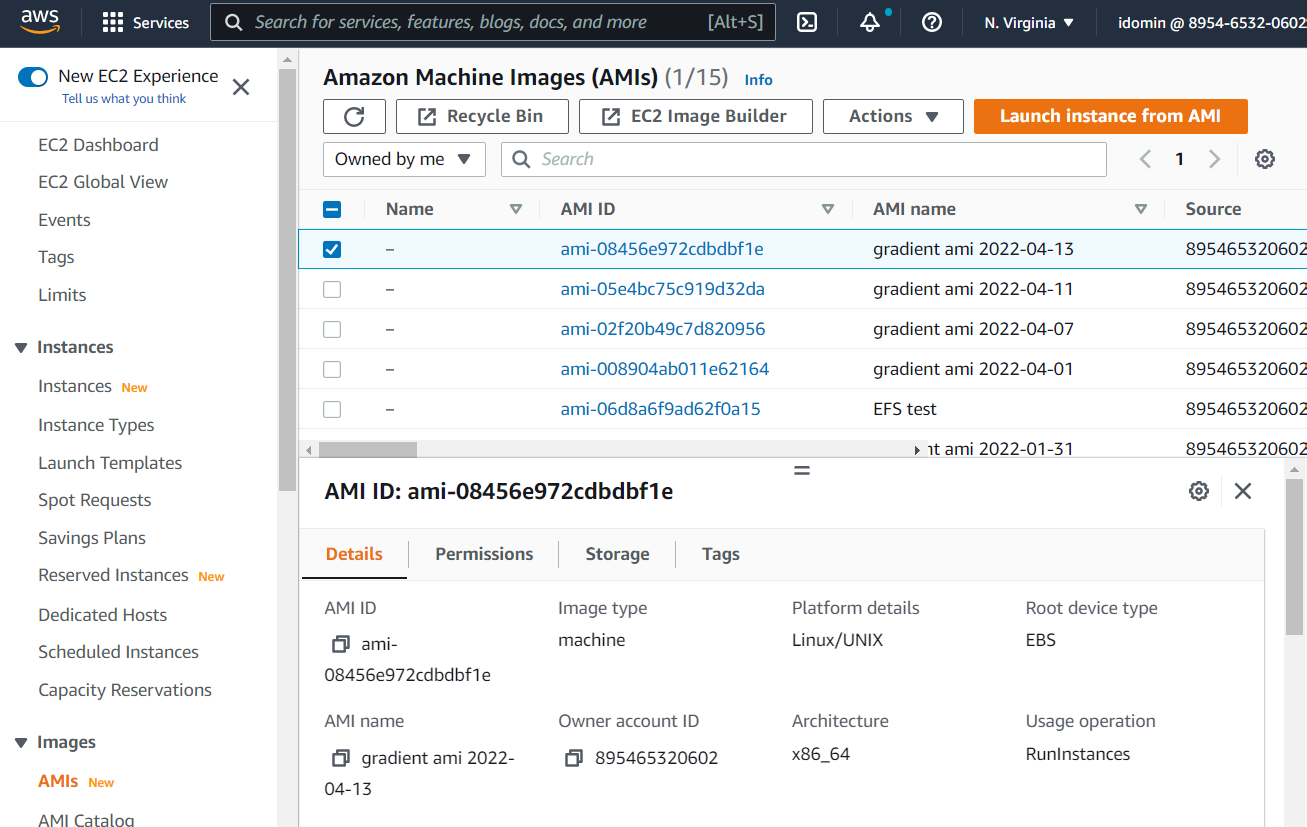
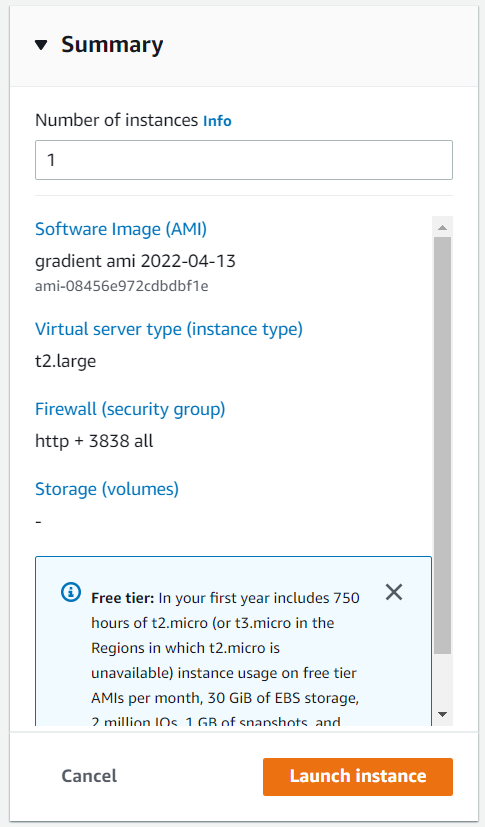
Next you should see this interface:
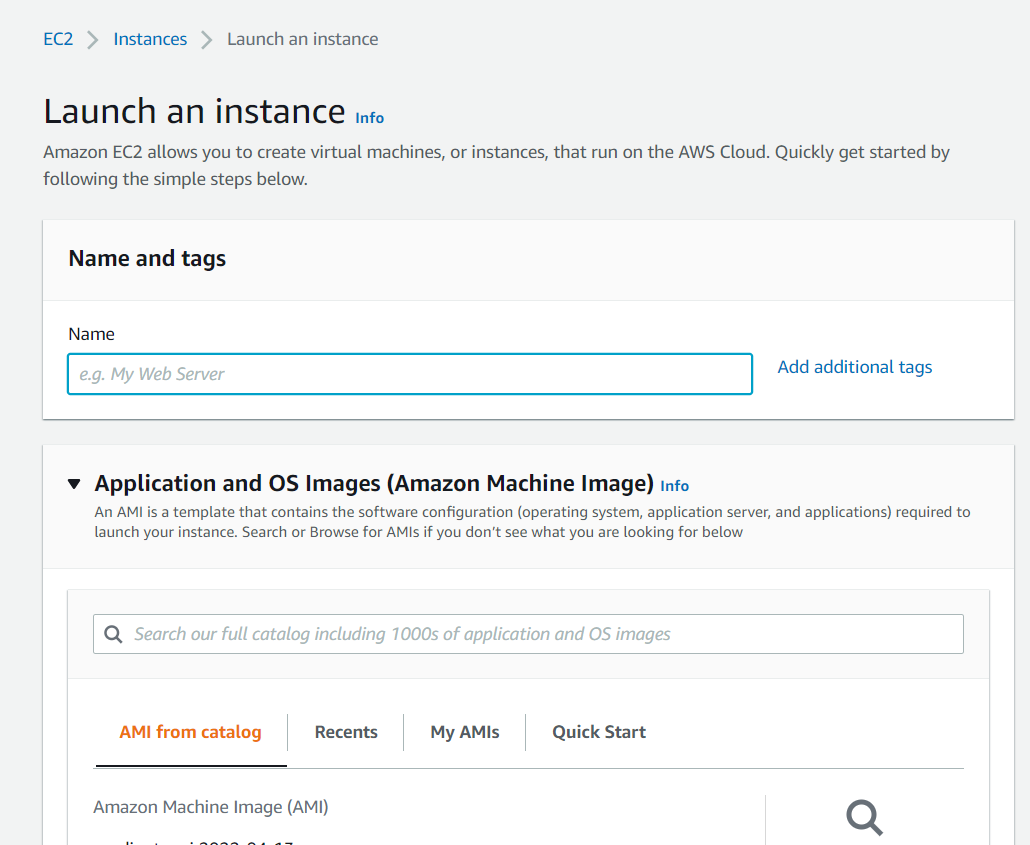
Fill the fields as follows:
-
Name and tags - input a name for the EC2 here. This should contain the project codename, purpose of the machine, and the nickname of the person responsible for managing the instance.
-
Application and OS images - this should already be set with AMI you’ve selected at the beginning, don’t change anything.
-
Instance type - select the instance type. We typically use
t2.largeort2.xlarge. -
Key pair - select the first one (20170822).
-
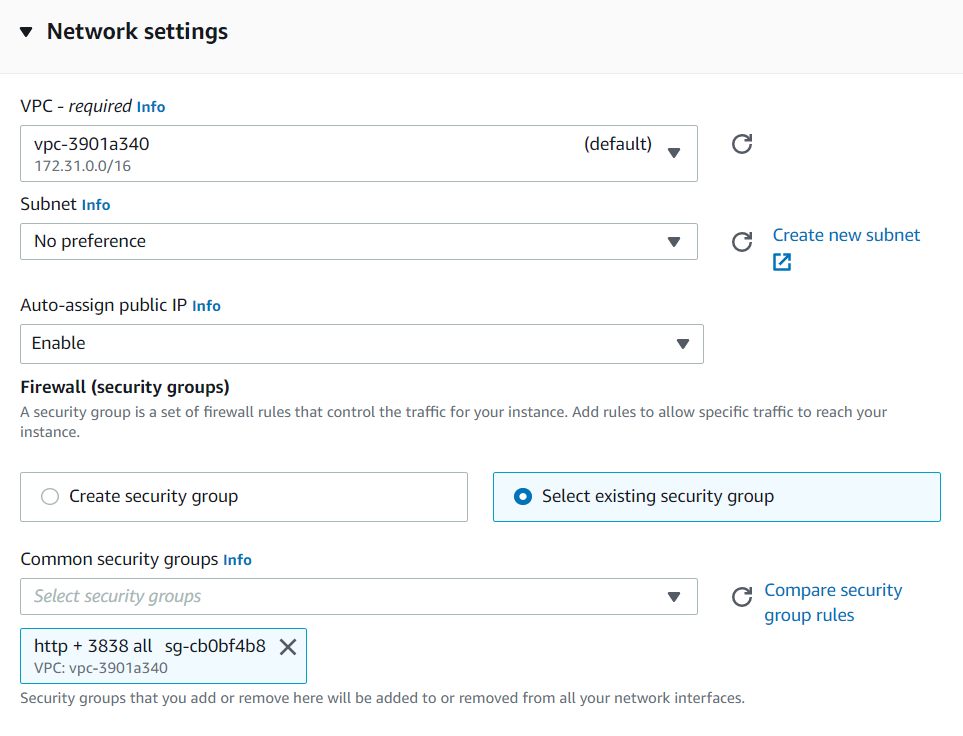
Network settings - first click “Edit” at the top right corner of the section. Then “select existing security group” and choose
http + 3838 all.
Click the “Launch instance” button at the top right corner. It will need around 2 minutes to launch.
To start a pre-defined EC2 box that is build upon an AMI that already has github.com/g6t/g6tr git repository cloned and internal gradient R packages (like g6tr, g6tr.analytics, g6tr.theme and so on) installed follow the code below;
user ‘rstudio’
password ‘i-0ae44a110b2828252’
# Checks and installs aws.ec2 package -------------------------------------

if(!requireNamespace('aws.ec2')) {
  install.packages("aws.ec2", repos = "http://cloudyr.github.io/drat")
}
library(aws.ec2)


# AWS access keys ---------------------------------------------------------

# Set below global environmental variables in your .Renviron file
# AWS_ACCESS_KEY_ID
# AWS_SECRET_ACCESS_KEY
# AWS_DEFAULT_REGION
readRenviron('.Renviron')
if(!(Sys.getenv('AWS_ACCESS_KEY_ID') != "" & Sys.getenv('AWS_SECRET_ACCESS_KEY') != "") ){
 cat("Please put your AWS access keys (AWS_ACCESS_KEY_ID and AWS_SECRET_ACCESS_KEY)",
    "in .Renviron and run readRenviron('.Renviron') again", fill = FALSE
    )
}


# running the instance ----------------------------------------------------

# user 'rstudio'
# password 'i-0ae44a110b2828252'

source('builds/utils/ami.R')
ami_id <- get_latest_ami_id()

instance <-
  run_instances(
    image   = ami_id,
    type    = "t2.large",
    # can be also: "t2.xlarge", "t2.2xlarge", "t2.micro", "t2.small", "t2.medium"
    # or anything from https://docs.aws.amazon.com/AWSEC2/latest/UserGuide/instance-types.html
    keypair = "20170822",
    sgroup  = "sg-cb0bf4b8", # this is 'http + 3838 all' security group,
    tags    = list(Name = 'PUT YOUR IMAGE NAME HERE')
  )


# opening the instance in the browser -------------------------------------


#### this is how you open the browser with RStudio Server
public_ip <- NULL
while(is.null(public_ip)) {
  public_ip <- get_instance_public_ip(instance)
  Sys.sleep(1)
}
browseURL(paste0('http://', public_ip))


# stopping the machine ----------------------------------------------------

##### this is how you stop the instance
#stop_instances(instance[[1]])


# terminating the machine -------------------------------------------------


##### this is how you terminate the instance
#terminate_instances(instance[[1]])
If you are about to start a new client project on a EC2 instance, then in root directory of g6tr git repo run
library(g6tr)
g6tr_setup(
  name = 'project_code_name',
  title = 'descriptive_project_title',
  branch = 'projects/project_code_name/setup'
)
The above line will create a new set of files in g6tr/packages/g6tr.projects/vignettes directory.
To work with the new project open RStudio’s project file located under g6tr/packages/g6tr.projects/g6tr.projects.Rproj.
Then create (or fill) g6tr/packages/g6tr.projects/.Renviron file to set your environmental variables.
You may want to change that with below typed into RStudio’s Terminal
git config –global user.name “John Doe”
git config –global user.email johndoe@example.com
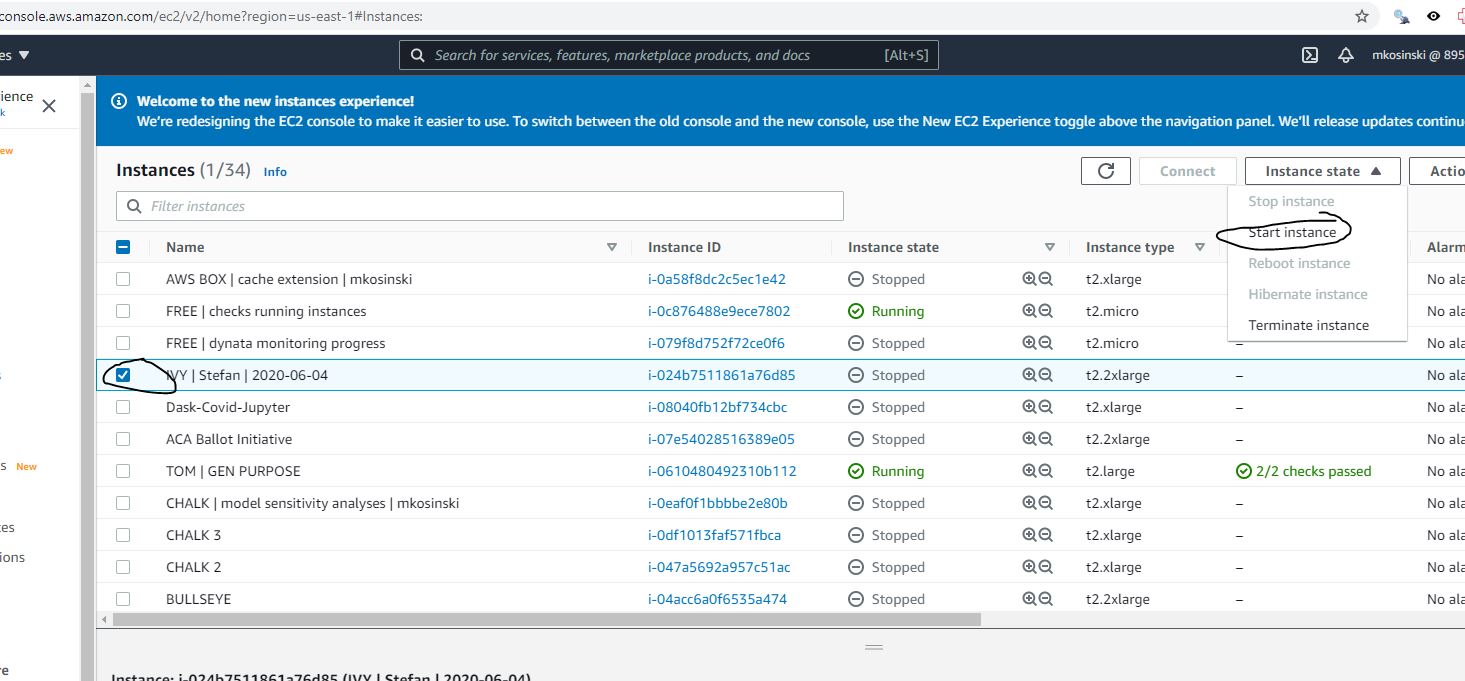
If a machine is not started, go to
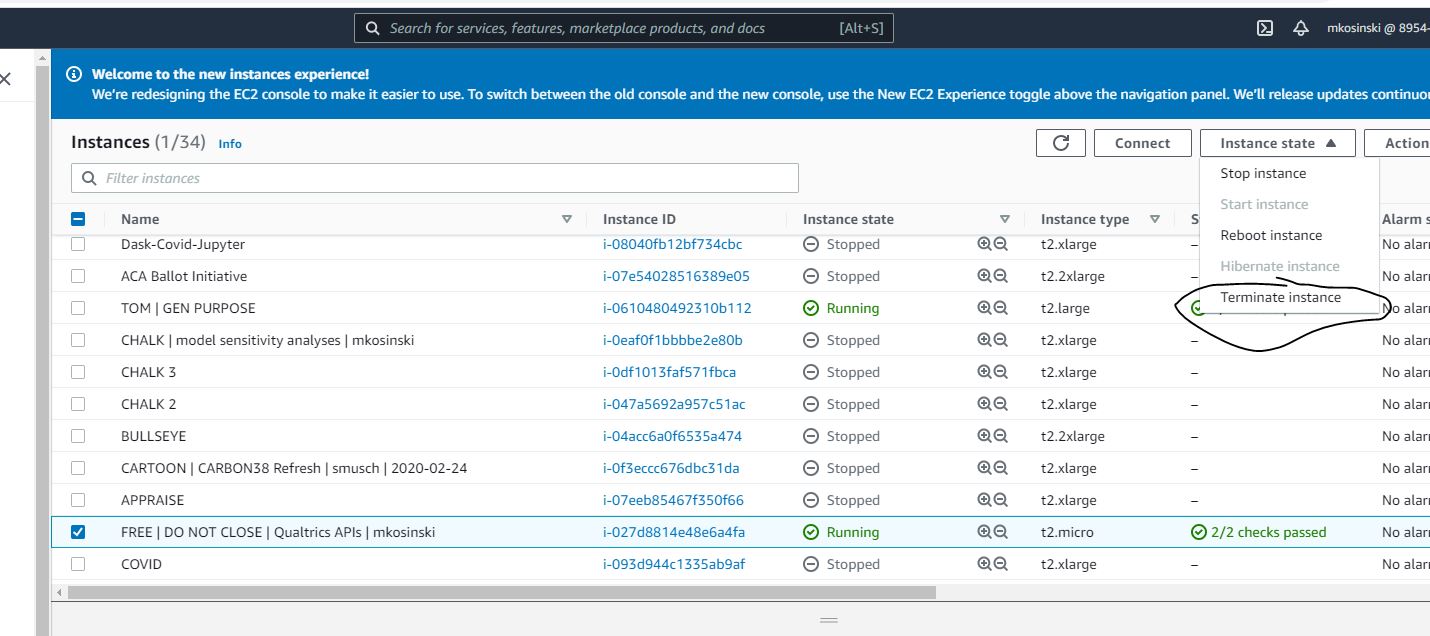
AWS EC2 console, select the machine, and then on an upper right corner pick Instance State -> Start Instance. It will need around 2 minutes to launch.
When a machine is started, go to
AWS EC2 console and check machine’s Public IPv4 address
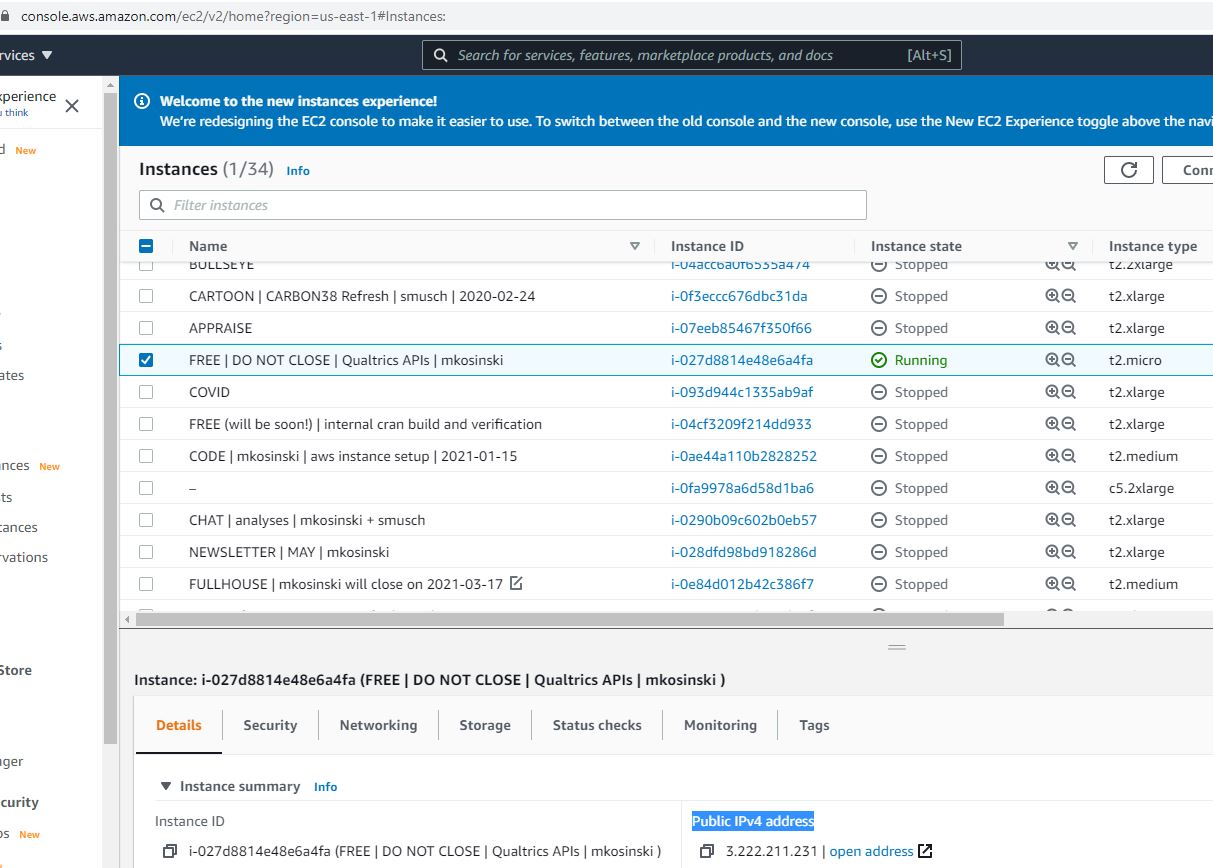
This is the address to copy into your browser to be able to log in into RStudio Server.
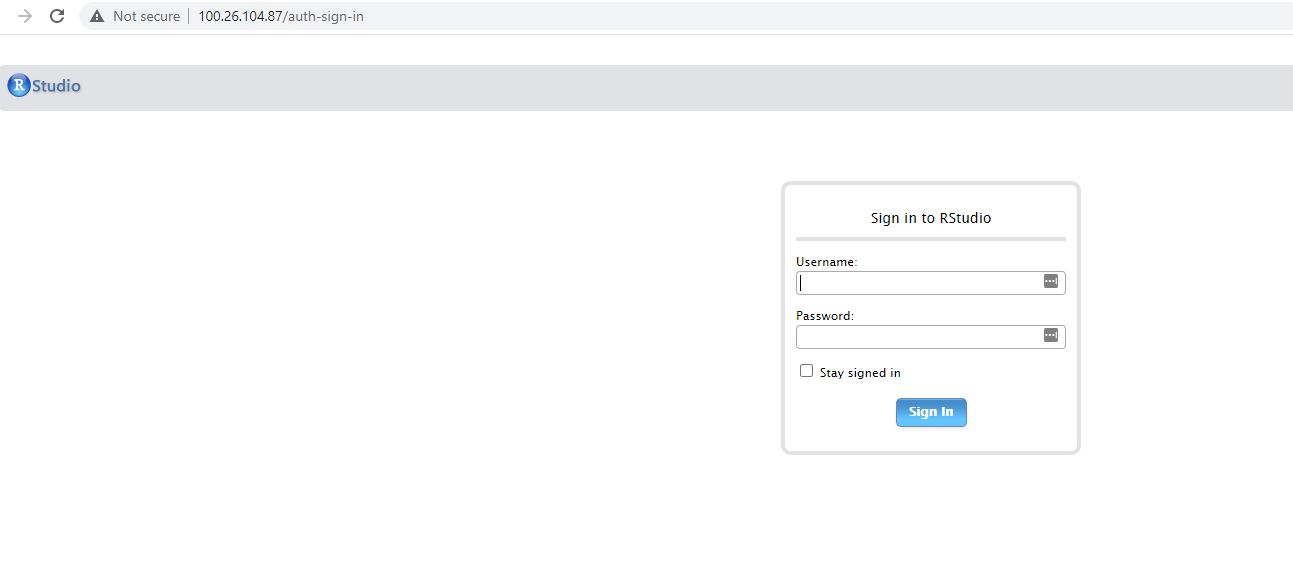
Then you can provide a username and the password from How to run an EC2 box section.
user ‘rstudio’
password ‘i-0ae44a110b2828252’
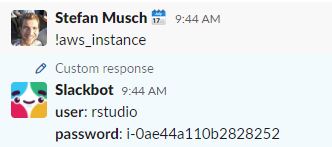
It is also stored as a Slack notification. Every time you write !aws_instance on Slack, it will bring back the credentials.
Every project started in g6tr/packages/g6tr.projects/vignettes has, by default, an activated renv ecosystem. This means that most of the installed and loaded packages are taken from the pre-installed cache. It also allows to create a file with direct versions of packages used for R projects. This aims to provide reproducibility in the project and aims to reduce the time of packages installation as most of them will be taken from the cache.
Once you are done for today, you can close the machine from
AWS EC2 console by selecting the machine, and then on the upper right corner picking Instance State -> Stop Instance.
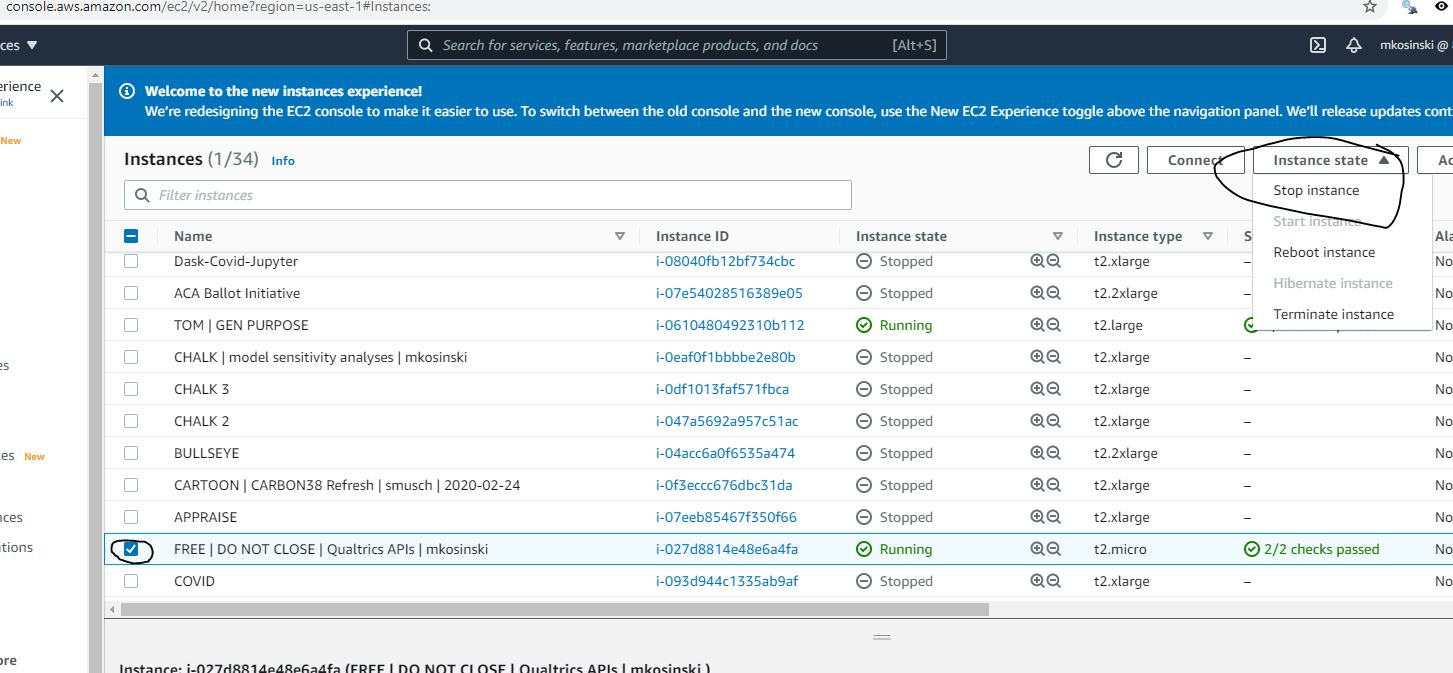
If you ever think you no longer need the machine, you can terminate it completely.
AWS EC2 console - on the upper right corner pick Instance State -> Terminate Instance.