Conjoint Tutorial
Every Conjoint analysis consists of several steps. To assure that the projects are going smoothly, we should be aware of the crucial parts of each step. In this tutorial we briefly outline each step and give advice of what to do and what to check at various steps of a Conjoint analysis.
When planning the analysis, consider the following factors:
- Number of Attributes: Keep it simple. Limit the number of attributes and their levels. Avoid grids with more than six attributes and six levels per attribute.
- Categorical Attributes: Ensure that they don’t overlap, which can lead to confusion. Try to avoid overly obvious levels or very specific ones.
- Continuous Attributes: Check if the range, especially for attributes like price, is realistic and meaningful for respondents.
- Prohibitions: Be on the lookout for combinations that create unrealistic scenarios. If they arise, consider using prohibitions or adjusting the attribute map.
- Number of Respondents and Demographic Groups: It’s crucial to have a sufficient number of respondents. Aim for over 1000 for the overall population and 250 for specific demographic groups. Low numbers may result in less robust results.
Use our design templates to keep your Conjoint specifications in order.
- For studies with only brand and price: BPTO Template Link
- **For all other studies: ** Multi-Attribute Template Link
After establishing the attribute map, you must choose a design algorithm. Here are some options:
- Partial Profile: Use this when dealing with many attributes. Show only a subset in each conjoint task.
- Alternative Specific Design: If you have numerous prohibitions, consider this approach. It allows each alternative to have its unique set of attributes, even if some levels overlap.
- Balanced Overlap or Complete Enumeration Design: For standard full-profile designs without prohibitions. The former has less restrictions on attribute levels overlapping between alternatives, while the latter avoids it. The balanced overlap algorithm works well when certain attributes are expected to dominate, but results with less accurate utilities estimates.
For more details please see: Handbook: Designs in Displayr
After creating the design, copy it to the template’s Design (A) sheet. We have a dedicated AWS Instance for setting up the API ( http://54.166.240.63:2000/auth-sign-in). The necessary code for previous designs is available there for reference.
After creating the design, generate random responses to the conjoint tasks and run the model. In an ideal scenario, the model’s RLH (Relative Log-Likelihood) should be close to 1 divided by the number of alternatives. However, in practice, the model may overfit, leading to a higher RLH. If the RLH is excessively high (e.g., 0.8 - 0.9), consider adjusting the number of attributes, alternatives, or tasks.
To determine what specific conjoint elements a respondent sees (per the design file), we first need to set up some variables that will be necessary to access the right part of the design file. Ask yourself: what variables in the design file determine what a respondent sees? This almost always includes a Version variable. Versions specify different combinations of levels from the conjoint attribute map for every task a respondent will see. Sometimes, conjoint design files are also determined by geographic market or some experimental variable.
Once you’ve determined the necessary embedded fields, add a mechanism for determining what version respondents receive. For example, in the following survey flow, you can see that respondents are randomly assigned Version values (that will, in turn, extract different combinations of the conjoint attributes).
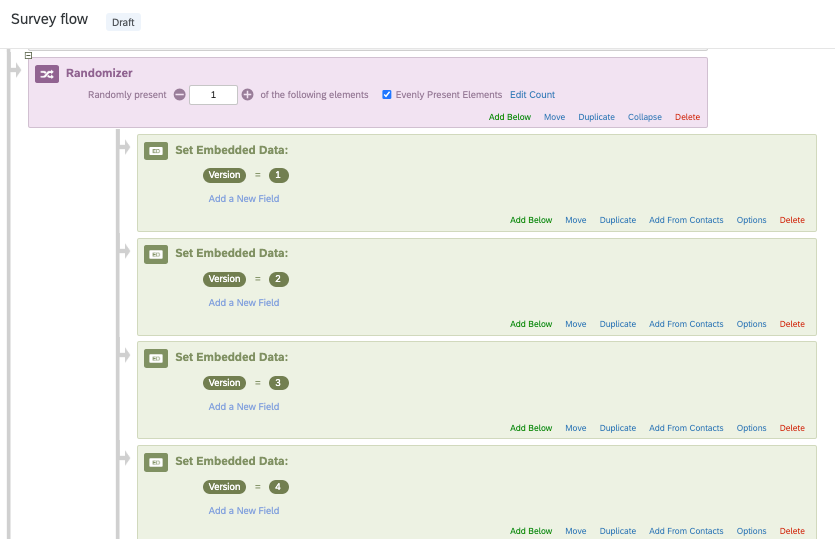
Add 'Version' Embedded Data
After ensuring the survey flow includes necessary inputs to access a design file, you need to set up the proper embedded variables that will be populated in the choice tasks.
In the survey flow, set up a web service. In the URL box, add the API url, with an example query parameter included. For example, in the screenshot below “?Version=10” is appended. Set the method to “GET,” and add any additional query parameters using “&country=US.” These are examples and you will need to adapt depending on your specific design file. Then click “Test.”
Warning: If you don’t add an example (but real) query parameter, you will not be able to access the design file and follow the next steps.
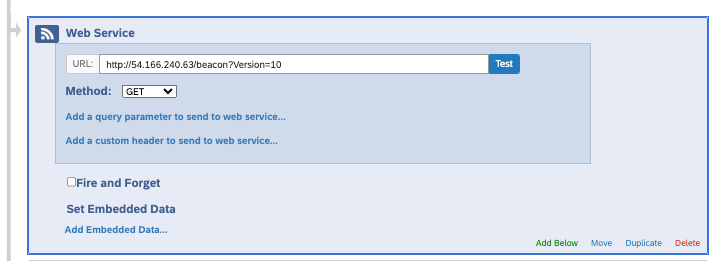
Web Service API
After you click “Test,” you will see something like the screenshot below.
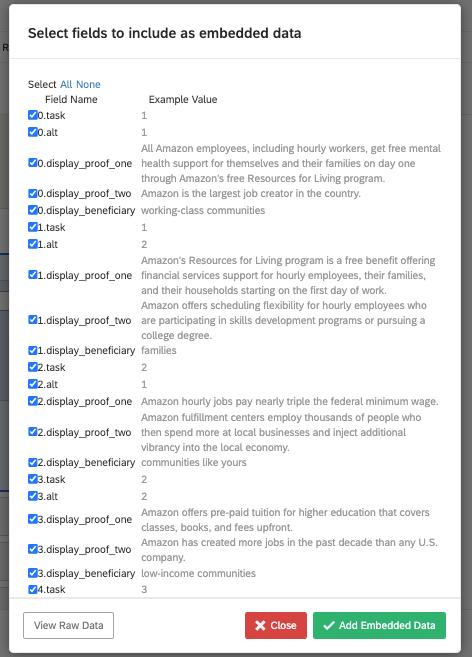
Web Service Embedded Data
Click “All” as in “Select All” to select all of the embedded data field checkboxes. Once you select “Add Embedded Data,” all of the design file variables will be automatically created in your Qualtrics survey (see screenshot below). Respondents’ values will populate with the corresponding levels from the design file that they are assigned.
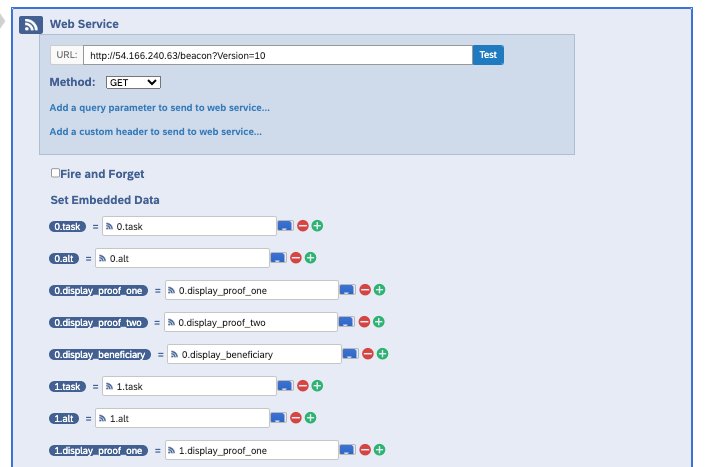
Web Service
Warning: Make sure you remove the appended query parameters or else every respondent will receive the exact same design file.
Now that you have all of the components you need from the design file. The next step is to call those embedded data elements into choice tasks the respondent will actually see.
Create a loop & merge block. For the Loop & Merge fields, include the choice task in the first column, and then include the necessary embedded fields to the remaining fields. Take proper care to ensure that you call embedded variables using proper Qualtrics formatting like below.
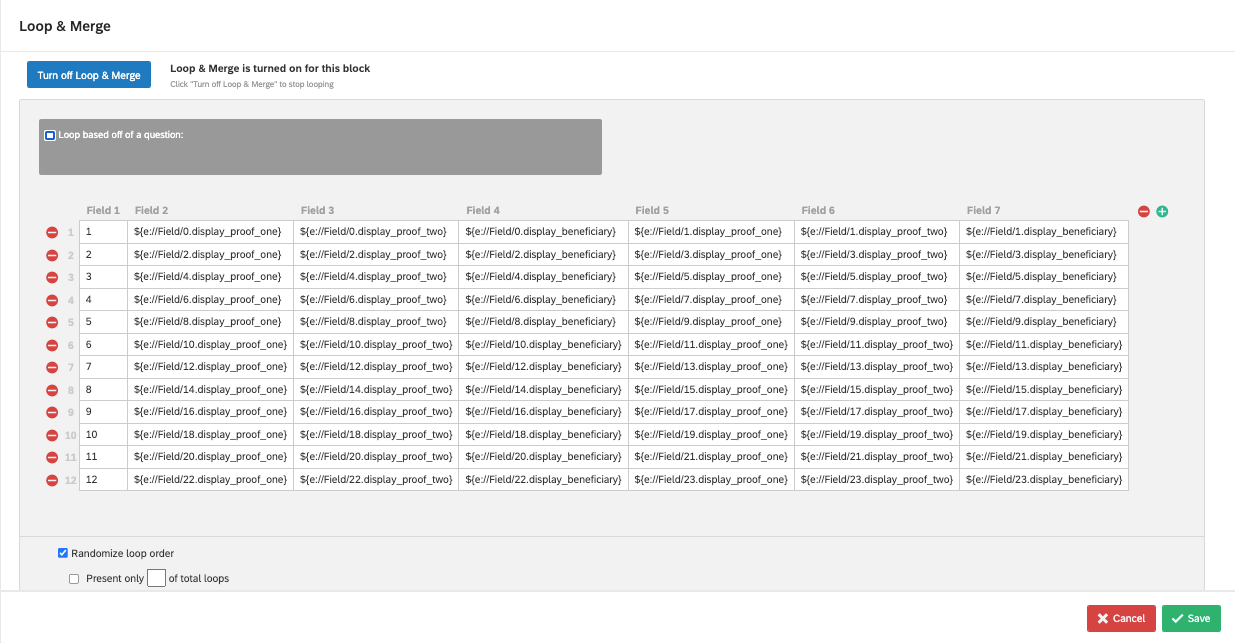
Loop & Merge
Use CSS / HTML scripts to display the conjoint and Insert Piped Text to insert the specific loop and merge elements that correspond to the proper attribute. Namely, “${lm://Field/2}”.
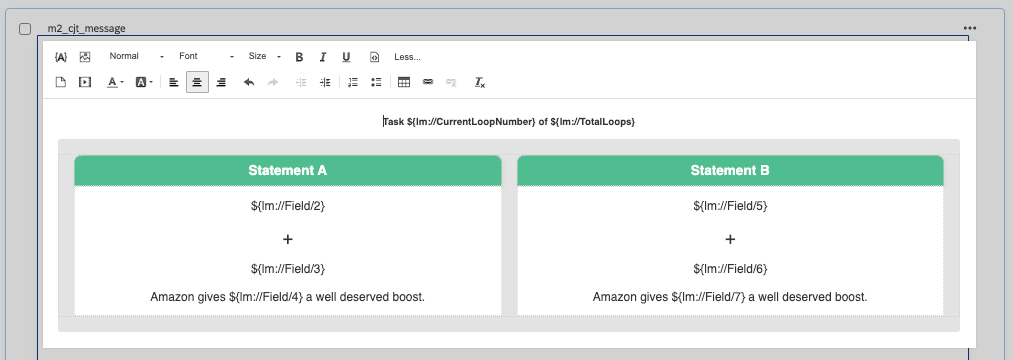
Choice Task HTML
After programming, manually verify that the survey tasks align with the design. Utilize the Viewer sheet in the design template for easy comparisons.
Use MTurk to validate data collection.
By the time you reach the Soft Launch data phase, ensure that the tasks are presented correctly to respondents, and data collection proceeds smoothly. Assess respondent behavior:
- Check for signs of misunderstanding.
- Watch for indications of disinterest or random responses.
- Ensure that responses align with common-sense expectations.
The level of scrutiny may vary depending on the specific conjoint study and your experience.
For Partial Profile models, use the STAN model as it tends to produce stable results. In other cases, employ the choiceModelR package. Run multiple models with different starting seeds (typically 5-10) and average the output for reliability.
- For modeling details using choiceModelR: Modeling Details
- For specifics on running Partial-Profile models: Partial-Profile Model Details
If model reruns appear unstable, investigate whether certain demographic groups are causing this. For example, in an attribute involving alcohol, you might observe varying preferences between Polish and Spanish groups. Running separate models for each group and then combining the results can enhance stability.
After modeling, perform these crucial calculations:
- RLH of Models: Check if the model fits the data well. It should fit significantly better than a model with random data.
- Attribute Importance and Level Probabilities: Determine which attributes matter most and the probabilities associated with different attribute levels. This helps in data interpretation.
For example, when assessing pizza, the attribute “toppings” may have pineapple with a lower level probability than pepperoni due to common (bad) taste preferences. It’s also typical to expect that higher prices lead to lower level probabilities (if prices are discrete) or negative price utilities (if prices are continuous).
For details on calculating and interpreting attribute importance and level probabilities: Extracting the Stats
Our Share of Preference calculations depend on the model and objectives. For models without price, we use the cjt_sop_categorical function to identify combinations of attributes that maximize the probability of choosing the concept over opting-out.
For details of this procedure: Finding Optimal Bundle
If the model includes price, you have two options:
- Estimate Willingness to Pay (WTP): Determine the value and use it as the price in specific concepts. For details on these procedures: Running a Conjoint Study with Price
- Use a Range of Prices: This allows you to assess price elasticity for each concept. **For details on these procedures: ** Price Elasticity
For Head to Head analysis please refer to the Head to Head Analysis Workflow.
Finally, part of the final analysis may require providing plots and a conjoint simulator. Details on preparing data for DisplayR can be found here:
Support your analyses with relevant plots, such as those showing:
- Attribute Importance
- Level Probabilities
- Price Elasticity (if included)
- Share, Revenue, or Profit vs. Price (for pricing studies)
For more guidance on this, refer to our vignette:
For answers to common questions, check our Conjoint FAQ.