Finance Day(s)
This document serves as an overview of tasks done on “finance days,” also know as Money Monday, Wealth Wednesdays, and Finance Fridays.
- Review open invoices in Quickbooks: Sales > Invoices > Status: Unpaid > look for statues that are “Sent” or “Viewed”
- Reconcile any Unbilled Income: Sales > All Sales > Unbilled income
- Match any new payments with invoices: Transactions > Bank Transactions> For Review: look at both Wells Fargo accounts
- Review, finalize, send client invoices due to be sent
- Reconcile with Opportunity Tracking
Vendor Invoices
- Review vendor invoice submissions, submit new ones to bill.com
- Review if submitted vendor invoices have been paid, update the status in the Finance sheet
- Categorize or match any new transactions: Transactions > Bank Transactions
- Are there any odd charges?
- Update any categories that are incorrect
- Track consistently incorrect categorizations, remap if possible
Cash Flow Frog
- Review cash flow, note any concerns
- Update projections (cash out)
- Review existing or add new passthrough expense projections
- Remove any obsolete projections (either no longer apply or the cash out/payment was properly attributed)
- Review bills: not all bills will be listed, only those which have been synced with QB
- Quick look at Customer Insights
- Send reminders to staff to update transactions information/attachments
- Reconcile any odd transactions (such as billable transactions that are not categorized correctly)
- Reach out to any staff with questions on specific transactions
All Gradient staff follow the instructions on the How to Use Ramp handbook page for all transactions by the 5th of every month.
- Recommended to send reminders to all staff on (or near) the 1st of the month for transactions that are missing supporting information.
- Click Transactions in left menu
- Click Missing Items
- On the Business Missing Items, click Remind [Name] for each Gradient staff with missing items
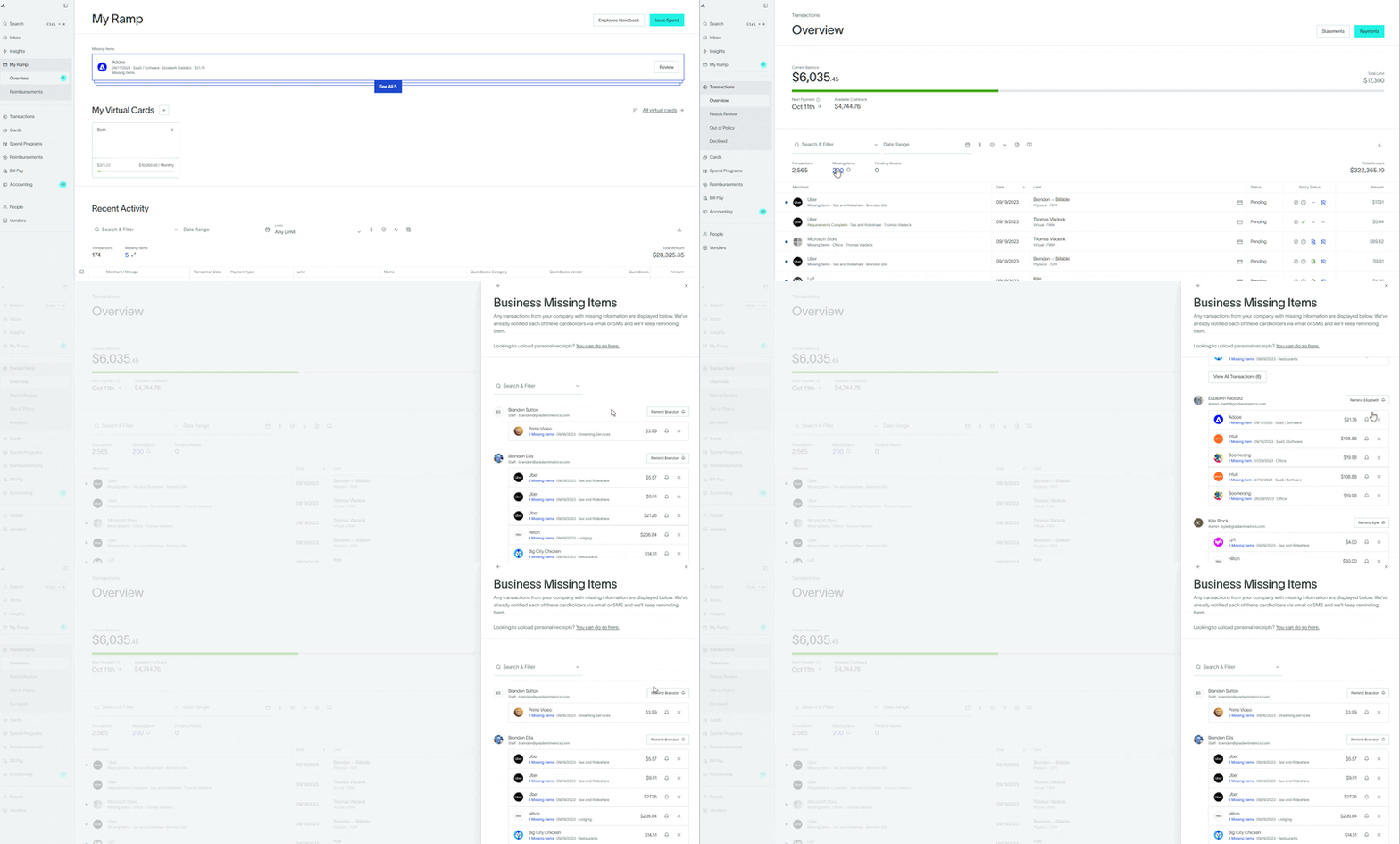
-
After the 5th of each month, but prior to the 10th, review all remaining transactions to confirm and/or update the following fields:
- Quickbooks Category: Sometimes the Ramp category, which is based on how the credit card company choses to categorize the transactions, is incorrect and translates badly to the Quickbooks Category. While it is Kruze's responsibility to reconcile the transactions in Quickbooks, they are often categorized incorrectly. Making sure that transactions are categorized correctly in Ramp before syncing 1) means less work (time) for Kruze and 2) ensures more accurate categorizing and, therefore, financial records.
- Receipts: If the transaction is over $75, reach out directly to the Gradient staff member and request they upload the receipt ASAP.
- Quickbook Customer/Job And Billable?: This is very important.
- If you know a transaction is supposed to be billed to a client, select the correct Quickbook Customer/Job (usually the project name) and under Billable? select Yes.
- If the transaction isn't billable this isn't as important, but it is good to select None under Quickbook Customer/Job and then Billable? will grey out.
-
Kruze will sync all new transactions with Quickbooks shortly after the 10th of the month.
- Once syncing is complete, staff with be unable to update all transactions other than uploading a receipt.
- Staff should be encouraged to upload receipts even after syncing.
- If a billable transaction has been synced without the correct labeling, manually change it in Quickbooks or reach out to Kruze to make the change.