How to Use Ramp
Gradient uses the Ramp platform to manage employee-incurred expenses. During the onboarding process, you will receive an email invitation to accept your new virtual credit card and activate your Ramp account.
Only employees who regularly travel for client meetings and other billable work will be issued physical company cards.
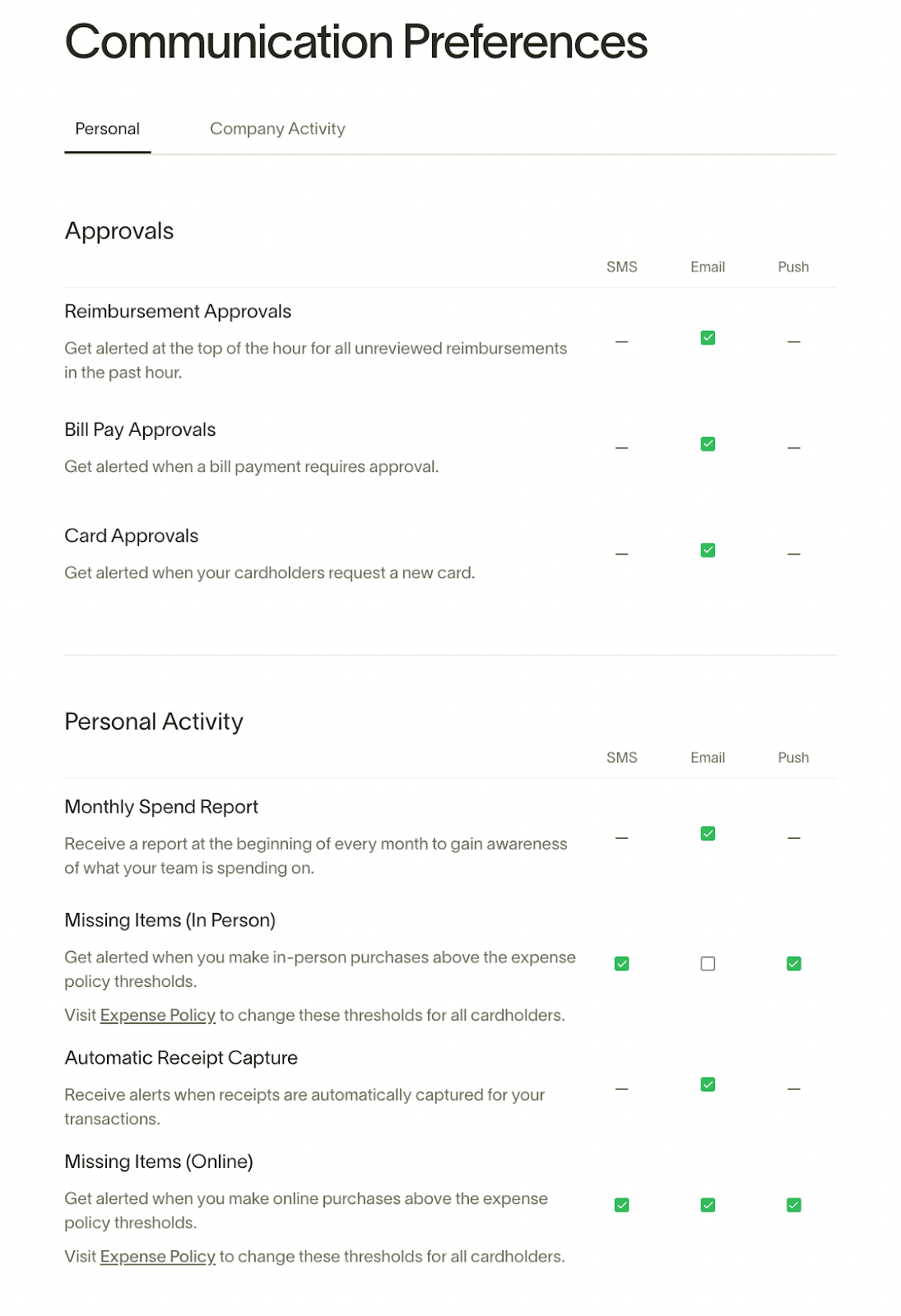
Set your communication preferences for when and how Ramp reminds you to submit receipts and other required information for your transactions (both in-person and digital). Managers will also see preference settings for applicable approvals (reimbursements, cards).
When you log in to your account, your dashboard will clearly display your assigned cards at the top of the page. If you have more than one card (ex. a virtual card, a physical card, etc.), they will all display in this section.
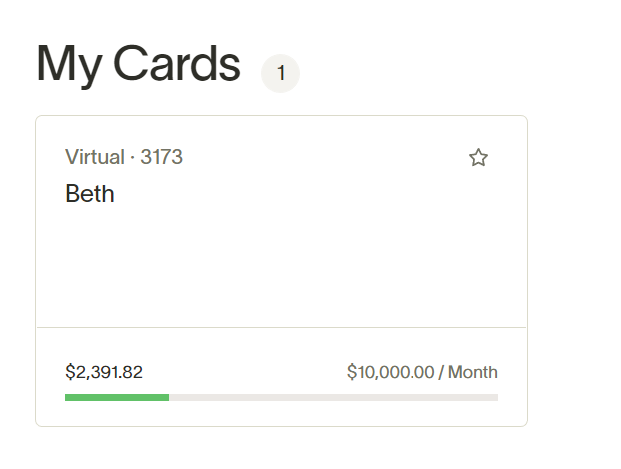
To use the card, click the card you wish to use and a sidebar will appear with overview and history tabs, a box with your card information (with card information hidden for security purposes), the billing address, the card policy, and recent activity information. If you click on the card box, all the card information will display for you to copy and paste into wherever you are making the payment.
When you use your Ramp card, you will receive a notification depending on your communication preferences settings to provide the following information related to the expense.
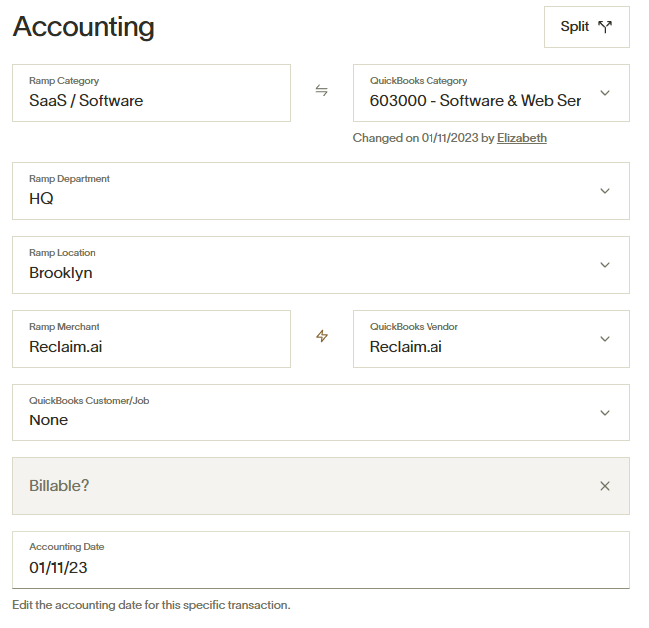
Many of the fields will be auto filled, such as Ramp Category, Ramp Department, and Ramp Location. The system does an amazing and accurate job of auto filling but doesn’t always get it right! Your job is to confirm the correct category has been selected and complete the required fields listed below.
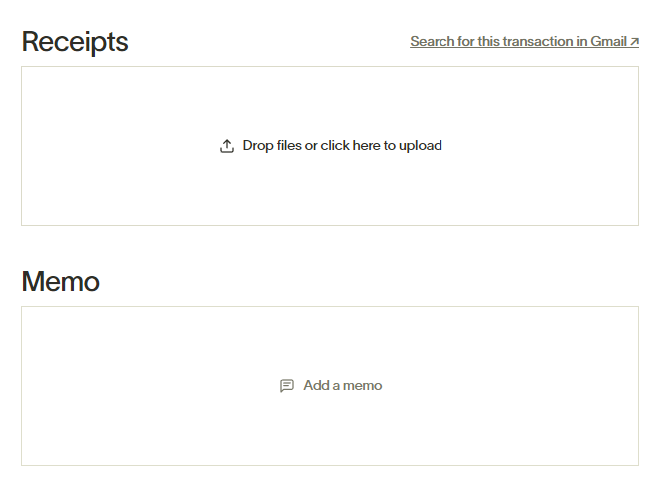
- Required for transactions over $25 UNLESS it’s billable, then we always need a receipt. See below for instructions on how to record receipts.
- You can add more than one supporting receipt/document, if necessary.
- Required for transactions over $25 UNLESS it’s billable, then we always need a receipt.
- Be succinct!
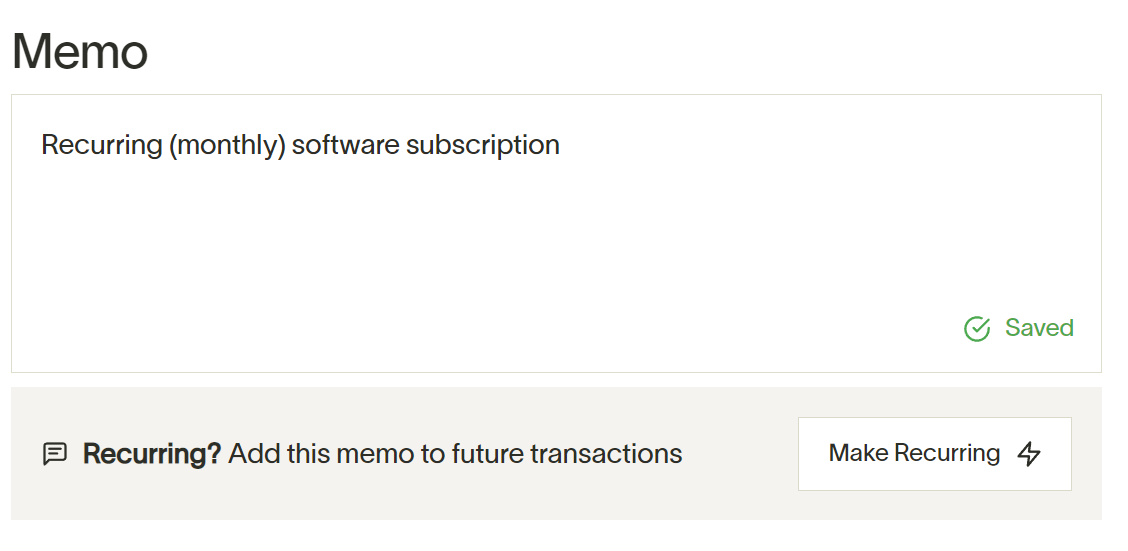
- Examples: “Monthly recurring software subscription,” or “Lunch during travel to NYC to meet [client].”
- Required for transactions of any amount.
- Categories are integrated with tracking spending, budget tracking, and budget management in QuickBooks. The category options in Ramp are limited to only those that you should be using with your card. If you feel like there is a missing category, contact Operations.
- The category is often automatically selected by the system based on past selections.
- Always confirm even if auto selected!
- Examples: Software & Web Services; Meals; Billable Travel Expenses
- Required for transactions of any amount.
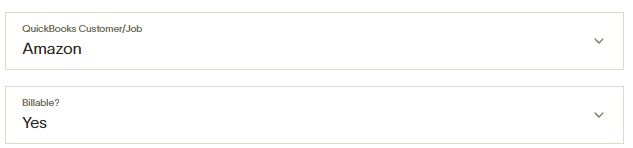
- Client or Project. These are populated from the integration with QuickBooks. Examples: Company: Amazon, CZI; Project: Smrt, Magnolia
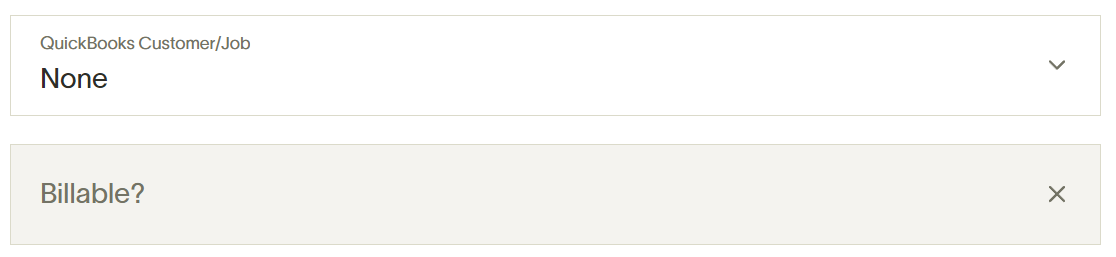
- IF NOT BILLABLE, select “None.” You MUST make a selection in this section to fulfill the requirement.
- IF BILLABLE select the correct “job.” If you are not seeing the correct “job,” send an email to Operations.
- Required for transactions of any amount.
- If you have selected a Job above, select Yes under this section.
- This selection will be grayed out if you select None for the Quickbooks job and will fulfill the requirement.
As with virtual cards, many of the fields will be auto filled for physical card transactions. Make sure to complete the required fields listed below and reference the instructions in the virtual card section.
- QuickBooks Category required for all transactions.
- QuickBooks Vendor required for all transactions.
- QuickBooks Customer/Job required for all transactions.
- QuickBooks Billable required for all transaction.
- Memo required for all transactions.
- Receipt required for transactions of at least $20.00. See below for instructions.
Always keep your receipts! While the card policy may require receipts to be uploaded for transactions over a certain threshold, it is best practice to always add a receipt regardless of amount.
There are three ways to add receipts.
-
Send receipt to receipts@ramp.com. The system will automatically match the receipt with the transaction.
-
In the Ramp App on your phone, you can easily locate the respective transaction and either take or upload a photo.
-
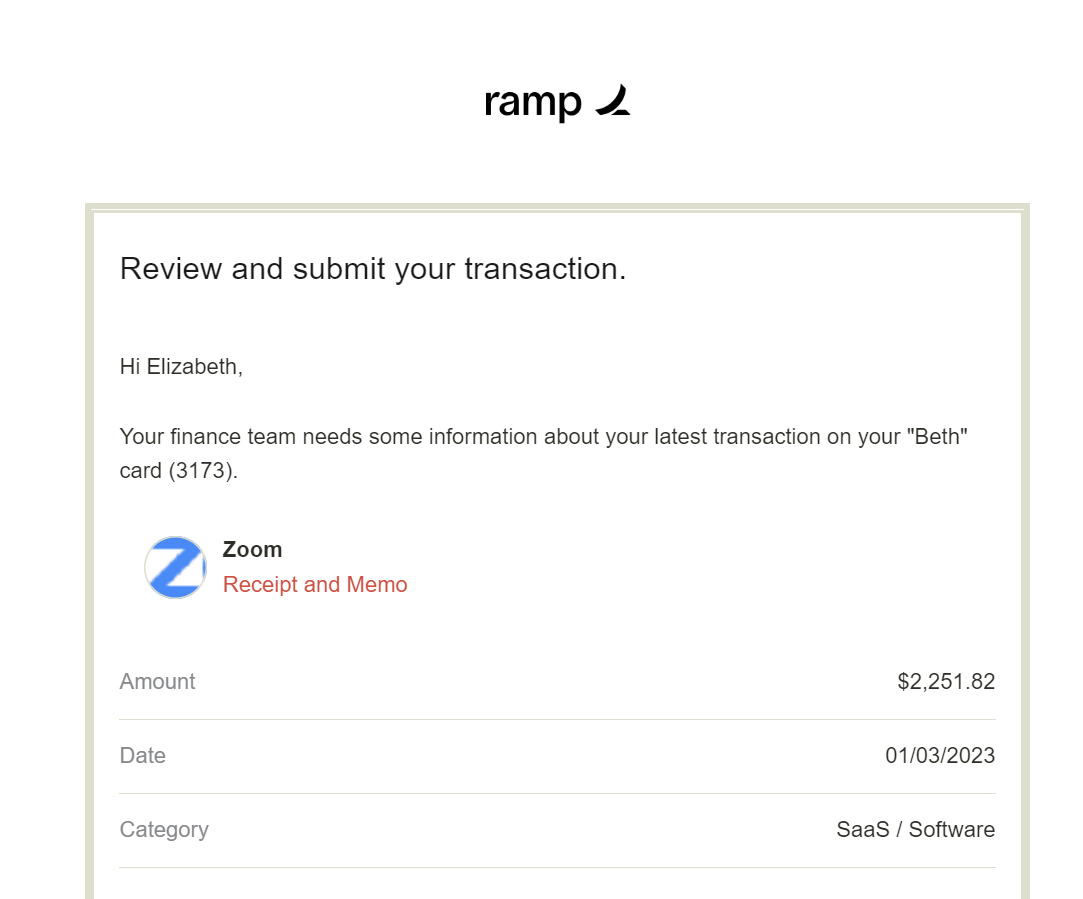
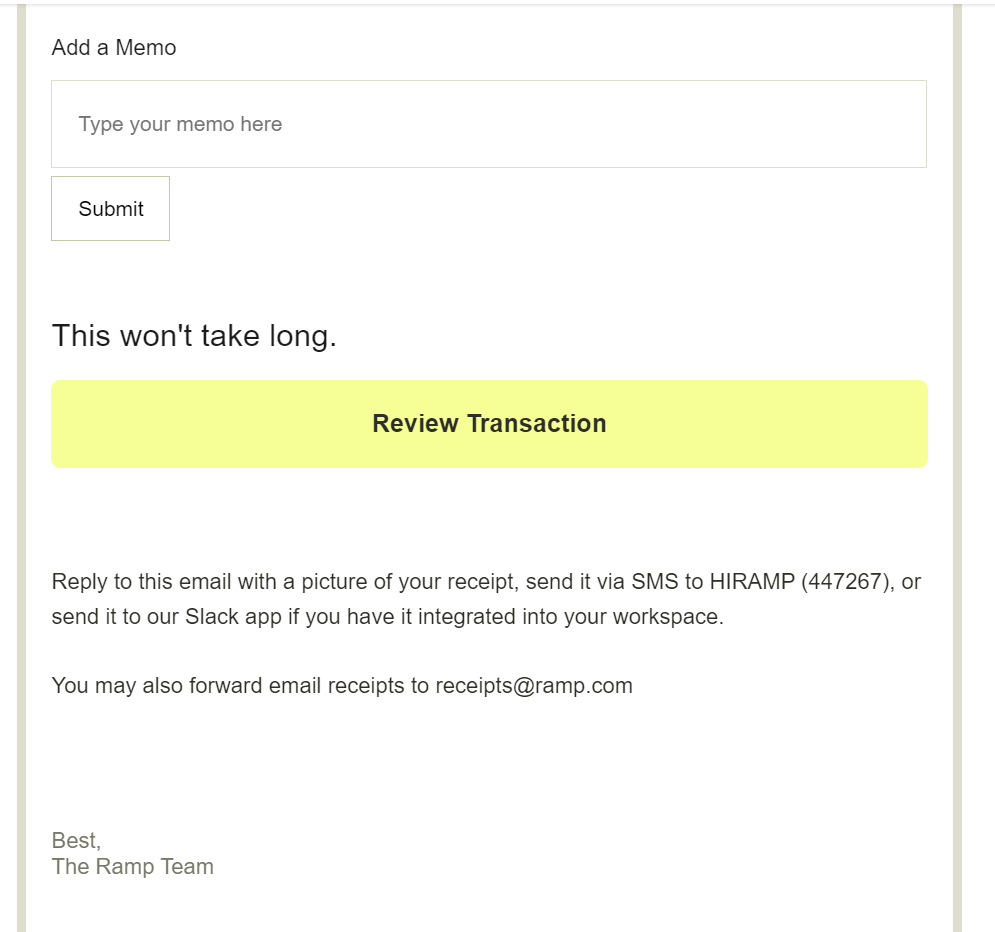
If you make a transaction that meets the requirements of the policy, you will receive a notification based on your communication preferences asking you to review, add required information, and submit. Click on “Review Transaction” and add all required information.
If you accidentally make a personal charge on your Ramp card, it is your responsibility to flag the transaction.
- Click into the transaction on your dashboard and click the orange ‘Flag’ button in the bottom right-hand corner.
- Click “Flag as accidental” and write a message around the details of the charge:
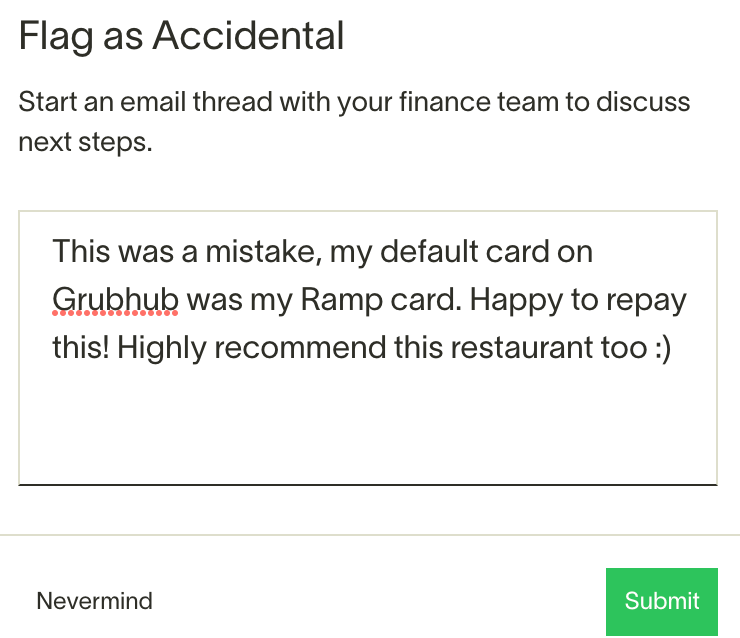
- After clicking “Submit”, you and your manager will be put on an email thread to discuss the transaction and how to remediate.
Most of the time, remediation is as simple as using Ramp to facilitate a repayment to the company. This process will be initialized by a Ramp admin after you have flagged the transaction. You will receive an email regarding the repayment requirement. Follow the simple steps to resolve:
- Sign into your dashboard
- Click on the “out of policy” transaction that needs to be resolved
- Click “Pay,” add your bank account information through Teller
- Click “Repay”
For more information, check out this video starting at 1:30.
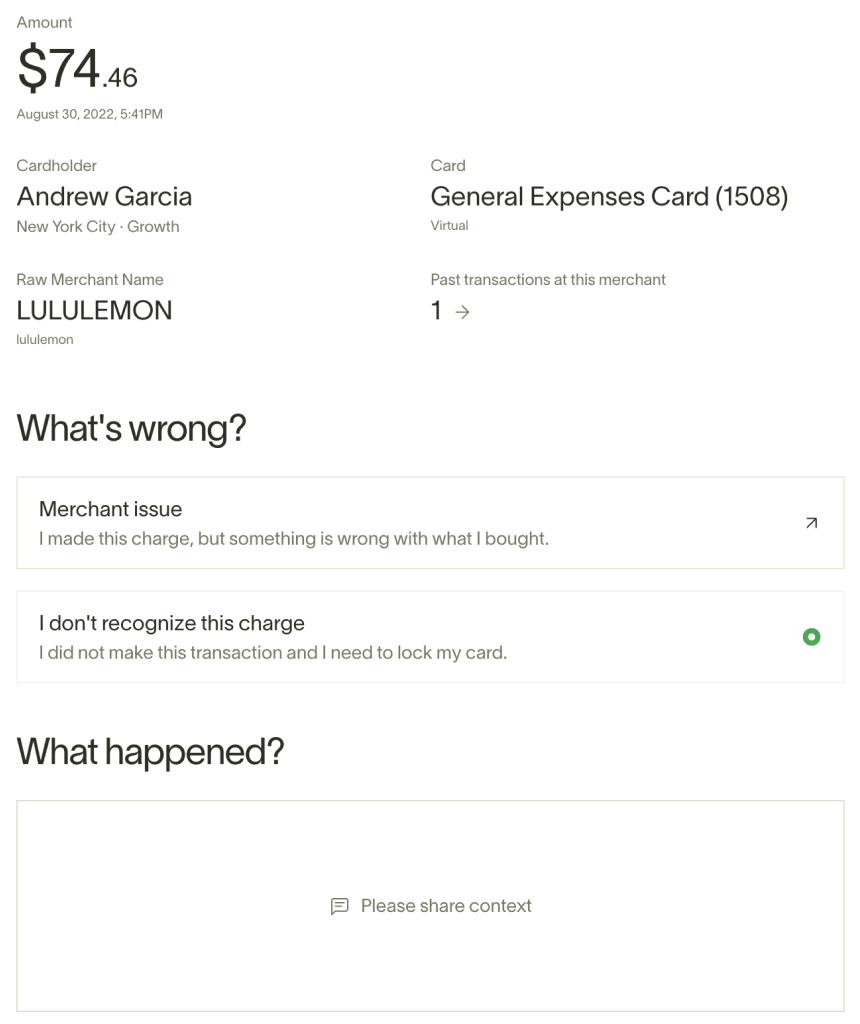
Cardholders can submit a dispute as an Unrecognized Charge if you suspect the transaction is fraudulent. Reasons may include, but are not limited to:
- Your card details were stolen and used fraudulently
- Your physical card was not in your possession and wrongly used
Make sure you make the Operations Team aware of this dispute ASAP so they can ensure the dispute process is completed.
You’ll be asked to provide a description of what happened and why you believe the transaction is fraudulent. Please be as accurate and descriptive as possible—the more information you provide, the greater the likelihood we can win the dispute on your behalf.
The card will be locked during the dispute process and, if the process determines that the card has been compromised, the card will be terminated and a new card will be issued.
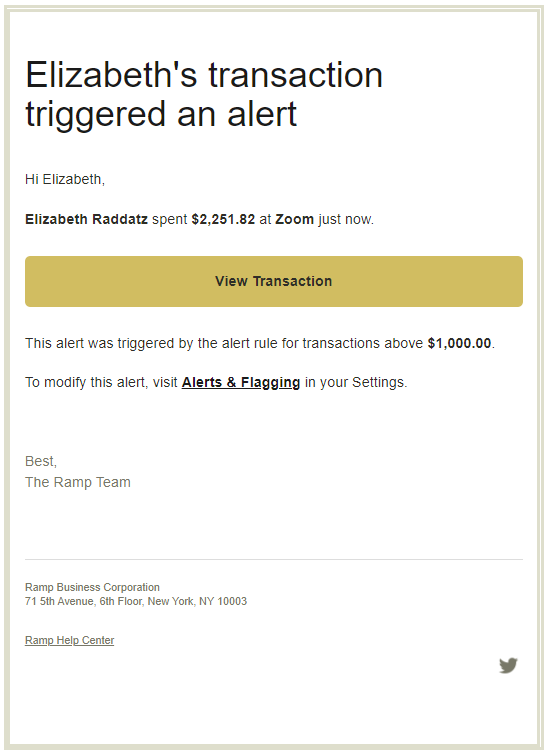
Any transaction above $1000 will send an alert to the Ramp admins. This helps catch overpayments, compromised cards, or open the door for any questions the admin or manager might have about the transaction.
You are always encouraged to use your Ramp card for all business transactions but when that is not possible (ex. you need to use a physical personal card to purchase something for your home office) you will need to upload your receipts for approval.
All reimbursement requests require the following:
- The expense incurred must be business-related
- A receipt or proper documentation must be submitted within 60 days of incurring the expense
- A memo must be entered
- Manager approval after submission
- Any excess reimbursement issued must be returned to the company within 120 days
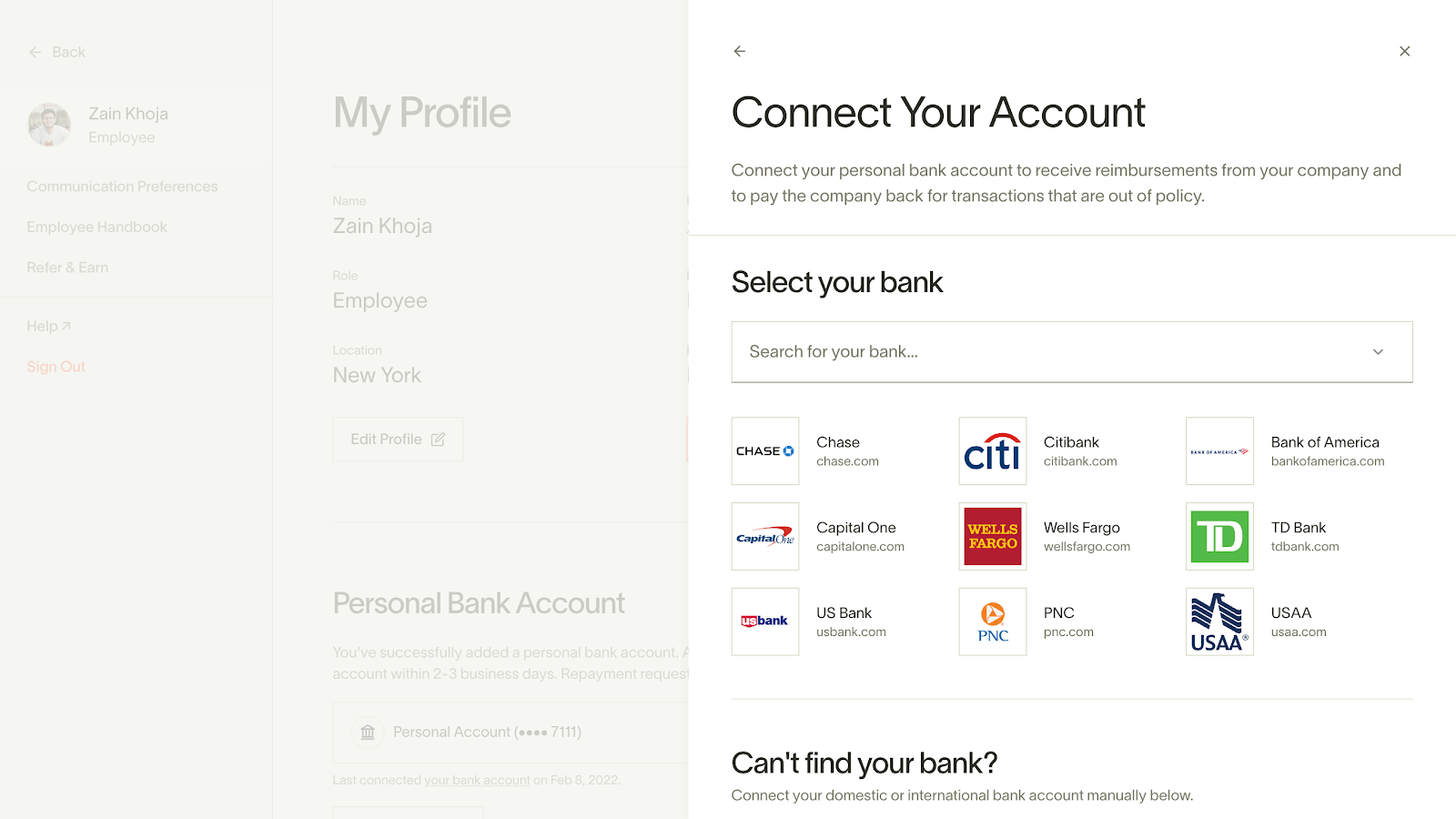
To receive reimbursement through Ramp, you will need to add your personal bank account information:
- Head to your Settings
- Click “Connect New Account”
- Enter your personal bank account details
-
Always do a quick review of all transactions, even if many of the policy requirements autofill.
-
Don’t let your receipts get backed up. Add them as you receive the email or check your dashboard on a regular basis.
-
If you have a recurring charge on your card for something like a monthly software subscription, you can set the memo autofill for those recurring transactions.
-
Make sure you confirm the memo is correct on all transactions, even the recurring ones.