The Project Startup issue type in Jira should always be used when kicking off a new project. This issue includes a Smart Checklist to work through all of the tasks outlined below.
Create a Codename
The first step to any successful Gradient project is a witty codename. Codenames serve a couple purposes:
They are a useful shorthand for quickly referencing projects
They ensure that we uphold security obligations to our clients
So think of a clever codename that may (or may not) be tangentially related to the goals or substance of the client project. Don’t think too hard though - Rorschach it if you have to.
Create a Project in JIRA
Setting up a project in JIRA is relatively simple thanks to a Gradient-customized variant of the Scrum Default Template. Follow the steps below to get a JIRA project and board up and running.
1. Create a New Project
Click the dropdown icon next to Projects in the green ribbon and select Create project
Click Scrum
Click Use Template
Scroll down and select Select a company-managed project
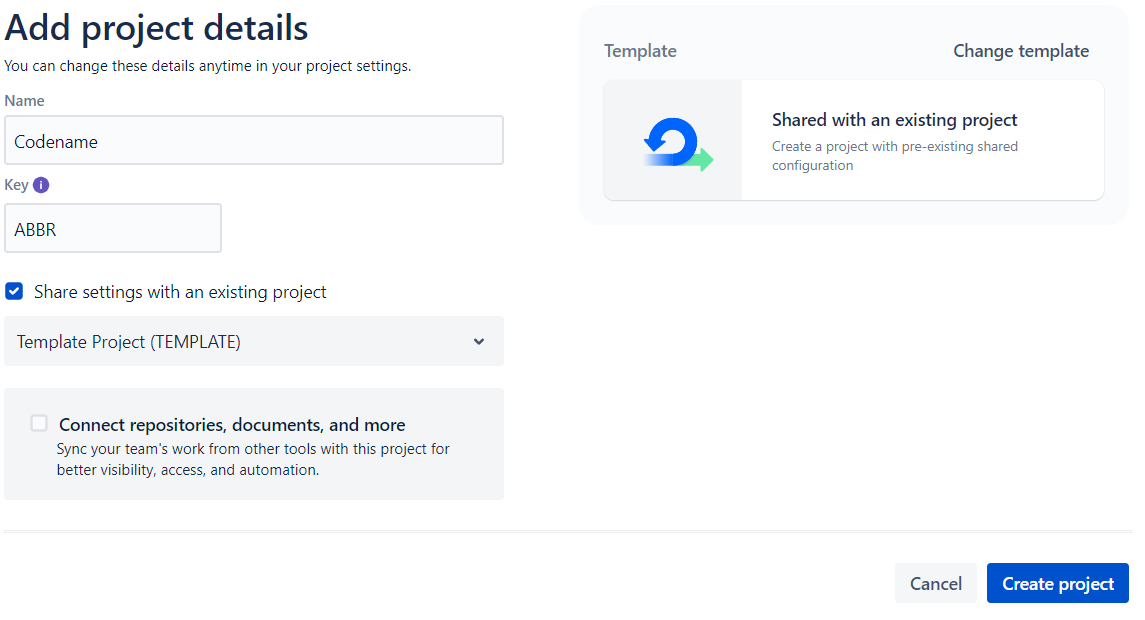
Input the new codename under Name and an abbreviated codename of about 3-4 letter under Key (this will be the prefix for all project issues)
Select Share settings with an existing project and type or select the Template Project (TEMPLATE)
Click Create project
2. Check Screen Settings for the New Project
Creating the project should take you directly to the new project, but if not, navigate to the new project using the Projects option in the top ribbon or using the Search function
Click Project settings⚙️ on the lefthand ribbon
Select Screens
You should see that the current setting is “Gradient Scrum Issue type Screen”
See something other than “Gradient Scrum Issue type Screen” (e.g., Default Issue type Screen)?
Click Actions in the upper-righthand corner and select Use a different scheme
Use the dropdown menu to select Gradient Scrum Issue type Screen and click Associate
3. Customize the Project Description, Avatar, Etc.
From the Details screen on the lefthand ribbon, you can update several fields
Project name
Key
Project category (internal or live)
Project avatar
Project description
Project lead
Default assignee
At a minimum, it is recommended that you briefly summarize the project with Description, change the avatar by clicking select image
4. Create a JIRA Board
Next, you will need to create a board for your new project so that the new project can be incorporated into sprint planning.
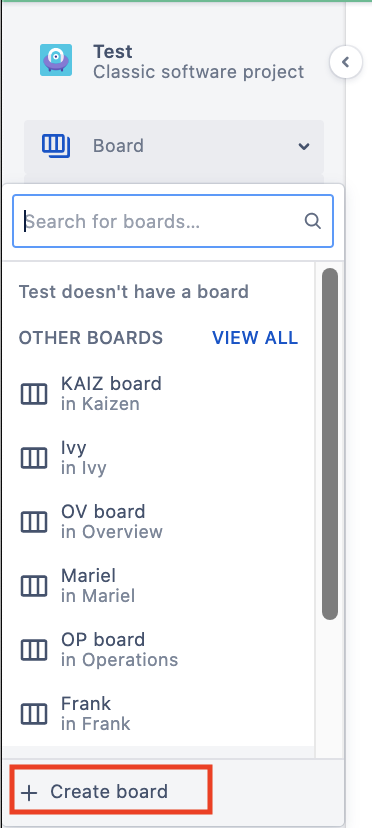
On the lefthand ribbon, select the dropdown menu next to Board and select + Create board at the bottom
Under “Scrum,” click Create a Scrum board
Select Board from an existing project and click Next
Under Board name type “[Codename] Board” and ensure that the Project and Location are associated with the appropriate project
Integrate into Slack
Next you’ll need to integrate your project into Slack so that the team can keep up a steady stream of commentary and relevant GIFs.
Begin by clicking the + sign next to Channels on the lefthand pane
Add the project codename and a description of the channel
Invite Gradient team members for visibility
Now, you can integrate Slack with your recently created JIRA project using the steps below.
Type @jiraintegrationplus and invite to channel
Click Configure Channel
Click Configure at the Notification pane
Add the project you created and only notify when:
Issue is created
Comment is added
assignee is updated
Send updates Immediatly
Message style Standard
Hit Save
Create a Google Drive Folder
After creating a JIRA project and integrating it into Slack, you’ll need to create a Google Drive folder to organize associated deliverables and documents (e.g., SOWs, surveys, syntheses). You can find more information about why we use Google Drive and how the folders should be organized in the
Google Drive Structure page.
Go to the shared
Google Drive and select the folder destination
If you are creating a project for an existing client (e.g., CZI, Populace), find their associated subfolder and create a new project folder within
If the project is for a new client, create a new client subfolder and a new project folder within
Set Up AI Project Folder with Materials
Next, you’ll set up a shared ChatGPT project folder and outfit it with the materials it needs in order to immediately operate as a “Gradient-smart” intern.
Create a Shared Folder
💡 Tip: We have created a Template Project Folder for you to reference the setup as you create your own.
In ChatGPT, select New Project in the sidebar
Enter the project codename
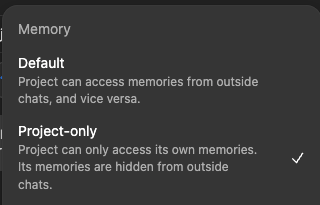
Click the ⚙️ gear icon (if in your browser) or More options (if in the app), and change the Memory setting to Project-only
Select Create Project
Click Share
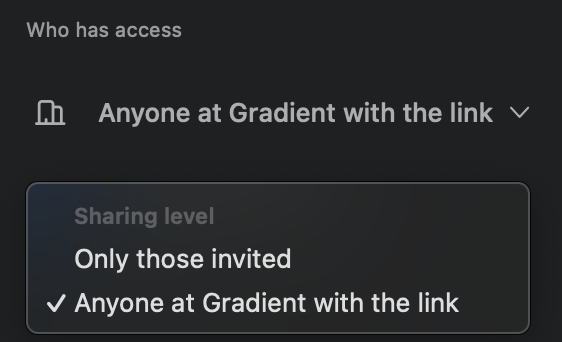
Invite the Gradient team members by adding their email addresses, and toggle the Sharing Level to Anyone at Gradient with the link
Upload Materials to the Folder
In your new project folder, click Add Files and upload the materials outlined below.
Upload Gradient’s standard AI starter kit:
Consolidated AI & LLM Materials.pdf. This is a consolidated PDF that contains Gradient-specific LLM training reference (housed in the
AI & LLM Materials folder on the Drive):
a. LLM Personal & Project Instructions
b. LLM Deliverables Examples
c. LLM Email Examples
Reference
Projects in ChatGPT for more information on how projects work in the platform.
Prepare Project Playbook
For each project, create a Playbook. The purpose of a Playbook is to capture pertinent details around deliverable specs, stakeholders, research objectives, and to collect project materials in one place. Our
Project Playbooks Airtable base houses all of this.
Begin by submitting a
Form. All you need to do to create a Playbook is select the project, however you can also fill in the non-required fields if you have the information (and time).
Once the entry has been made, the Playbook will populate in the
Playbooks page. There, you will be able to edit all of the details for your project. This information never “locks”—it remains editable so you can always add to it and keep the details up-to-date throughout the project lifecycle.
Throughout your project, use the various forms in the base to easily capture:
Move to the top of the channel and select the ➕ sign
Add the Project Playbook and the Google Drive links for easy reference
If you have created a project timeline Gantt chart in Airtable, attach that as well
Add any other quick links that may be useful
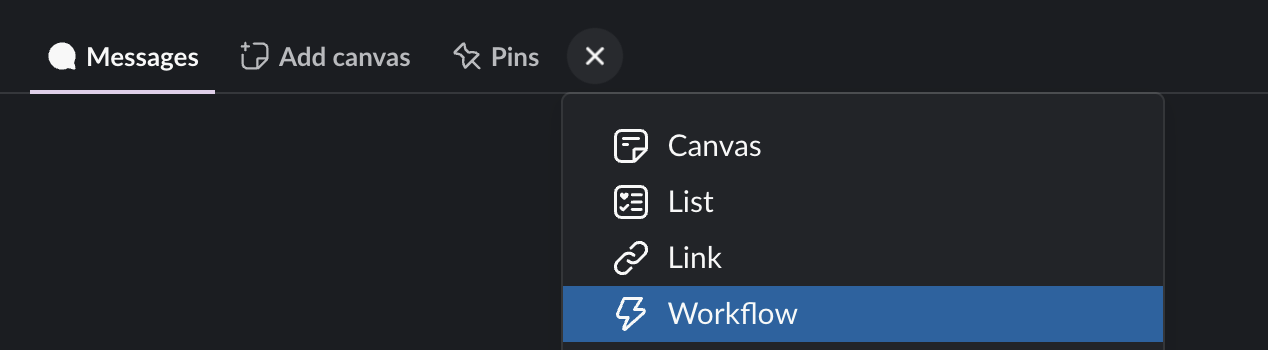
Add the Red Button workflow to your channel by clicking ➕ Workflow, selecting Red Button, and clicking Add.
As a reminder, this workflow can always be accessed through the chat whether or not it’s attached as a bookmark. In the chat window, similarly click the ➕ sign, and select Workflow. Then select the Red Button workflow and click Insert. This workflow is triggered by a link, so the link will populate in your chatbox to click and run.
Create a Google Group
Next, you’ll create a Google Group to ensure all Gradient team members have full visibility into project communications. Google groups are essentially shared email addresses that are included on all project communications so that every member of the Gradient team can access potentially critical project information.
Make sure the codename and email address match the JIRA and Slack channel names
Input a short description of the Google group (e.g., “To facilitate transparent communication for project [codename]”
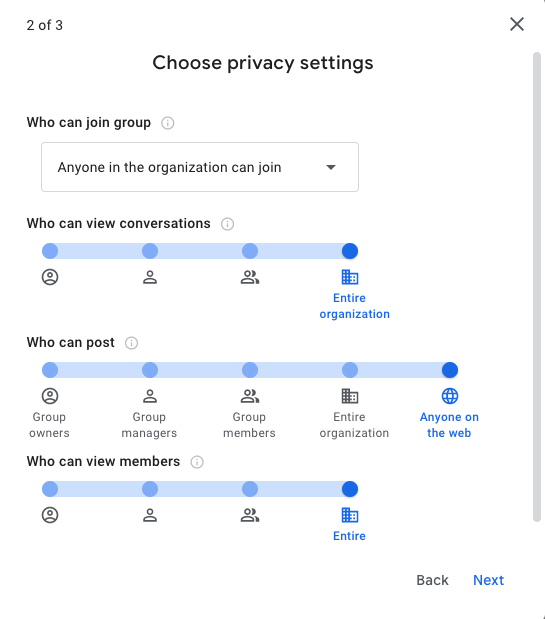
❗ VERY IMPORTANT: under Post, select Anyone on the web or else anyone outside of Gradient will get a bounce-back email
Create the Google Group and invite all Gradient team members to join
Create & Add a Roadmap to JIRA
Now that you’ve created all the necessary infrastructure for your project in JIRA, you’ll want to add a roadmap of all the issues to successfully deliver results to the client. You can go to your Project Google Drive and right click to create a Sheet from Template and select the Jira Roadmap Template. See additional details and a link to the template in the
Jira Hygiene & Best Practices page.
💡 Tip: Once your roadmap is complete, follow these instructions to bulk import all of the issues at once.
We have come a long way in creating and implementing checklists for various issue types, including:
Survey: Programming
Survey: Data Collection
Synthesis: Ghost Deliverable
And many more!
Use pre-existing issue types other than Stories as much as possible to access these checklists and ensure all required steps are completed. See here for more details on
issue types.
Consider Releases
In addition to the individual issues that go into a project, a project itself can be broken down into larger milestones, or what Jira calls Releases or Fix Versions. These typically represent the stages that a project goes through to reach the final deliverable. Jira automatically creates the releases listed below as these are largely standard across our projects. Use these releases when building your roadmap.
Admin
Survey & Data Collection
Qualitative Design
Analysis
Synthesis
Ad Hoc Requests
Reference the Jira Hygiene & Best Practices page for further details on
releases as you build your roadmap.
Consider Reviews
Cloned issues for Review are no longer auto-created in JIRA once the status has been moved to “In Review.” If your work needs to be reviewed by someone else, they should ideally have a review issue on them. Please create these Review issues. Include them in your Roadmap, and of course create new Review issues as-needed throughout the project.
Story Points Impacts:
Your original issue should capture all of the Actual Story Points you incurred on it.
The Review issue will capture all of the Actual Story Points the reviewer incurred on it.
Add Recurring Issues (If Applicable)
Sometimes, we know a client is going to be demanding, and will take up a lot of your time. This isn’t typically accounted for in our sprints, as we don’t have a “client management” issue. However, if you think or know it will happen, you can create a recurring issue in Jira worth 3, 5 or 8 points depending on the time you think it’ll cost you.
This issue can automatically be placed in every sprint going forward. Make sure to add it in your roadmap and add it to the right release.
Create a recurring issue
Go to Apps → Recurring Tasks
Create Recurring Task and add it to the correct Jira Project
Fill out all the details in the recurring task and make sure to add a board & a future sprint with the pattern “sprint”;
Post Mortem Setup
At the end of each project, the team will meet to review how the project went. During this startup phase (part of the New Deal: Close checklist owned by Operations), Ops will set up a Post Mortem document so we can capture the original estimates for story points and timeline, as well as to track issues any that may need to be discussed at the end of the project.
Pre Mortem
Prior to project kickoff, the team will meet to align on the roadmap, deliverables, and responsibilities. The RM should schedule this meeting and be prepared to introduce the Primary Analyst to the project and what will be expected of them, referring to the Project Playbook.
This time can also be used to note any flags, considerations, or startup action items across the team.
Anything that we know we’ll want to review at the end of the project can be added to the Post Mortem document (Operations will create).
Think About the Gradient Machine
Gradient operates as a software company. It means that we offer services (which we already do), but that we power those services with software. Productizing our research and workflows does not mean we market or brand them as products. We will maintain our bespoke approach to helping clients, but internally, we will productize everything as much as possible.
For each new project that we do, we need to think and collaborate with the team to figure out what pieces are productized, and what pieces could be productized. See this document for more details: