Hosting Websites on AWS S3
This page is a summary of materials from github.com/MarcinKosinski/RonAWS
Amazon Simple Storage Service (Amazon S3) is an object storage service that offers industry-leading scalability, data availability, security, and performance. This means customers of all sizes and industries can use it to store and protect any amount of data for a range of use cases, such as data lakes, websites, mobile applications, backup and restore, archive, enterprise applications, IoT devices, and big data analytics.
Once a bucket is created you can add a .html file and assign a policy to the bucket manually so that the bucket hosts a site.
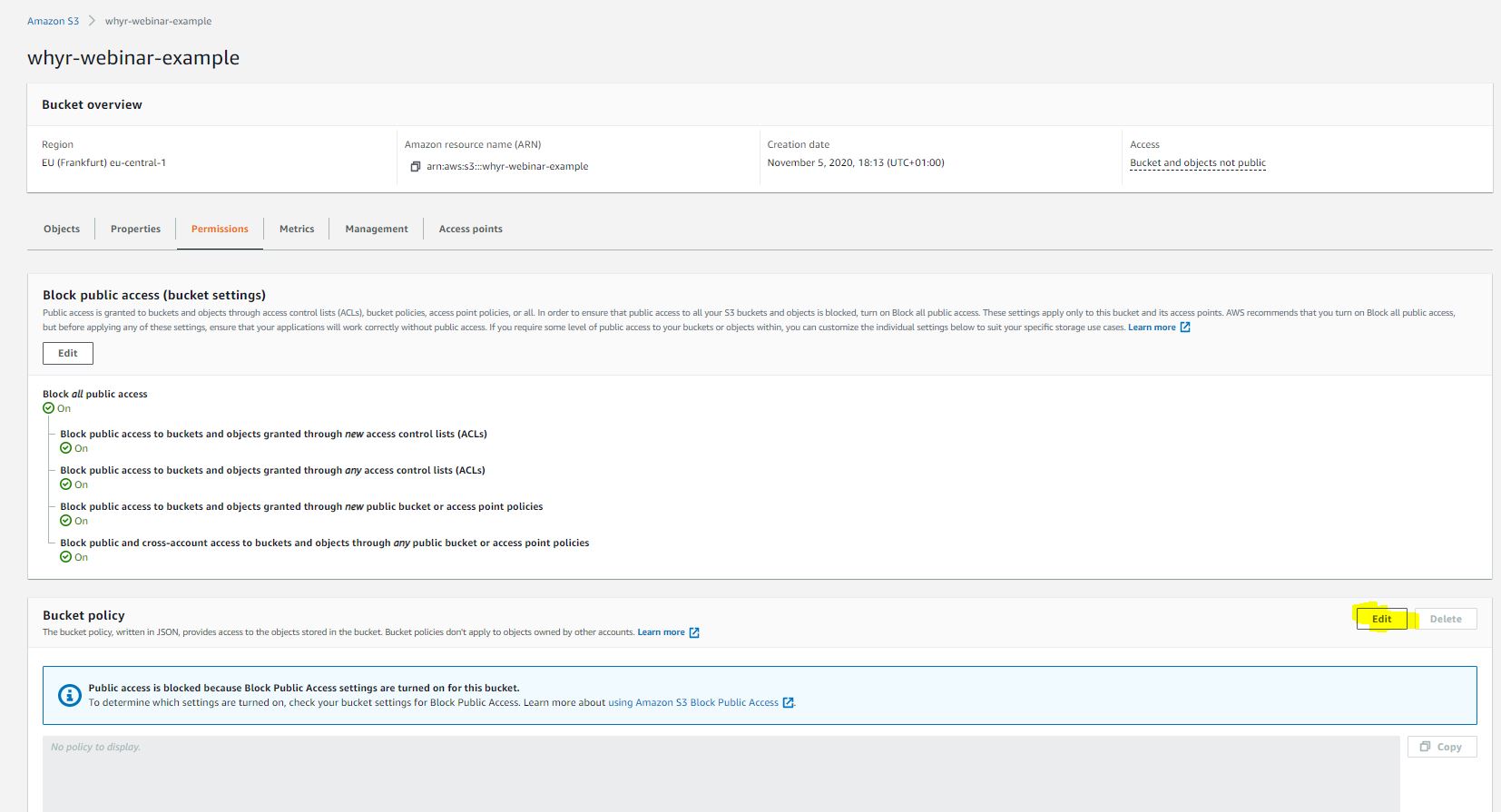
{
    "Version": "2012-10-17",
    "Statement": [
        {
            "Sid": "PublicReadGetObject",
            "Effect": "Allow",
            "Principal": "*",
            "Action": "s3:GetObject",
            "Resource": "arn:aws:s3:::name-of-the-bucket/*"
        }
    ]
}
- In the bucket options, press properties;
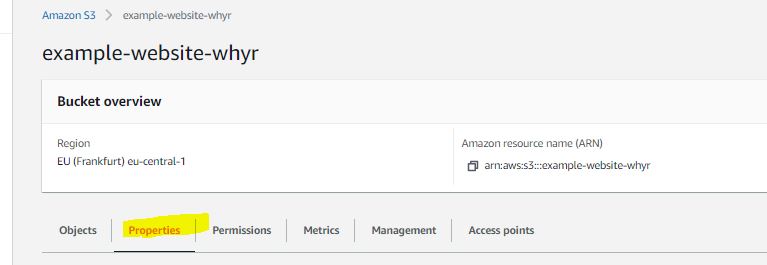
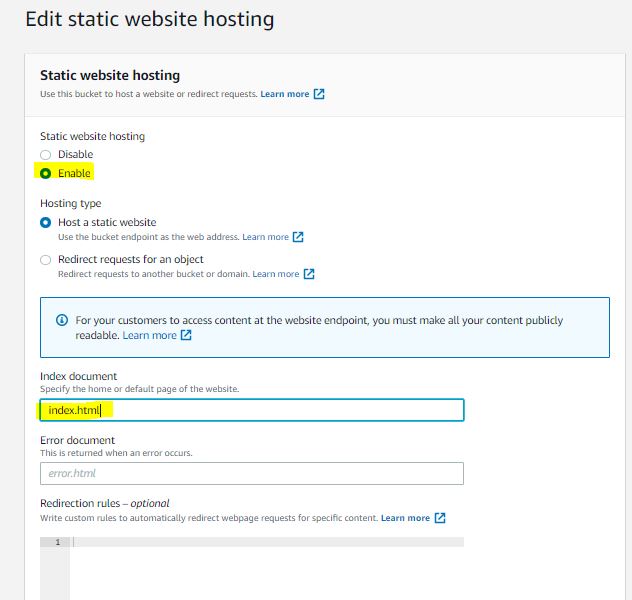
- Scroll down to static website hosting

- Enable the option, and provide the name of the
index.htmlfile that represents the landing page of your website
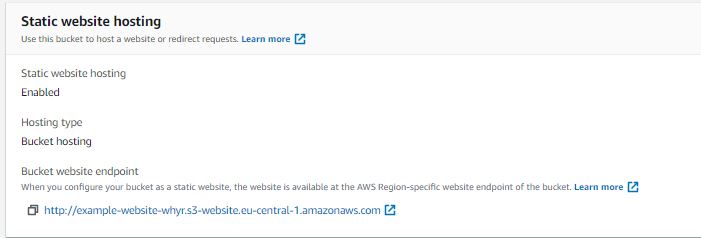
- After that you should be able to see the address of your website
You can enable password protected authentication for your website with AWS Cognito, as described here. Continue reading for a short summary of steps you need to take to protect sites hosted on S3.
You need to add the below file from this S3 bucket to your bucket
- js/ folder
- signin.html file
- register.html file
- robots.txt file
You should update every subpage (.html file) (besides register.html and signin.html) of your site that needs to be secured with the following:
  <script src="js/vendor/aws-cognito-sdk.min.js"></script>
  <script src="js/vendor/amazon-cognito-identity.min.js"></script>
  <script src="js/config.js"></script>
  <script src="js/cognito-auth.js"></script>
  <script src="js/ride.js"></script>
right after the <body> HTML tag. Make sure that the subpages hosted under nested folders have proper path specification with enough ../../ calls.
- Inside gradient-dosc-cognito user pool go to General settings → Users and groups
- Click
Create user. - Pass your email address to Username (Required) and to Email
- Check the Email invitation option and uncheck Mark phone number as verified? option
- Click Create user
The whole setup is based on this tutorial, but below you can find the crucial steps.
-
Create Cognito Poll
- From the AWS Console click Services then select Cognito under Mobile Services.
- Choose Manage your User Pools.
- Choose Create a User Pool
- Provide a name for your user pool such as, then select Review Defaults
- On the review page, click Create pool.
- Note the Pool Id on the Pool details page of your newly created user pool.
-
Create Cognito User Pool App Client
- From the Pool Details page for your user pool, select App clients from the left General Settings section in the navigation bar.
- Choose Add an app client.
- Give the app client a name
- Uncheck the Generate client secret option. Client secrets aren’t currently supported for use with browser-based applications.
- Choose Create app client.
- Note the App client id for the newly created application.
-
Customize welcome message
- Message customization
→ scroll to the very bottom
→ Change details under Do you want to customize your user invitation messages? panel
- Message customization
-
Update the content of the website
-
Update
js/config.jsfile in the folder download to the EC2 instances so that
userPoolId
userPoolClientId
are the ones you provided in the App client and User Poll idwindow._config = { cognito: { userPoolId: '', // e.g. us-east-2_uXboG5pAb userPoolClientId: '', // e.g. 25ddkmj4v6hfsfvruhpfi7n4hv region: 'us-west-1' // e.g. us-east-2 }, api: { invokeUrl: '' // e.g. https://rc7nyt4tql.execute-api.us-west-2.amazonaws.com/prod', } };
-
Then, apply the steps mentioned in Protecting an S3-hosted website