Accounts Payable Process
This document serves as the process for all external invoices submitted to Gradient for payment.
-
Invoice receiver submits invoice per the Invoice Submission process (Handbook) and Vendor Invoice Submission form.
-
Airtable notifies billing@gradientmetrics.com (and any other designated email address) of the submission to the Finance base > Vendor Invoices table.
- You are able to click into the record directly from the email.
- Any invoices and supporting documentation are attached to the submission email.
-
Go to the Finance base > Vendor Invoices table and review and/or update the following columns:
- Invoice #
- Invoice Date
- Net Terms
- Status: Received
- Project SOW or SOW Link: confirm submitted if related to a client project
- Expense Category
- Passthrough or Not: this will need to be determined based on the knowledge of client billing/invoices
- Comments: review for additional information provided by the submitter
-
Either confirm the amount has already been added to Cash Flow Frog as a projection (which will have been done previously if it is a passthrough amount listed on client billing) or add it at this time (for business-related charges such as sales consulting or marketing/advertising charges). See, Cash Flow Frog Process documentation. Once completed, check the box in the “In CFF” column.
-
If the invoices is a passthrough expense, confirm that client payment has been received. If payment has not yet been received, check back on Finance Days. It is our policy that we do not pay vendors until we have received the client’s payment for the costs first.
-
Download the invoice and any supporting documentation (such as bank account information); you can download the documentation from either the Vendor Invoice record or the email.
NOTE: If you download the invoice and other documentation to your Gradient endpoint, remember to delete this documentation immediately after completion of this process.
-
Send the invoice to the following email addresses:
-
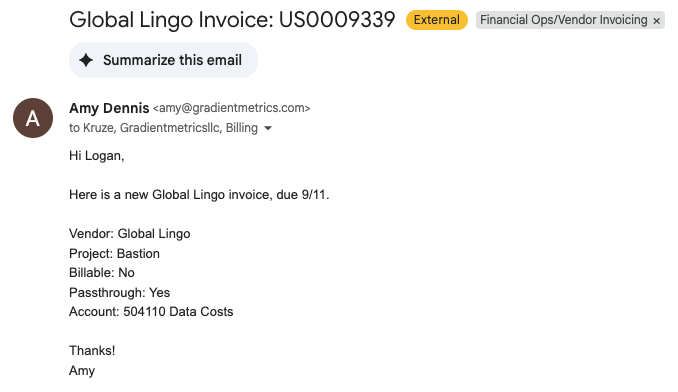
Include the following information:
- Attach the invoice and any other documentation to the email
- Subject: [Vendor Name] Invoice: [Invoice #]
- Vendor: [vendor name]
- Project: [project codename or type of project if business-related, ex. "sales consulting"]
- Billable: [yes/no] – Note: this is noting whether or not Gradient still needs to bill the client for this cost. If it is a passthrough costs and they have already been billed upfront, list No.
- Passthrough: [yes/no]
- Account: [if you know the exact Quickbooks account this should hit]
- Any additional information, including if the invoice needs to be paid immediately or on a specific date before the due date
-
Change status on Vendor Invoice sheet to “Submitted.”
-
Kruze will process the invoice in Bill.com
- Generally, the payment date is set a few days prior the invoice due date.
-
The designated appover will receive an email to approve the invoice in Bill.com.
- The designated approver is selected by Kruze when they process each received invoices for payment.
-
Follow the link in the email, review, and approve the invoice to be paid.

- Change status on Vendor Invoice sheet to “Approved.”

-
Check back (during finance review days) to confirm payment has been processed.
-
Change status on Vendor Invoice sheet to “Paid.”