Google Suite Templates
Whether you are creating a survey document, memo, ghost deck, or more, we have likely already built a Template for that exact deliverable type. Utilizing these Templates is very advantageous and should always be the priority over starting a blank document. Our Templates are saved in the Google Shared Drives and accessible to all.
For a number of reasons, it is best to use templates for your work—we’d even go so far as to say it’s mandatory for any client-facing deliverables unless you are creating a novel file that no template could be a good starting point for (though, we’d likely disagree that’s the case).
We’ve spent a great deal of time carefully crafting and maintaining templates tailored for many use cases. Templates exist for Docs, Sheets, and Slides formats, and it’s likely that what you need already exists.
Here are some reasons why a template should always be your go-to:
- Using templates provides a consistent client experience when working with Gradient across team members and projects.
- You get up and running faster since the foundation of your document is already in place.
- Templates set you up for success since content is pre-populated or reminders are included. This help ensure elements aren’t missed.
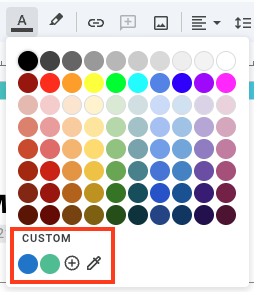
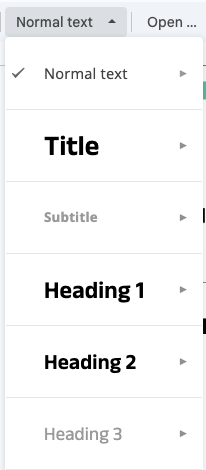
- It safeguards Gradient’s brand, with Gradient’s fonts, custom colors, headers, and styles already in place.
- Go to the folder / Shared Drive you want the new document to live in
- Right click or press “New,” choose the file type you want (Doc, Sheet, or Slide), then choose “From a template”
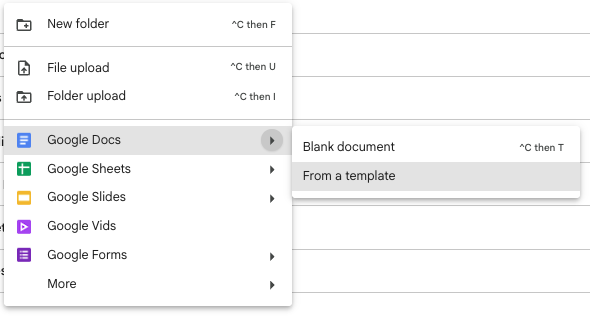
- You will be directed to the Template Gallery for that file type. Select the template you would like to use
- A copy of the Template will be created in the folder / Shared Drive location you are in
- You are now free to edit your new file without any impact to the master template saved in the Gallery!
Reference the Slide Deck Template Overview video below for additional guidance on using Gradient’s deck template.
A few things to know for Google Slides and templates
A Google Slide Theme is based on a “master theme,” which looks like this for our template:
- Within the master theme we have three main slide templates - Title Slide, Cover Slide & Regular Slide. Making changes to any of these in the master theme, will make the same changes to all slides that are based on that layout in the deck.
- This is especially useful if you want all slides to have the same project name in the footer for example (change the footer for all three layout types, and your entire deck will have the same project name)
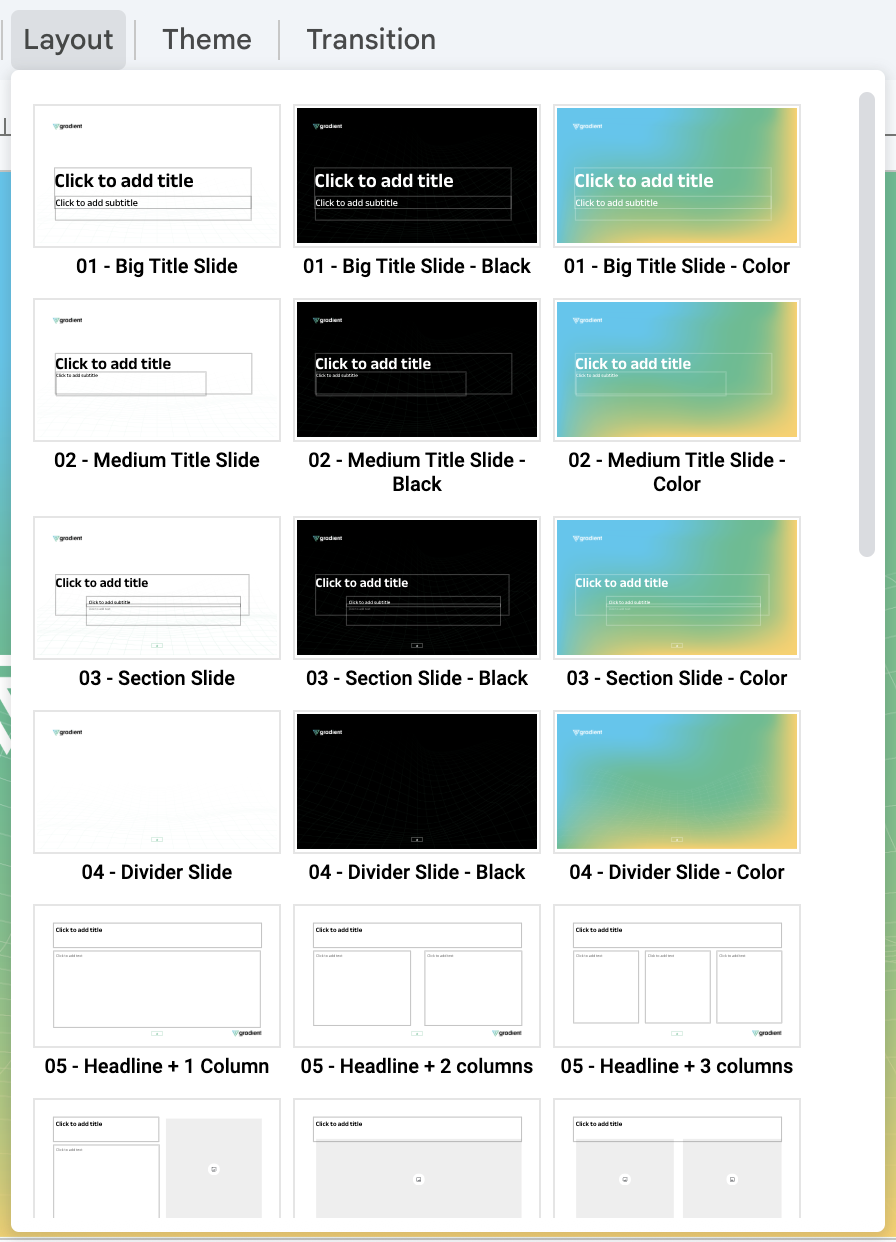
- Each new slide you make should be based on one of the layouts. You can select those in two ways
- New slide with the dropdown at the “+” sign
- Creating a new slide and selecting the appropriate layout
- Lastly, there are two layout slides that describe Gradient. If you ever need that, you can add those in too.
If you would like to make any changes to the master templates, please reach out to the Operations Team.