Using Service Accounts with GH Actions
This guide explains how to automate R scripts using service accounts for non-interactive Google Drive authentication in GitHub Actions. This approach helps you bypass manual authentication prompts and enables seamless execution of tasks like updating Google Sheets or creating plots.
Before we begin, this guide assumes familiarity with R scripting and basic GitHub Actions concepts. This approach primarily applies when working with private Google Drive documents.
Automating tasks often involves interacting with services like Google Drive. When running scripts interactively, you can authorize access manually. However, automated jobs in GitHub Actions require non-interactive authentication. Service accounts provide a secure solution for granting access without human intervention.
-
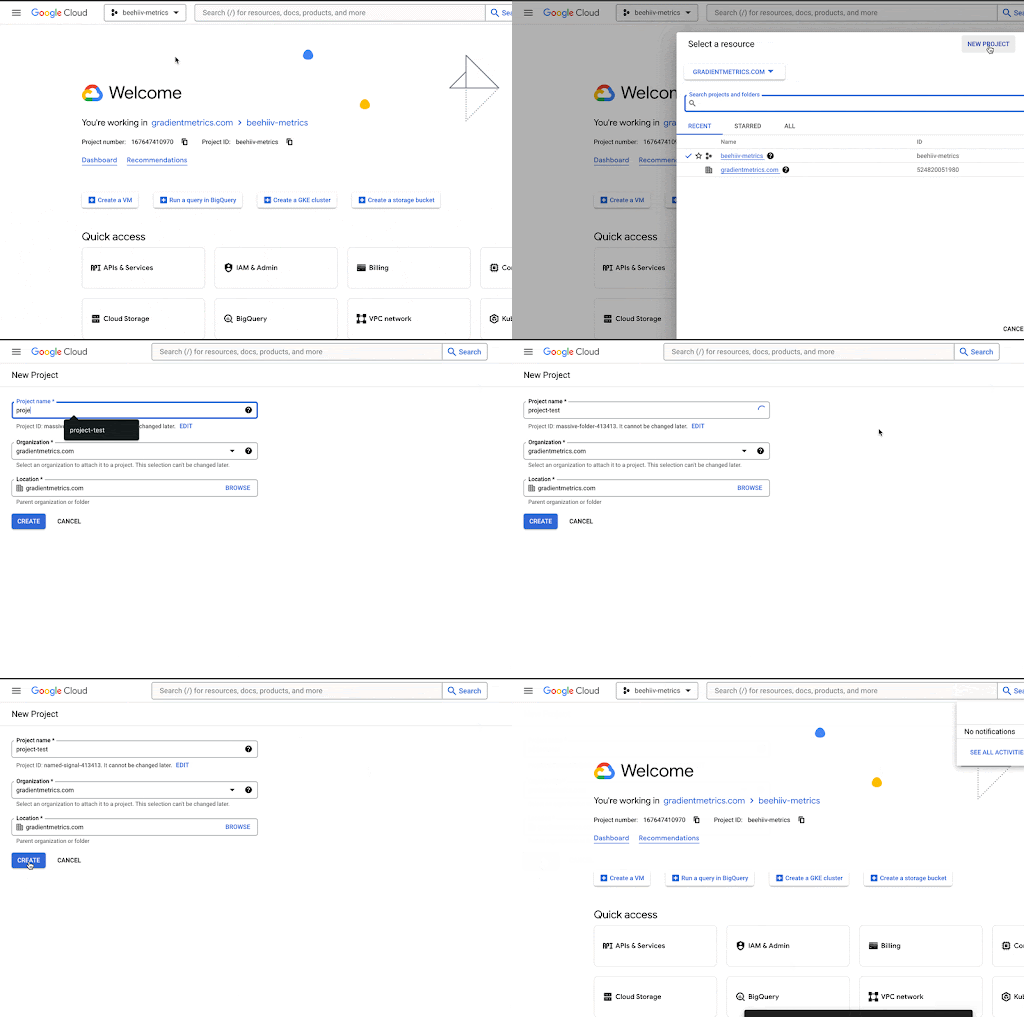
Create a project:
-
Go to the Google Cloud console.
-
Click on the dropdown after the Google Cloud logo at the top left corner of your screen or go to Menu menu > IAM & Admin > Create a Project.
-
Fill in the details such as project name, organization and location.
-
Click on “CREATE” when done.
-
-
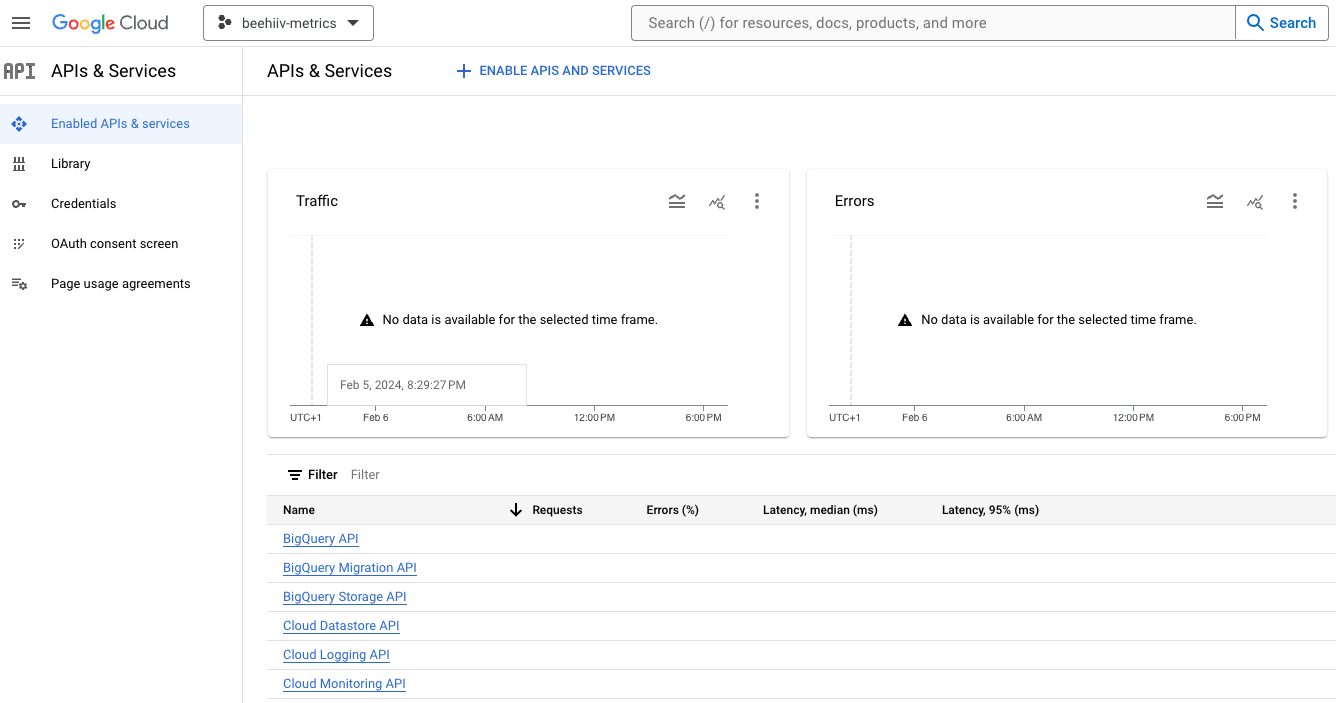
By default, googledrive API is disabled in a new project and for you to be able to interact with googledrive in R using the service account, you need to enable the API.
-
Go to APIs and Services.
-
Go to Enabled APIs and services on the left.
-
Click on “+ Enable APIs and services”
-
Find “Google Drive API”.
-
Click “Enable”
-
-
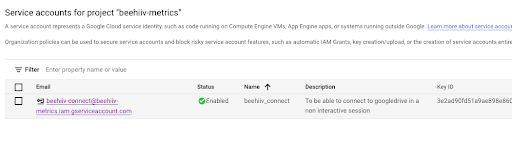
Create a service account:
-
Navigate to IAM & Admin > Service Accounts.
-
Click “Create Service Account” and provide a service account name, ID and description.
-
Click “Done” and note the service account email address.
-
-
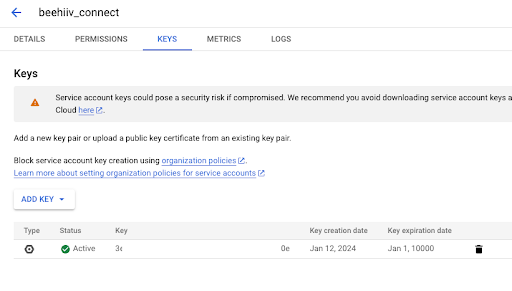
Generate a key:
-
Open the newly created service account.
-
Go to the “KEYS” tab and click “Add Key”.
-
Select “Create new key” and choose “JSON” format.
-
Click “CREATE”.
-
Save the downloaded JSON key file securely.
-
-
Granting access:
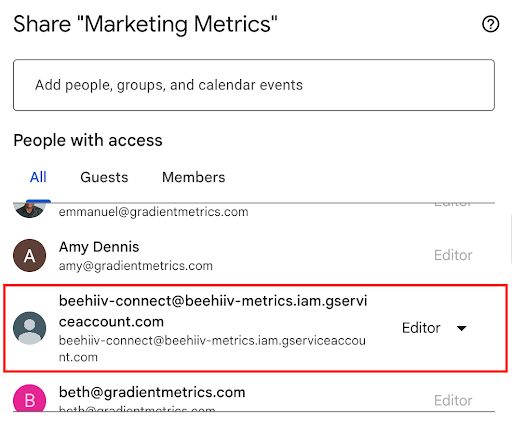
- Share google drive resources: Make sure the service account email address has appropriate access to the Google Drive documents you’re working with. It should throw an warning message stating that the email isn’t a gradient email address. That’s fine, you can go ahead and continue.
Note: If your service account needs to list files and folders within a Google Drive,
you must grant it read access to the entire drive, not just the target folder. For example, if you
want to list files in Operations/Finances/Reports, granting access only to Reports won’t be
enough — you also need to grant read access to Operations. Consider whether this broader access
poses any security risks.
- Create a secret key: Use
gargle::secret_make_key()to generate a key and save it securely (e.g., in your .Renviron file).
gargle::secret_make_key()
#> [1] "JTyTkH6fwW1xbMINZX6qww"
GOOGLEDRIVE_KEY=JTyTkH6fwW1xbMINZX6qww
- Encrypt the JSON key**:** Use
gargle::secret_encrypt_json()to encrypt the downloaded JSON key file using the generated secret key. The encrypted JSON file needs to be committed/pushed to github so Github action has access to it.
gargle::secret_encrypt_json(json = "~/some/place/where/I/keep/secret/stuff/googledrive-testing.json",
                            path = "inst/secret/googledrive-testing.json",
                            key = "GOOGLEDRIVE_KEY")
- Using the Service Account in GitHub Actions:
-
Store the secret key: Add the secret key as a GitHub Action secret named
SOMETHING_KEY. -
Access the secret key in the workflow: Use
env: SOMETHING_KEY: ${{ secrets.SOMETHING_KEY }}in your YAML workflow file. -
Decrypt and authenticate in your script:
-
Use
gargle::secret_decrypt_json()to decrypt the encrypted key within your R script. -
Use
googledrive::drive_auth()orgooglesheets4::gs4_auth()with the decrypted key path to authenticate your Google interaction.
-
-
googledrive::drive_auth(
  path = gargle::secret_decrypt_json(
    "atheneum/marketing/inst/googledrive.json",
    "GOOGLEDRIVE_KEY"
  )
)

googlesheets4::gs4_auth(
  path = gargle::secret_decrypt_json(
    "atheneum/marketing/inst/googledrive.json",
    "GOOGLEDRIVE_KEY"
  )
)
-
Treat the service account email address and JSON key file with the same level of security as a regular user account and password.
-
Regularly rotate your service account keys to maintain security.
-
For more information on non-interactive authentication and secure token management, refer to the following resources:
This guide provides a general overview. For a specific example, you can refer to the provided workflow file and R script.
By following these steps and best practices, you can leverage service accounts to securely automate your R scripts with GitHub Actions and interact seamlessly with Google Drive resources.