Coding in R at Gradient
At Gradient we live and breathe R. We work with R every single day, and so it only makes sense to develop tools and workflows that help us code as easily and efficiently as possible.
We have set up a cloud infrastructure for R development, which means that while you can use your local RStudio, we recommend you use the cloud setup for any project related work.
Please refer to the video below, or go through the written tutorial yourself to set everything up.
We basically have one repository where all of our coding happens. We call this our monorepo. Occasionally we may deviate from this monorepo for projects that require collaboration with external partners (e.g. Recast) or public repositories.
Repository address github.com/g6t/g6tr
An overview of the repository structure
atheneum- raw scripts that don’t belong anywhere else
builds- internal CRAN verification,
- internal CRAN deployment,
- docs.gradientmetrics.com updates
- #news Slack channel notifications
- update of baseline EC2 AMI
metrics- codes needed for automated reports
old- structure of the projects before we switched to
packages
- structure of the projects before we switched to
packages- all internal R packages
- g6tr.projects is where all our client projects are stored
- g6tr.voice is where all of our newsletter projects are stored
tools- matured tools
- plumber APIs
- SageMaker scripts
- shiny apps
- matured tools
As mentioned, all of our R infrastructure lives on the cloud. In our case, this means that our R instances run on Amazon servers, with data stored in Amazon S3 buckets.
In order to access your RStudio workspace, you can visit r.gradientmetrics.com. You will be prompted with a sign-in page, for which you can use your Gradient Gmail credentials. After logging in, you’ll have access to your personal RStudio Workbench.
Workbench allows you to spin up as many R sessions as you want, similar to opening multiple RStudio applications on your local computer. When you first login, you’ll need to spin up a new session, which will instantly open up a session in your home directory.
You should be able to see a folder called monorepos with a subfolder called
g6tr – this is a clone of our monorepo. If you navigate to the subfolder and
and open up the monorepo.Rproj file you’ll be able to start working in our
repository. Later on you might want to have multiple copies of the monorepo
switched to different branches. It is recommended to put all these copies under
the monorepos folder.
However, before you get started, please make sure that your environment is up to date, which is explained in the next section.
Every time you open RStudio, you are creating a new blank R session. Some R packages assume some specification or credentials are passed through as global system variables, which you want loaded at all times. This way there is no breach of passwords or confidential information. To set global system variables confidentially within an R session you can use a so-called .Renviron file.
In your home directory, we’ve already created the .Renviron file for you. All you need to do is fill in the blanks with tokes and passwords that are private to yourself.
Nobody is able to see what is in your home directory directly, as long as you don’t share it with other users. So you can feel secure adding API tokens and Passwords to your personal .Renviron file.
Here’s an overview of the variables you should have in your .Renviron:
- Variables to work with AWS (think S3). Here’s AWS documentation on how to setup your access keys.
AWS_ACCESS_KEY_ID=
AWS_SECRET_ACCESS_KEY=
AWS_DEFAULT_REGION=us-east-1
- Variables to work with Dynata. We have the same API credentials for all users.
DYNATA_API_HOST=https://api.researchnow.com
DYNATA_CLIENT_ID=api
DYNATA_USERNAME=gradient_metrics_sample_api
DYNATA_API_PASSWORD=ata9n5ie
- Your
github PAT.
Set this variable if you want RStudio to stop asking for your Github credentials
once and for all. Note that if you have
GITHUB_PATvariable set, this can prevent your PAT from being retrieved from the Git credential store.
GH_PAT=
- Variables to work with
crunch.io. See
help('crunch-api-key')vignette for more details.
R_CRUNCH_API=https://app.crunch.io/api/
R_CRUNCH_API_KEY=
- Qualtrics variables. We have the same API credentials for all users.
QUALTRICS_APITOKEN=dVLMhgM0ok3am74bp8pOIAjAkgHsNXcnmEFAmo8D
QUALTRICS_USER_ID=UR_a5aV2heAcJ0QFUO
QUALTRICS_URL=https://gradientmetrics.az1.qualtrics.com/
We use Git to manage the state of our repository. If you are unfamiliar with Git, please refer to this Git Tutorial.
First of all, set your git credentials before doing any commits. Git will ask you to do it anyways, but it will be less annoying if you do this in advance. Run the following commands in the terminal tab:
git config --global user.name <your github handle>
git config --global user.email <email you use for github>
This needs to be done just once. To check your configurations, you can open your
git config file in RStudio with file.edit("~/.gitconfig").
We have one main branch, master. All changes – be it package updates or new
projects – are developed in feature branches descending from master. This
means that to start working on an update you need to:
-
Switch to the
masterbranch. In terminal it’sgit switch master. -
Synchronize your local
masterbranch with github, i.e. do agit pull. -
Create a new branch to work in. Terminal command:
git checkout -b branch_name. Note that in case of projects, normally you don’t need to create new branch manually through terminal or RStudio UI. It is done by theg6tr_setup()function. More on this later. As for branch naming:- if you are working on a package update, name your branch as
packages/<package name>/<feature>. Example:packages/g6tr.theme/barplots - for projects, name your branch as
projects/<project name>/<stage>. For example,projects/alpha/setuporproject/alpha/analysis.
- if you are working on a package update, name your branch as
You are ready to start working!
When you have pushed your first commits to github, please create a Draft Pull
Request from your branch into master. This way you’ll get a page on Github where
you and your collaborators can track the progress and see what changes are being
made. Draft PR page has the same functionality as usual PRs, only it indicates
that the work is still in progress and it’s not yet ready for merge. See
Github’s blog post on draft PRs
for more details.
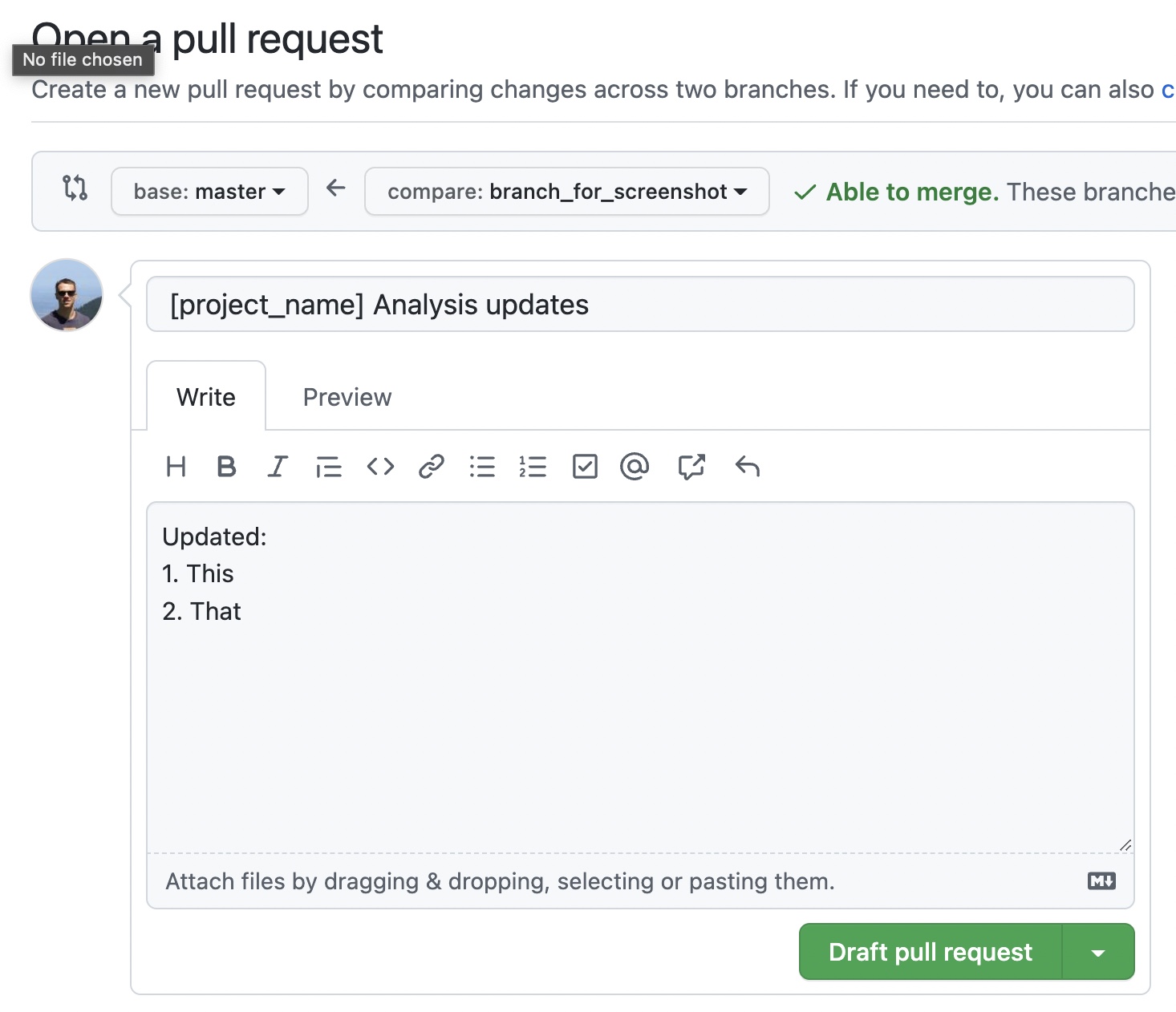
How to create a Draft PR – if you navigate to the monorepo github page
right after you made a git push, you should see a “Compare & pull request”
button at the top.

Alternatively you can go to the “Pull requests” tab and click “New pull request”.
Fill in PR description accordingly and click the “Draft pull request” button.
When you are done with your task, to indicate that your work is ready for review, click the “Ready for review” button at the bottom of the draft PR page.
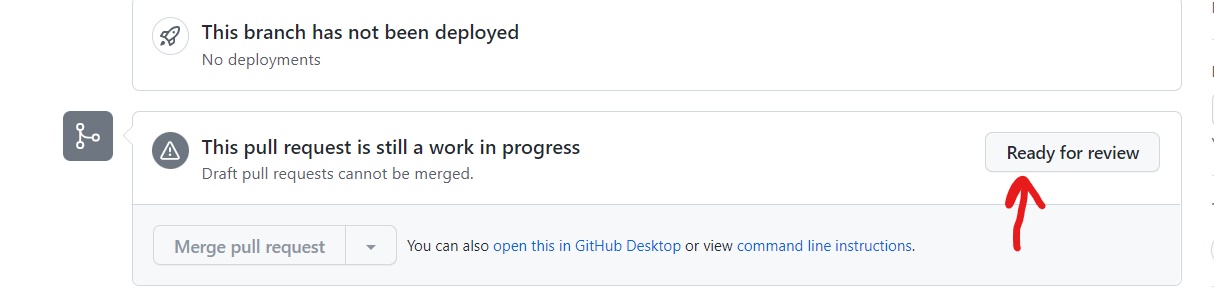
If you’ve been working on a package update this will also trigger the corresponding package build which runs R CMD Check.
In case if you need to do some more updates, say your reviewer asked for some changes, turn the PR into draft PR again. For this, in the upper right corner of PR conversation page, find “Still in progress? Convert to draft”. “Convert to draft” is clickable.
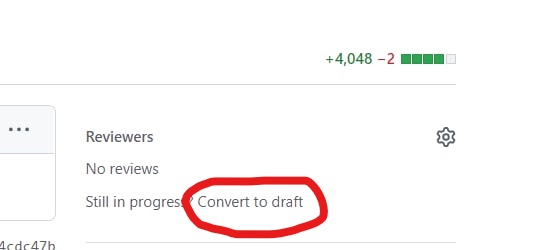
There’s no need to do it if you are about to make a quick one commit fix. However you should know that each push to a (usual, not draft) PR will trigger corresponding builds. Moreover this is one of the reasons we’ve added draft PRs to our workflow. We’ve programmed our builds to trigger on all pushes to PRs – this is a common practice, but not to draft PRs – so we can turn builds off when work is still in progress. Github requires draft PRs to be converted into usual PRs before merging so we are sure that all that builds will be executed.