Google Calendar Best Practices
As a fully remote company with team members all over the world in multiple time zones, it is important that our Google Calendar hygiene is close to impeccable here at Gradient. This document sets out best practices and general guidelines for Google Calendar use. Having an up-to-date calendar fosters productivity and healthy collaboration.
Always, and we do mean ALWAYS, block your personal calendar when you are out of the office which will send an unavailable response and decline all meetings currently on your calendar and/or new ones that are sent to you. This reduces any confusion as to what your schedule is and if you will be attending or available for a meeting. Block full days and any spans of time during your working hours when you might be away for personal or professional reasons.
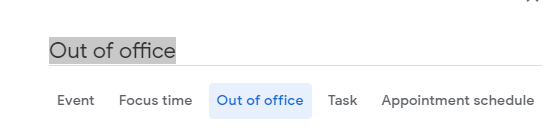
Also set a “Vacation responder” in Gmail settings for any longer periods of time you will be out of the office.
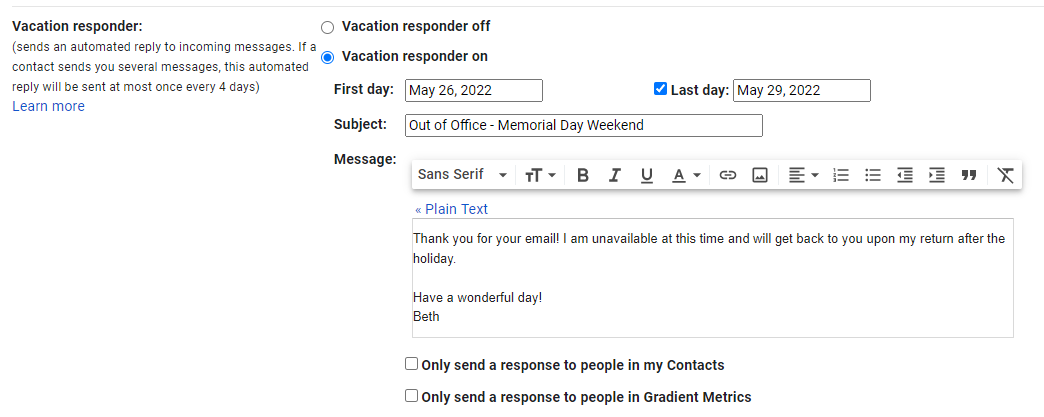
Also see Gradient Schedule Calendar best practices section below.
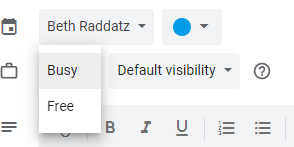
Many of us block out time to focus on a project or to set aside for external meetings. Remember to set the availability to be clear on if you are free at that time for meetings or if you are busy and do not want any meetings scheduled during that time.
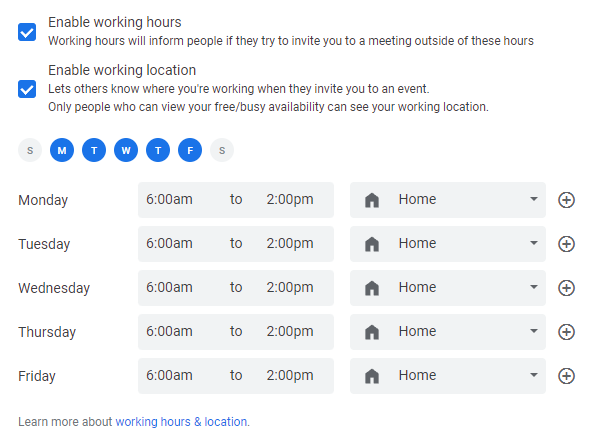
Google Calendar allows you to “block” your working hours. This will give other Gradient staff a reference of your general working hours when they are setting internal or external meetings with you.
If you are setting priority meetings that must fall outside of someone’s normal working hours, please reach out to your teammate(s) through their preferred form of contact (Slack, email).
Remember to set meeting notifications in a manner that works for you. The default is 10 minutes before, but you are able to change default in your calendar settings or directly on the event itself. Being punctual to meetings is being respectful to your teammates – always let them know if you are going to be late for situations outside of your control.

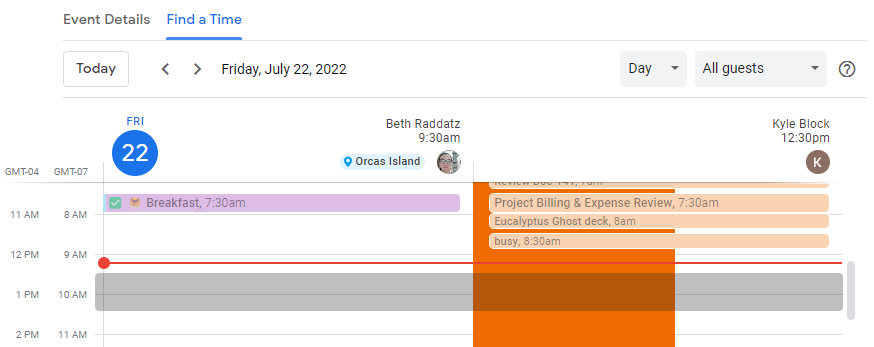
Google Calendar allows you to view your teammates calendars before you set a meeting. It is always best practice to make sure you are not overlapping with another meeting (or blocked time). Once you add a teammate to a meeting invite, use “Find a Time” to view their schedule and compare it to yours.
You are also encouraged to use Reclaim as a great tool to help you schedule meetings with others! Reclaim provides you with a unique link to give to others and will not allow them to set time on your calendar that is already booked. Taking the guesswork out of scheduling with your teammates while also being respectful of their time is the goal.
We encourage you to use Reclaim to set internal recurring meetings with other staff. You can also use Reclaim to set recurring focus time or other common “habits” (e.g. reminders to take a break for lunch).
If you do not have a Reclaim account and would like one, please reach out to Operations and they will provide you with team access.
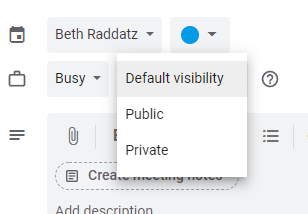
Gradient prides itself on transparency but also respects your privacy when it comes to personal calendar meetings. Do not hesitate to set the visibility of calendar entries to “Private” where necessary.
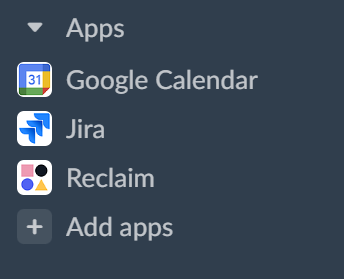
Slack has an app that integrates your Google Calendar with your Slack interface. This can be helpful to add additional reminders for upcoming meetings. It will also send you a daily schedule reminder, which some find to be super helpful if you spend a lot of time in Slack.
To add the app (or any Slack apps that are helpful to you), scroll down to the bottom of the left navigation pane, click “+ Add apps” and search for Google Calendar. You can also do this with Reclaim.
The Gradient Schedule calendar’s purpose is a “one stop shop” view of when Gradient staff is out of the office for holidays, PTO, and conference travel. This calendar is not intended for use when you are out for an hour or two for an appointment. For shorter time blocks, please block your personal calendar (see, Personal Calendar > Out of Office Blocks section above).
Note that approved PTO requests are automatically added to the Gradient Schedule. Official holidays for each country are listed in the calendar as well.
Please check the Gradient Schedule calendar on a regular basis to make sure it is up-to-date with any time off you are taking and to be aware of your teammates time off. There is also the #schedule Slack channel; we recommend you do not mute the notifications on this channel. Please be respectful of everyone’s time off!
https://www.calendar.com/google-calendar-guide
https://www.oberlo.com/blog/google-calendar
https://www.rightinbox.com/blog/google-calendar-guide