Data Security Tools
To ensure the security of company and client information, as well as to comply with multiple Data Processing Agreements we have with clients, Gradient uses the following data security tools: NordLayer, NordPass, and ESET.
The purpose of this page is to explain how to download, activate, and utilize each of the tools.
Please see the Data Security Tools Policies page to learn about and follow the policies for use of each tool.
- Look for an email invitation from the organization admin.
- Open the invitation email and click Activate account.
- Enter your name and create a password to set up your account and activate your license. Our Organization ID is gradientmetrics.
- Download the NordLayer app by clicking the Download button.
Gradient has their own dedicated IP called Gradient Metrics. Please use this IP/server as often as possible since it will use the same IP address to access sites. This is especially important when accessing our Gradient Metrics public-facing website to track and count unique visits.
- Look for an email invitation from the organization admin.
- Open the invitation email and follow the instructions to complete setup of your company account.
- Download the browser extension that is appropriate for you.
- Open the application, go to Settings, scroll down a bit, and under the Autofill and Autosave section select Add Browser Extension.
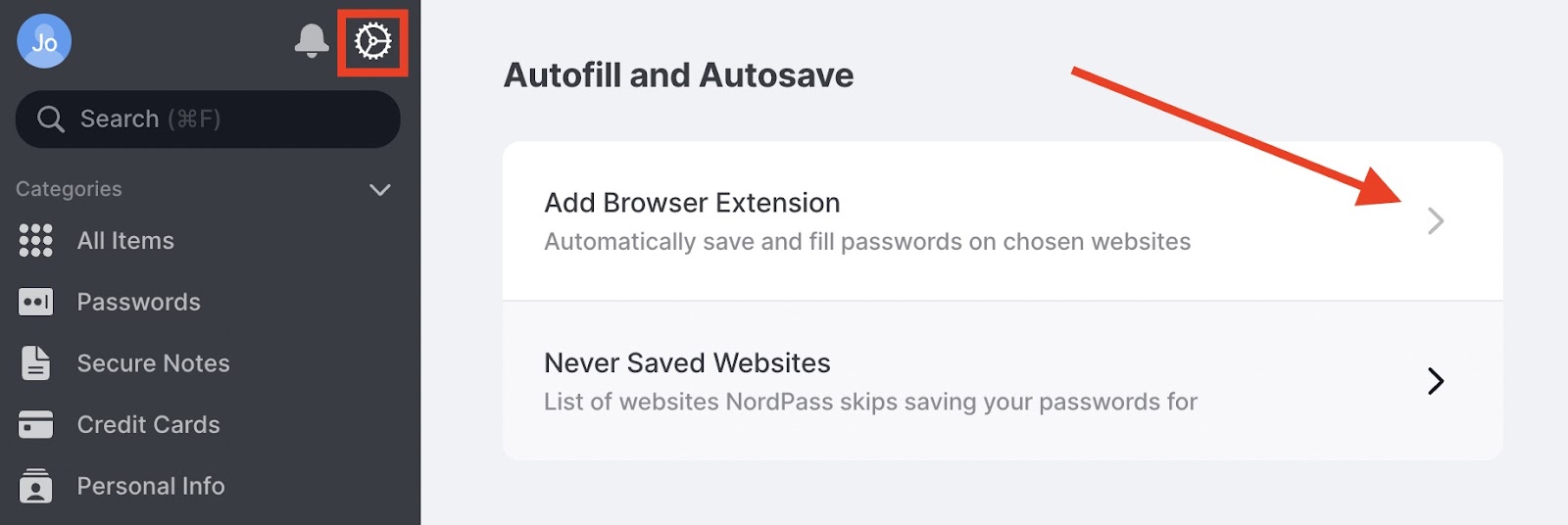
- This will open a new window where you can choose the browser to add the extension.
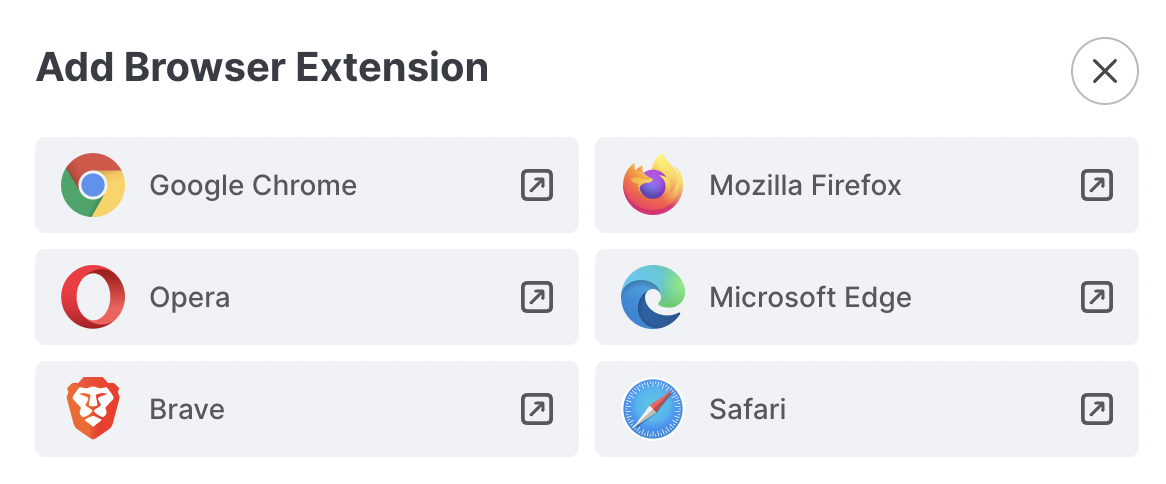
You can check thorough tutorials for adding the extensions:
- Adding the NordPass browser extension for Windows
- Adding the NordPass browser extension for macOS
- Adding the NordPass browser extension for Linux
- We previously use LastPass for our password management needs. To move to NordPass, you will need to export and upload your current LastPass passwords using the below instructions.
To export your items from LastPass, follow the steps below on your desktop device:
- Open your browser and launch the LastPass browser extension.
- Select your email address, then choose Advanced, select Export, and then LastPass CSV File.
- Enter your Master Password.
- Save your passwords to a CSV file. In this case, just choose a location on your computer and save the file.
To export your items from LastPass, follow the steps below on your desktop device:
- Open your browser and log in to your LastPass account.
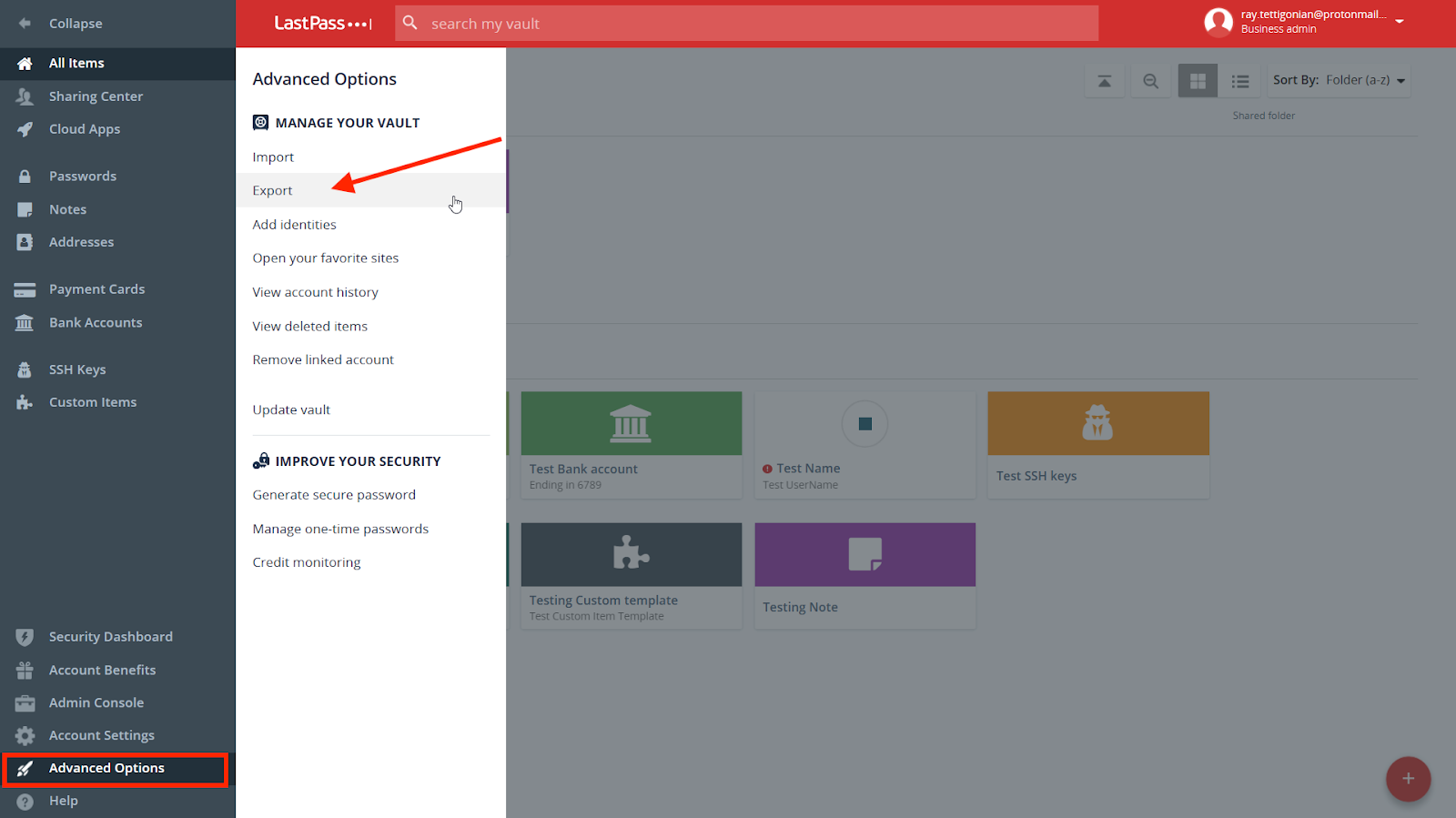
- Select Advanced Options from the sidebar and then Export. LastPass will then send an email to confirm the export.
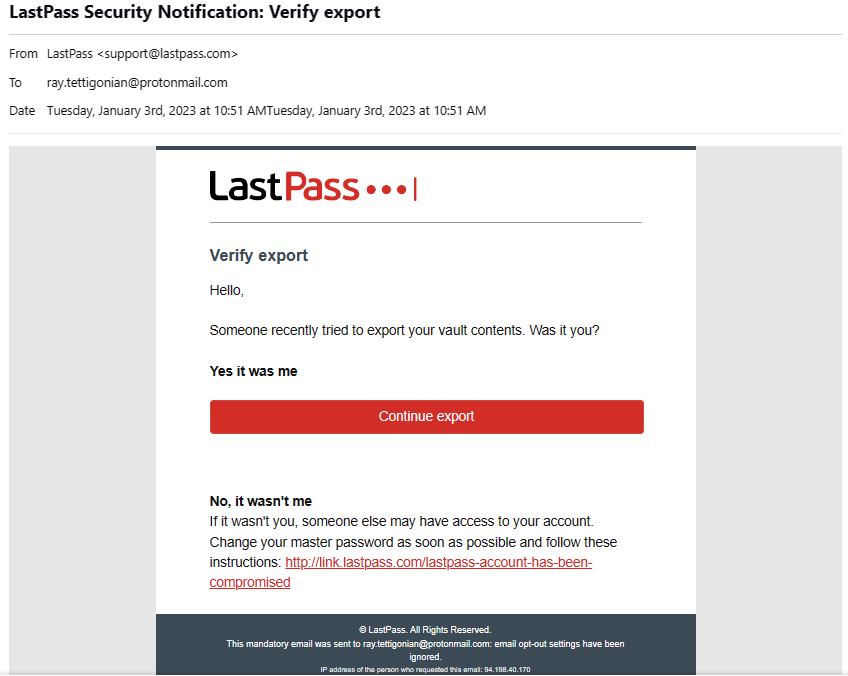
- Go to your LastPass account’s email address and continue the export. Once the export is verified, you will need to complete the previous step again to begin exporting.
- Depending on your web browser, you will receive your export as a CSV file or LastPass will open another browser tab with your vault items.
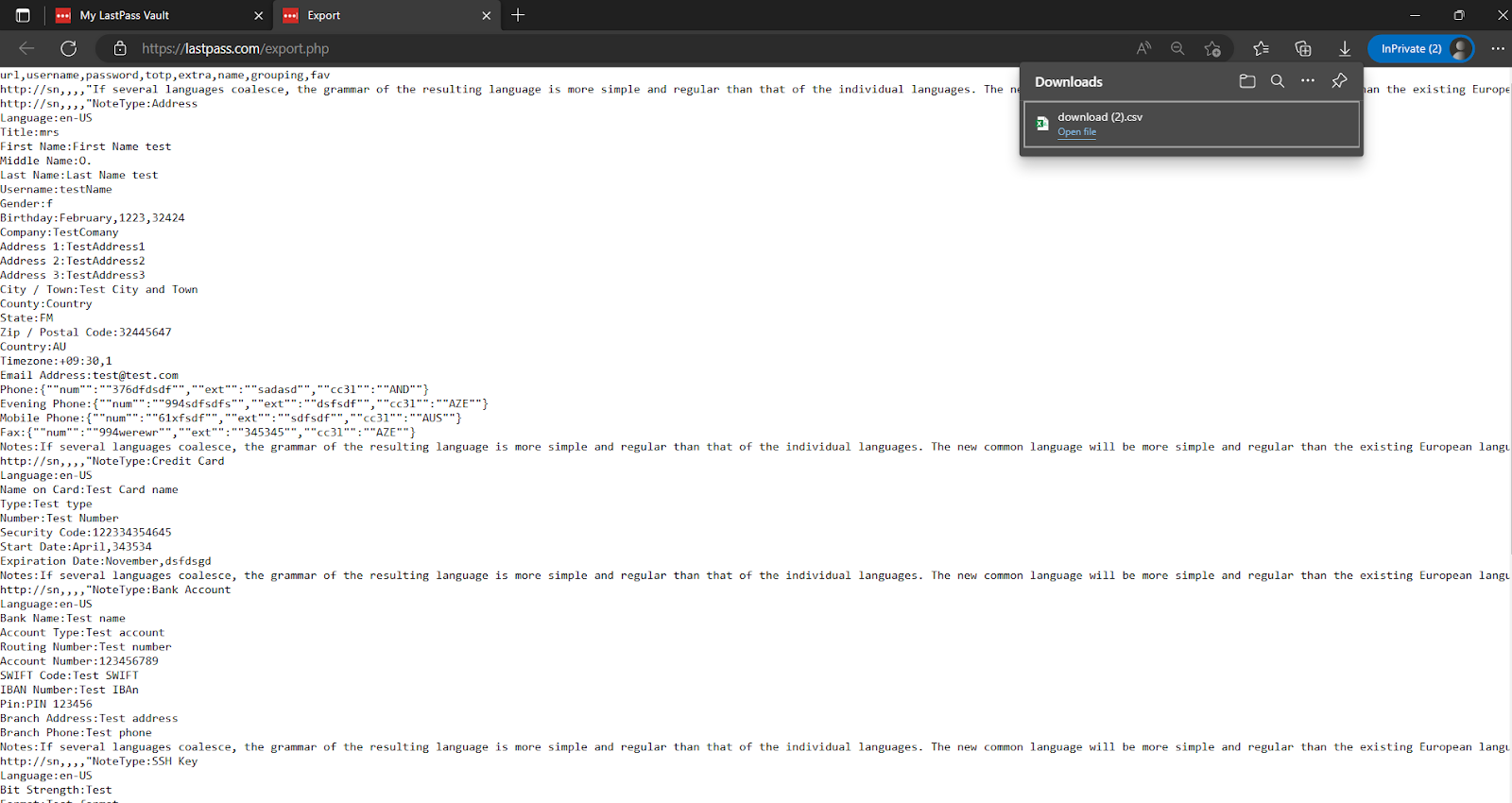
If this happens, press Cmd + A (for Mac) or Ctrl + A (Windows) to quickly highlight all on screen text and copy and paste it to Notepad (for Windows) or TextEdit (for macOS) as a plain text file (such as .txt).
NOTE
For TextEdit, you may need to change the file format from Rich text to Plain text (open TextEdit -> Format -> Make Plain Text).
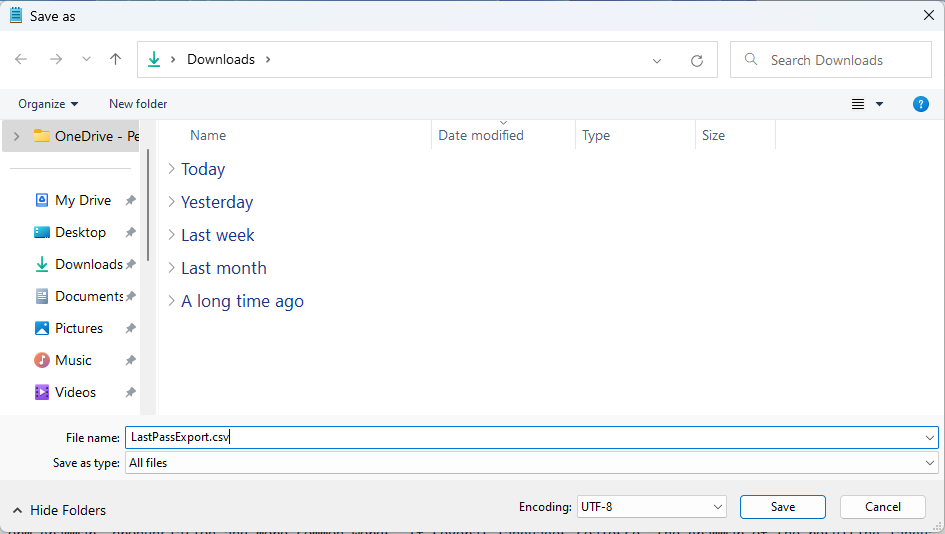
- After you save the text file, rename it and add “.csv” to the end of the file name, e.g., “LastPassExport.csv”.
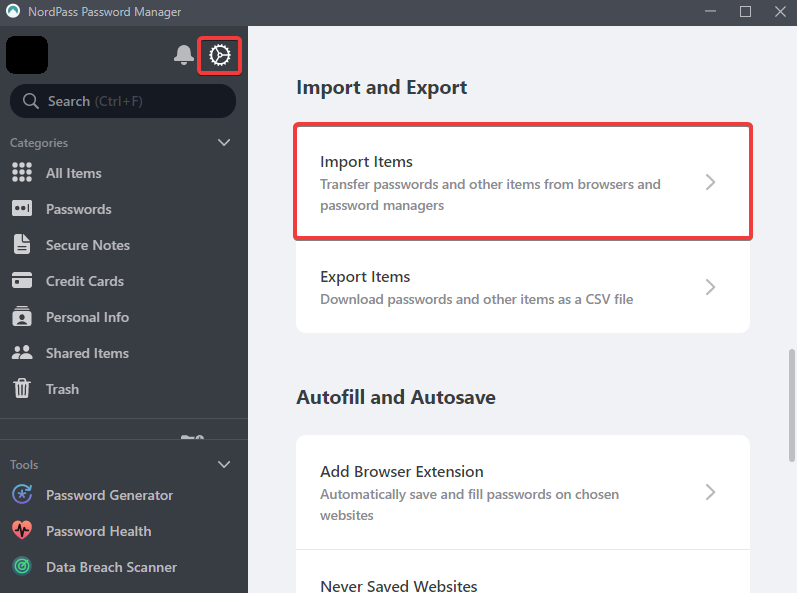
- Open the NordPass application or Web Vault.
- Go to Settings and select Import Items.
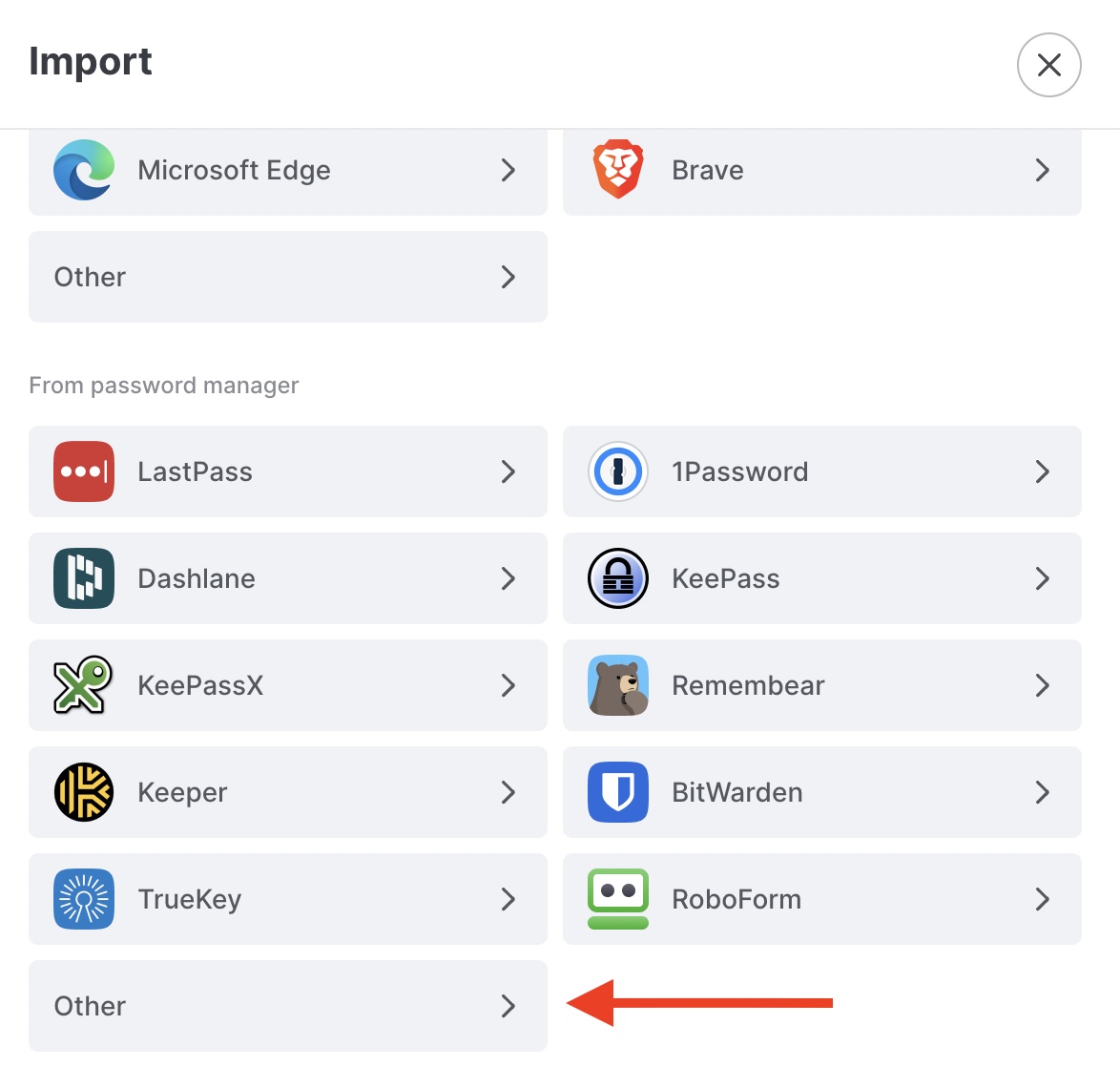
- Choose the password manager you have the CSV file from or choose the option Other.
NOTE
If you are not able to import your CSV file using one of the password managers options, please try using Other.
- Upload the exported CSV file.
- Select the items you want to import.
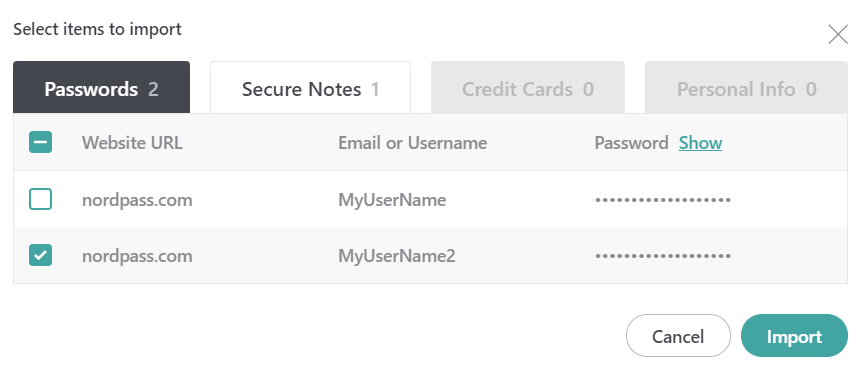
NOTE
If you are importing your CSV file through the Other category, you need to organize the CSV file accordingly.
- Look for a message guiding you to install ESET on your company-managed endpoint.
- Follow the directions for downloading and setup. Coordinate with Operations to confirm successful installation.
- Be aware that installing more than one antivirus software on a computer can sometimes cause problems, such as impacting your computer’s performance. If you are already running an antivirus program on your computer, it is recommended to uninstall or disable it when ESET scans are being performed.
The following documentation is around regular ESET management by the Operations team.
ESET PROTECT is used to centrally manage endpoint security on company computers. For each active managed endpoint, confirm:
- The endpoint has the expected subscription units in Active Units in ESET Protect Hub
- The endpoint appears in ESET PROTECT Computers tab
- ESET Management Agent is installed
- ESET Endpoint Security is installed
- The endpoint is in the Gradient Metrics group
- ESET Endpoint Security shows Managed by ESET PROTECT = Yes
- ESET LiveGuard Advanced is enabled and managed
- There are no unresolved critical/fatal ESET alerts
- Provide the employee with the appropriate ESET installer (Mac or Windows) and installation instructions for their operating system.
- This should happen for all new employees and when current employees replace their old computers.
- The employee does not need to be created under Protect Hub → Users simply to have ESET installed on their computer.
- ESET user accounts should only be created for people who actually need administrative access to ESET.
- Use this download link to install ESET Management Agent and ESET Endpoint Security:
- [Mac or Windows installer link]
- Open the downloaded installer and follow the installation prompts.
- If prompted to approve permissions, please approve all permissions. See note below.
- Restart your computer if prompted.
- Open ESET Endpoint Security when installation is complete to confirm the application is running successfully. If any prompts remain, address them.
- Take a screenshot of the main Overview screen of the app showing successful installation and share it with Operations for verification.
Note for Macs: If ESET asks you to approve system extensions, Full Disk Access, web/network filtering, or other macOS permissions during installation, please approve all of them.
- After installation, go to: ESET PROTECT → Computers
- Confirm the employee’s computer appears.
- Confirm the installer automatically placed the new endpoint into the Gradient Metrics group.
- If the computer does not appear shortly after installation:
- Confirm there are available subscriptions for Endpoint Security and LiveGuard for the new endpoint.
- Confirm the employee completed the installer successfully and allow time for the endpoint to appear in ESET PROTECT
- Open the Computer and go to Details → Modules & Subscriptions
- Under Installed applications and components, confirm:
- ESET Management Agent is installed
- ESET Endpoint Security is installed
- Application modules status = Updated
- Under Used Subscriptions,
- Locate the Endpoint Security subscription and confirm Managed by ESET PROTECT = Yes
- Confirm ESET LiveGuard Advanced appears and Managed by ESET PROTECT = Yes
- LiveGuard normally enables automatically, but this should be checked on each new installation. If LiveGuard does not appear:
- Computers → select the endpoint → Platform modules → Enable ESET LiveGuard and select Basic protection
- Allow time for ESET PROTECT and Protect Hub to synchronize before troubleshooting further.
- LiveGuard normally enables automatically, but this should be checked on each new installation. If LiveGuard does not appear:
- Open Computer → Alerts
- Confirm there are no unresolved critical/fatal alerts related to:
- Endpoint Security not running
- Subscription failure
- LiveGuard failure
- Protection malfunction
- Operating-system update alerts can be handled separately through employee follow-up.
- Once verified, update the company endpoint tracker.
- Recommended status: Healthy
- The onboarding check is complete when:
- The endpoint appears in Computers
- Group = Gradient Metrics
- Management Agent installed
- Endpoint Security installed
- Modules updated
- Endpoint Security managed by ESET PROTECT
- LiveGuard present and managed by ESET PROTECT
- No unresolved critical/fatal protection alerts
- Check both:
- ESET Protect Hub → Active Units
- ESET PROTECT → Computers
- Identify all applicable:
- Current computers
- Old computers
- Endpoint Security subscription units
- LiveGuard subscription units
- Full Disk Encryption units, if applicable
- Duplicate or stale records
- Go to Computers → select the endpoint → Manage Device → Remove
- In the pop-up, choose Stop Managing and then exit the pop-up without fully removing the endpoint
- ESET will schedule a Stop Managing client task.
- Monitor Computer → Client Task Executions and wait until the task reports: Finished
- Once the task has finished, you can once again go to Computers → select the endpoint → Manage Device → Remove, and select Remove
- If a former employee’s endpoint has been offline for a long period and cannot receive the task, document that fact
- For an endpoint that is clearly obsolete, unreachable, and no longer company-managed, the stale record can be removed after confirming it should no longer remain in ESET
- Do not wait indefinitely for a task that cannot reach a permanently offline endpoint
- Go to ESET Protect Hub → Active Units
- Locate all subscription units associated with the former employee/endpoint.
- Release subscription units for applicable:
- Endpoint Security
- LiveGuard Advanced
- Full Disk Encryption
- Any other assigned ESET module
- Then confirm the subscription counts update under Protect Hub → Subscriptions
- ESET may take a short period to reflect the change
- Check Protect Hub → Users
- If the employee has a user record but does not need ongoing administrative access, remove the user
- Normal employees do not need ESET user accounts for endpoint protection
- Update the company endpoint tracker in Airtable to show that the endpoint has been removed/offboarded.
- Document any exception, such as:
- Endpoint unreachable
- Stop Managing could not complete
- Subscription unit manually released
- Old/stale computer record removed
A quarterly review should be sufficient for the current environment.
Review: ESET PROTECT → Computers Confirm:
- Only current/known endpoints remain
- Current employee endpoints are in the Gradient Metrics group
- Former-employee or stale endpoints are removed
- Unexpected new endpoints are investigated
Review: Protect Hub → Active Units Confirm:
- No old employee endpoints remain
- No unnecessary duplicate subscription units remain
- Endpoint Security and LiveGuard units correspond to current managed computers
Duplicate or stale Active Unit records may occasionally appear. If duplicates appear, verify which record corresponds to the current endpoint before releasing the stale one.
Review: Protect Hub → Subscriptions Confirm:
- Endpoint Security usage is within licensed capacity
- LiveGuard usage is within licensed capacity
- Counts broadly match the current managed-endpoint population
Review: ESET PROTECT → Platform Modules For the current setup:
- LiveGuard Advanced is part of the standard endpoint configuration and should be present on eligible current endpoints
- ESET Inspect/XDR is not currently licensed
- Vulnerability & Patch Management is not currently enabled
- Cloud Workload Protection is not currently needed
- Full Disk Encryption should only be enabled intentionally after deciding how company endpoint encryption will be managed (outstanding as of August 2026)
Different “Not yet enabled” counts across Platform Modules do not necessarily indicate a problem because the modules have different licensing and eligibility requirements.
Review significant alerts, particularly:
- Protection/application malfunction
- Endpoint Security not running
- Subscription problems
- LiveGuard problems
- Outdated operating systems
OS update alerts can be used as a monitoring/follow-up control. Employees can install OS updates locally, with Operations following up when ESET reports that an endpoint remains outdated.
Periodically compare:
- ESET Computers
- Protect Hub Active Units
- Current employee roster
- Company endpoint inventory
This is the best way to catch:
- Former employees still consuming licenses
- Old computers
- Duplicate units
- Computers missing ESET entirely
Protect Hub user accounts should be limited to people who need access to administer ESET.
An employee does not need to be listed under Protect Hub → Users in order for their endpoint to:
- Run Endpoint Security
- Be managed by ESET PROTECT
- Use LiveGuard
- Appear in Computers
As part of periodic access review, remove ESET user accounts that are no longer necessary and require 2FA for accounts that retain administrative access.