We run two newsletters per month. The first usually launches during the first week of the month, and the second launches two weeks later. During an ideal story writing and launch week, the timeline is as follows (we will be covering the bolded portions in this section):
Monday: Pick stories to run and begin plot specs/writing stories
Tuesday: Write stories
Wednesday: Whiteboarding, email the newsletter, and upload to the website
Sending the Newsletter with Beehiiv
At this stage, the newsletter has been written, it has been edited during whiteboarding, and it is ready to send to our email subscribers.
Log In
Open
beehiiv.com and log in with your Gradient credentials. Use a team member’s credentials if you don’t have a profile (Sarah, Stefan, Kyle, Cory, and Emmanuel all have a profile).
You should have the current newsletter doc open in another tab, for easy copying and pasting.
Download your annotated plots from Canva and have them ready for placing in beehiiv.
To access plots for annotating: Emmanuel will first send you a link to the raw plots in the shared drive folder. Download the plots and then upload them to Canva for annotating (documentation to come).
Create New Post
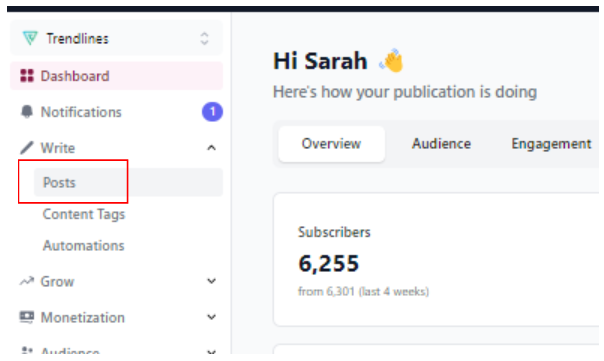
On the left side menu dropdown select “Write” and then “Posts.”
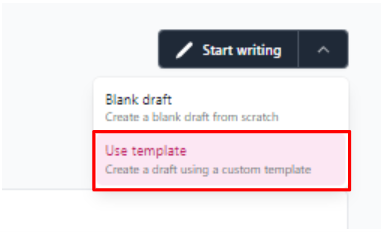
Once viewing the Posts tab, in the top right corner of the screen click the dropdown arrow next to “Start writing” and select “Use template.”
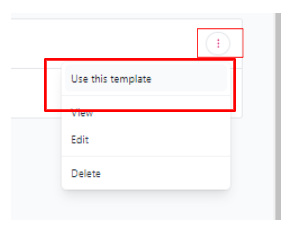
On the Templates page you’ll see the “Trendlines Campaign Template.” There are three dots on the right-hand side of the template; click the dots and select “Use this template.” Congratulations, you’ve created a new post!
Alt
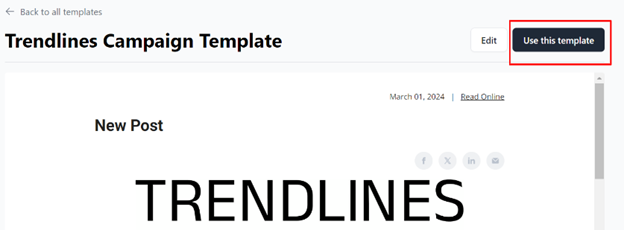
From the “Use template” step you can also click on the “Trendlines Campaign Template” itself and once viewing the template select “Use this template” in the top right corner.
Import Content
Once in the new post, evaluate which modules you’ll be using—all three traditional modules or two traditional modules plus the Gradient product module.
If you are not using the Gradient product module:
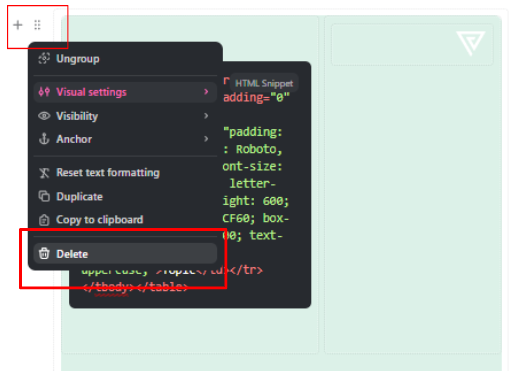
Delete the product module by hovering over the dot array on its left side. Click “delete.”
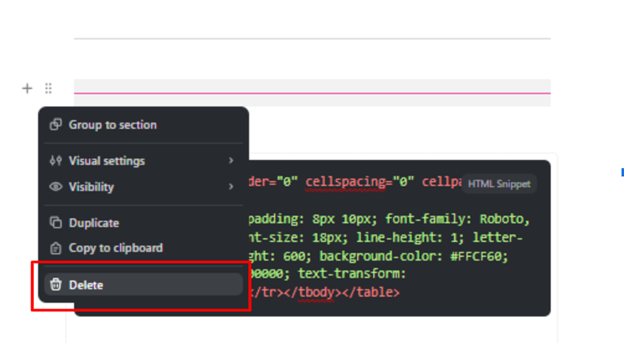
After deleting the product module, you will also need to remove the extra dividing line below it using the same steps you used to delete the module:
If you are using the Gradient product module:
Take the above deletion steps with module “Title 3” (the last module in the template). Remember to delete the extra dividing line.
The great thing about beehiiv is when you copy and paste the text content from the newsletter document, the formatting remains intact (this was not the case with Campaign Monitor).
To import content, copy and paste the text of a story from the newsletter doc into its corresponding beehiiv module. All links, colors, italics, bold, etc will be maintained.
Type (or copy and paste) the title of the story in the H1 where it says “Title 1” (and so on for the other module titles).
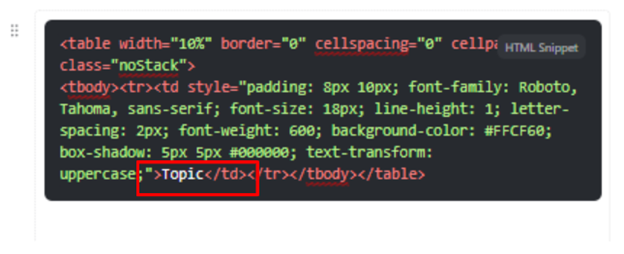
In the HTML section at the to of the module remember to enter its topic (entertainment, MaxDiff experiment, etc). Do not edit any other parts of the HTML section as this is the formatting for the module.
Note
I make a big deal about the preserved formatting, but beehiiv is a fickle master. Sometimes it may take one or two tries to copy and paste the text accurately.
You can copy and paste the text in multiple paragraph chunks as long as there isn’t an image in between the paragraph text. So, if a story is four paragraphs long with an image and two paragraphs appear before the image and two paragraphs appear after the image, you will have to copy and paste the text content in two separate chunks. Please do not copy and paste the images. See below for instructions for how to insert images.
Note
Be careful with ctrl+c and ctrl+v or even selecting text to delete; sometimes beehiiv selects more than you do and you end up deleting the logo or a header etc. Like I said, fickle master.
To import images, download the necessary images (annotated or otherwise) from the image folder. In the image placeholder in the module click “Upload an image.”
Note: Sometimes you have to do this process twice. I’ve written to beehiiv support about this glitch.
You can move images around by dragging and dropping to the desired location.
When you have finished importing content, make sure you preview the newsletter to see how it will appear in email and web format. To view the preview select “Preview” at the bottom of the post settings panel on the right side of the screen.
Note
Sometimes copy and pasted links don’t appear in the correct link color (#3693EF); to check, click on “Preview” in the lower right corner of the settings panel. You will be able to see if the color is preserved in the preview or not.
Once all content is imported, it’s time to create the post settings.
Post, Email, and Website Settings
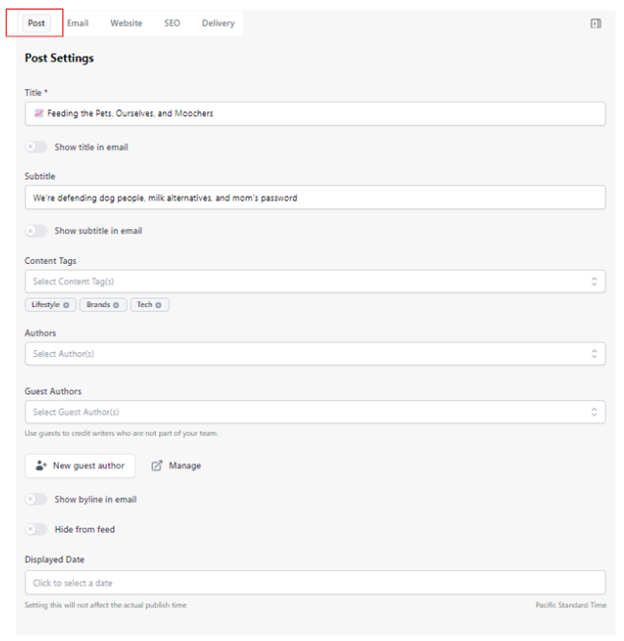
The “Post Settings” tab is the first tab on the top right side of the beehiiv settings menu. It is where you enter things like the email subject line, preheader, and content tags. Each element is described in more detail below.
Title: Copy and paste the subject from the newsletter document.
Uncheck “Show title in email,” since we do not want to do that (it looks garish, at this stage).
Subtitle: Copy and paste the preheader from the newsletter document.
Uncheck “Show subtitle in email,” since we do not want to do that (it looks garish, at this stage).
Note
To get our Trendlines emoji 📈 you will need to copy and paste it from an old email or post. No joke. Open an old Trendlines email (or post in beehiiv) and copy and paste the emoji from the subject line. It is our cross to bear.
Content Tags: Select the content tags from the dropdown menu using the “Topic” entered by each story author. Enter at least one content tag per story.
If there is a relevant or methodological second tag—let’s say it’s a MaxDiff story about donuts—please use two tags, one for the topic (“Food”) and one for the methodology (“MaxDiff Analysis”).
Authors: Leave blank. We don’t currently provide author names for our stories, though this could change in the future. You will also need to remove the default author listed by clicking the miniscule x button by your name (or my name).
Guest Authors: Leave blank. This may be used in the future for co-branding or true guest stories.
Show byline in email: Do not select.
Hide from feed: Only select when sending an internal email, a re-engagement campaign, or any other email you don’t want to be featured on the Trendlines archival website.
Displayed Date: No entry needed if you want your post to appear as published on the date you publish it. When publishing an archival post that needs to be back-dated, this is where you’d enter the older date.
Looking for A/B subject line testing info? See “Email Settings” below.
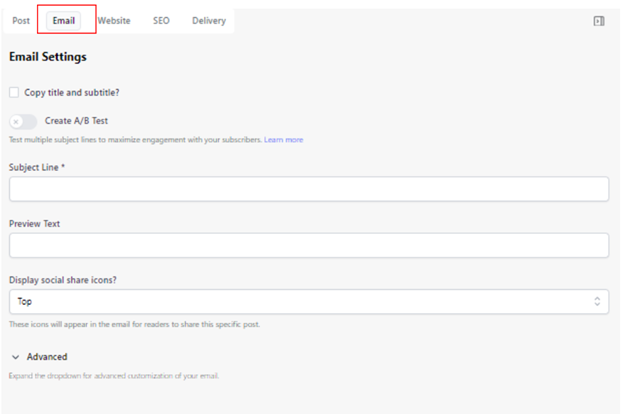
The “Email Settings” tab is the second tab on the top right side of the beehiiv settings menu.
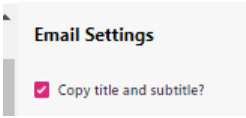
Select “Copy title and subtitle” (they make it so easy) and the information from the “Post Settings” tab will populate.
A/B Test:
If you have two subject line options (usually the long form, traditional Trendlines subject versus the short, single-story Trendlines subject), select “Create A/B Test.”
Enter Subject Line A and Subject Line B.
Note: You cannot A/B test the preview text/preheader, unfortunately.
Display social share icons?: This defaults to the top and should remain that way.
Advanced: We don’t currently use this option.
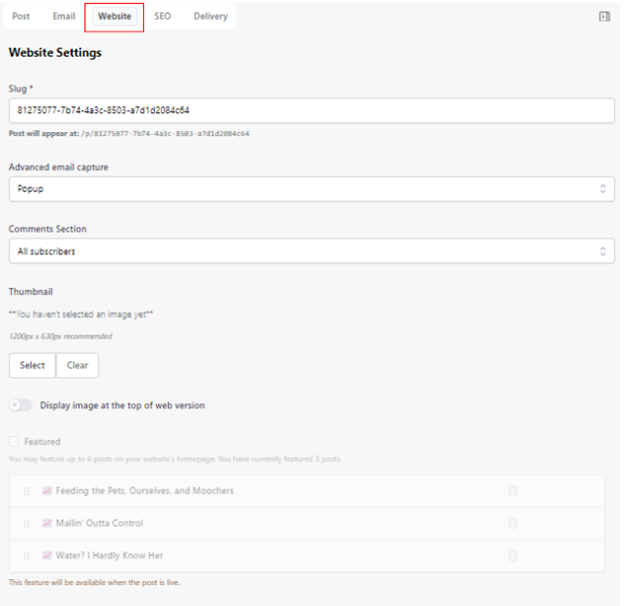
The “Website” tab is only used to manipulate two settings right now: the post thumbnail and the featured posts section. The top three settings in the menu are default and should remain that way until further notice.
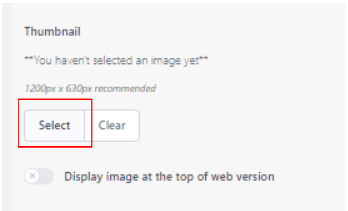
Once you have made a thumbnail image in Canva (instructions to come), download it to your desktop and then upload it to beehiiv in the thumbnail section.
Do not select “Display image at the top of the web version.”
You can publish the post without a thumbnail, if needed, but ideally one will be in place when it publishes or shortly thereafter.
You will only be able to edit the “Featured” setting after the post has published.
In nearly all cases, the most recent post should be featured on the website, with the older posts subsequently moving out of the featured rotation.
We feature three posts at one time on the website.
Once the post has been published, click on “Posts,” hover over the three dots on the far right side of the post itself, and click “Edit.” Navigate to the “Website” settings tab.
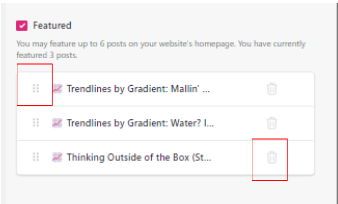
Select “Featured.” Using the dot array on the left side of the post listing, drag the most recent post to the top, for chronological order. Use the waste basket icon to delete the oldest post in the list.
Note: In the below image I have highlighted the waste basket icon; however, there are only three posts present, so this is just for demonstration purposes. Normally you should not delete a post if there are only three featured.
The “SEO” tab auto populates and there is no current need to edit its content.
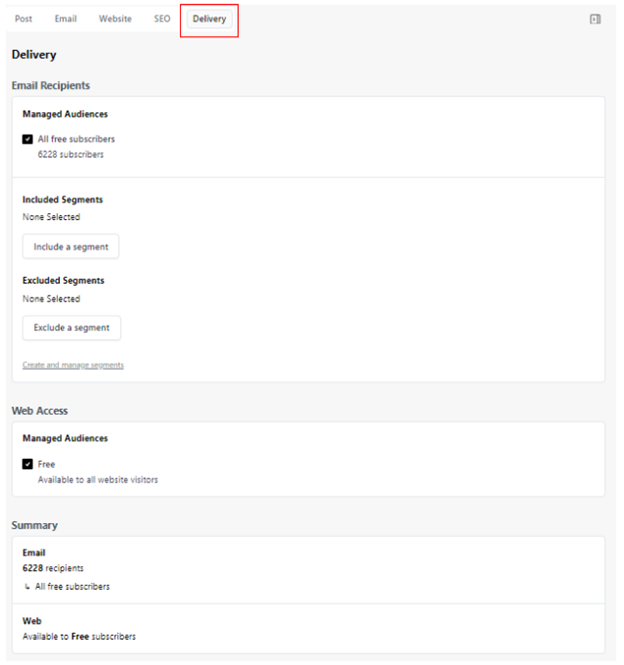
For a typical Trendlines newsletter leave the “Delivery” tab in default settings to deliver to all free subscribers; this controls who gets sent our emails. We don’t currently segment Trendlines, but this may happen in the future.
Note
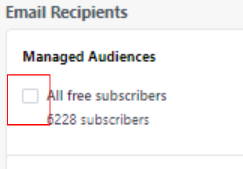
If publishing an archival post or sending an internal email then uncheck “All free subscribers” from the “Email Recipients” section so an email is not sent to all our subscribers.
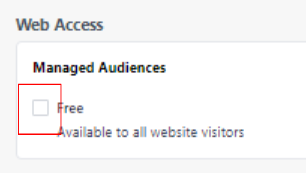
If sending an internal email then uncheck the above and uncheck “Free” from the “Web Access” section so the email is not published to the website.
Sending the Test Email
When all content is imported and settings selected (with the possible exception of the thumbnail image), send a test email by clicking on “Send test” on the lower right side of the settings panel. Select yourself as a recipient of the test email and anyone else who worked on the newsletter (if available).
You can view the test email from a variety of platforms, including desktop or mobile, to ensure the integrity of elements.
You can also choose “Select a subscriber” and the email you receive will mimic a specific subscriber’s email server, such as Gmail versus Outlook. I often use this option but don’t test multiple subscriber emails.
Review the test email and solicit feedback from other recipients.
If changes are made after the test email, update the text in the beehiiv template.
Sending the Newsletter
Historically we send the newsletter on Wednesdays at 1:00pm ET, as that is when our readers are most active (but we also primed our readers to expect our emails at 1:00pm on Wednesdays, so it’s a chicken and egg situation).
If using an A/B test, it takes about three hours for results to populate, so you should send the newsletter as soon as the test email has been approved.
For example, I often finish edits and the test email around 10:00am ET, then publish the newsletter immediately so it’s ready for full launch by 1:00pm ET.
On the lower right side of the settings menu, select “Schedule.”
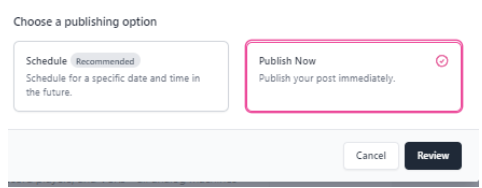
If using an A/B test, select “Publish Now.”
Select “Review” and confirm you are sending to the entire list at the specified time and date (immediately or scheduled). Select “Send.”
If not using an A/B test, select “Schedule” and choose a publish date and time for Wednesday at 1:00pm ET. Follow the same “Review” step as above.
Look for the latest Trendlines issue to come crashing into your inbox!
Canva Workflow
Log in
Open canva.com, for which we have a Gradient account.
Note
This is not an exhaustive guide on how to use Canva. The app has a fairly straightforward interface and much of it can be learned by doing. Here is a Canva for beginners tutorial; I did not take it and still have a good grasp of the tools.
Canvas Size
Based on what style of plots you have for the current week’s Trendlines, choose your canvas size.
I’ve been experimenting with making the plots larger and more legible, so feel free to play around with the sizing if something looks too small in either canvas.
Insert the Plot
Locate and download the plots from Emmanuel (he will link in the newsletter comments). They are usually in the R folder for that month’s Trendlines.
The easiest way to start a new plot is to create a copy of the previous plot slide (which will have our logo and the footer information). Once you have made a copy of that slide, delete everything but the footer information.
Note
Be sure to update the footer with x number of American adults taking the survey and the dates of the survey.
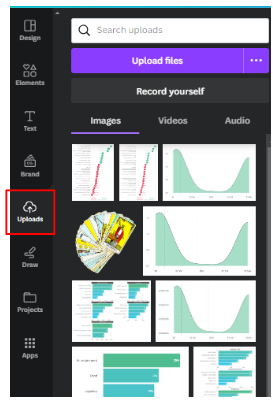
Using the toolbar on the left side, click “Uploads” and upload the plot.
Click on the plot to place it on the blank slide. Once there, resize it to fill the space, leaving some room for the annotations.
Create the Annotations
There are three kinds of annotations:
Images. My preference is to use photos and not graphics/cartoons. Please also use cutouts where possible or images without backgrounds, it helps the additions look more organic. When selecting what images to use I often choose something topical or easily produced in an image. For example, in a plot about football I used a helmet; in a plot about burnout I included a picture of a person looking exhausted, and so on. It’s subjective and should be fun.
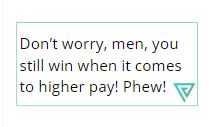
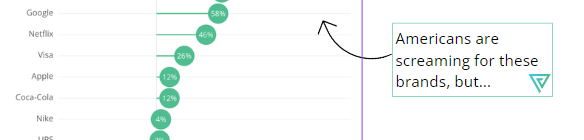
Text callouts. These callouts should explain a finding, make it more relatable, or point out something not mentioned in the story itself. You can copy and paste old text callouts and adjust the size and text accordingly. Always include a nabla in the lower right corner. I vary the amount of space between the text and the nabla depending on the text.
Many, but not all callouts have an arrow pointing toward the relevant data. You can always change the orientation of the arrow.
Plot title. The researcher will often help you with these but we aim to create a plot title that clearly demonstrates what the plot shows but also has a bit of fun. Some examples of previous plot titles:
Americans like their brands like they like their food: fast and cheap
If an Olympic sport doesn’t get watched, is it even an Olympic sport?
Looks like America really does run on Dunkin’
Insert the Plots into the Newsletter
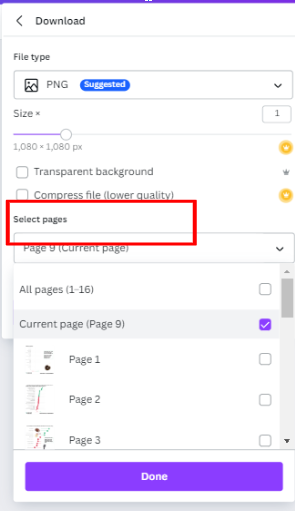
Once your first draft of the plot is down, download that specific slide (“current page”) and insert it into the newsletter.
Tag the researchers in the newsletter document to see if they approve.