Intro to Crunch
Crunch.io is a data analysis and visualization platform that facilitates working with complex datasets. It allows users to import, analyze, and visualize data without needing extensive programming skills.
The Crunch.io portal is Gradient’s way of democratizing data and empowering our clients to answer their supplemental research questions after completing our projects. Crunch.io is also valuable for the research management team when creating project memos and decks.
It’s important to note that while Crunch.io is a powerful tool, it has its limitations. Most notably, we typically only upload non-modeled data to Crunch.io portals. Crunch is purpose-built for frequency, crosstab-compatible data. Numerical data, in general, is not easily displayed and analyzed using Crunch. Therefore, the findings from some of our core experiments, like MaxDiffs, conjoints, and list experiments, aren’t typically accessible via Crunch.io. This is a key limitation to communicate to clients when discussing the features of their Crunch.io portal.
To access Crunch.io, follow this link: https://app.crunch.io/authentication/workspace?redirect=%2F
After clicking the link above, you’ll see the following page:
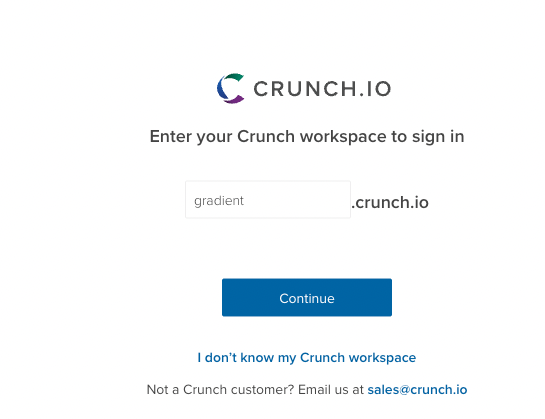
As you can see in the image above, you’ll want to type “gradient” into the URL to access the company Crunch.io homepage.
After pressing continue, you’ll be redirected to our homepage, which contains all the Crunch.io portals we’ve made for clients and internal purposes, like Trendlines. The portals are organized by client on the left-hand side of the homepage.
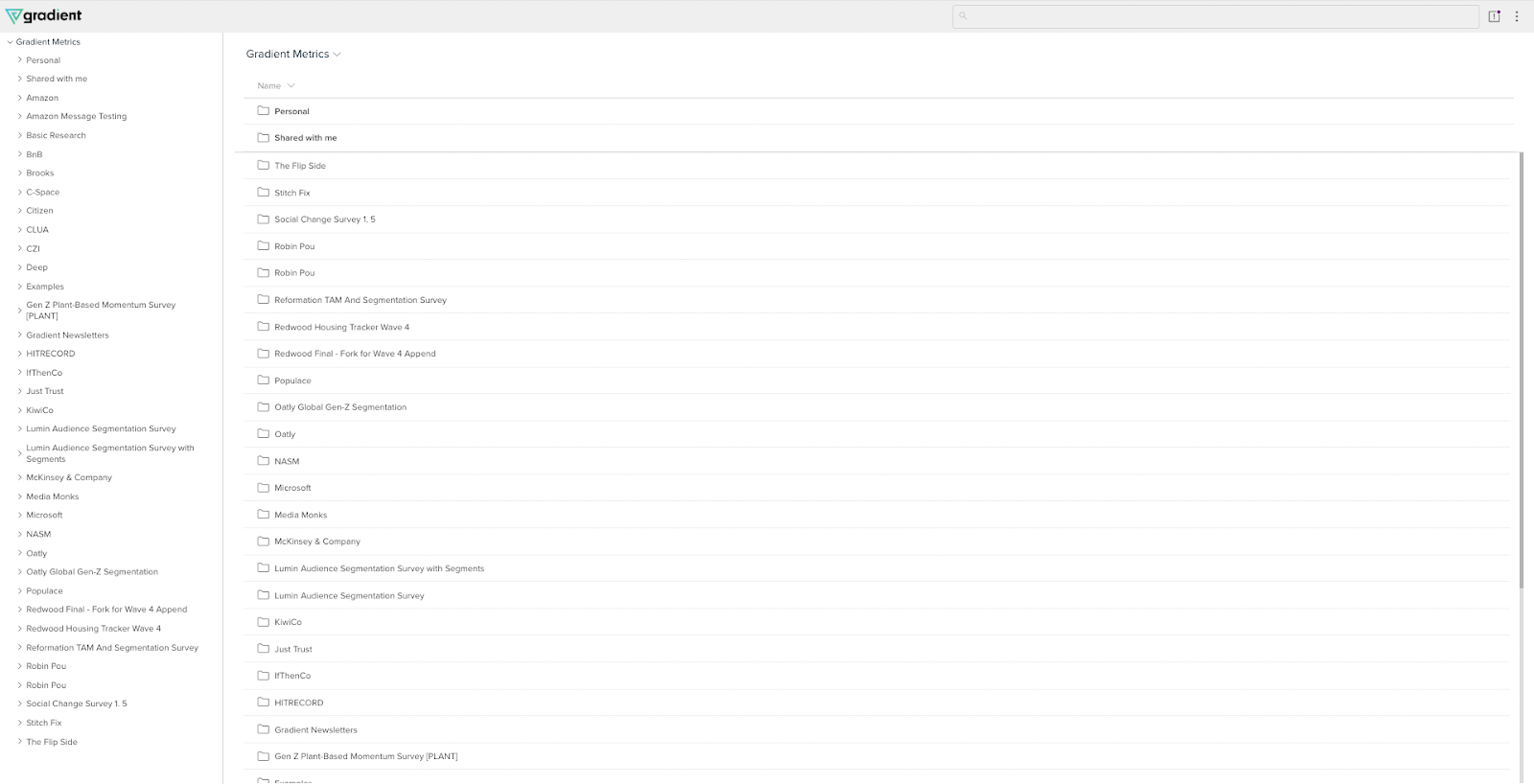
To access a specific portal for a project, click on the client (or internal) folder and then on the project name.
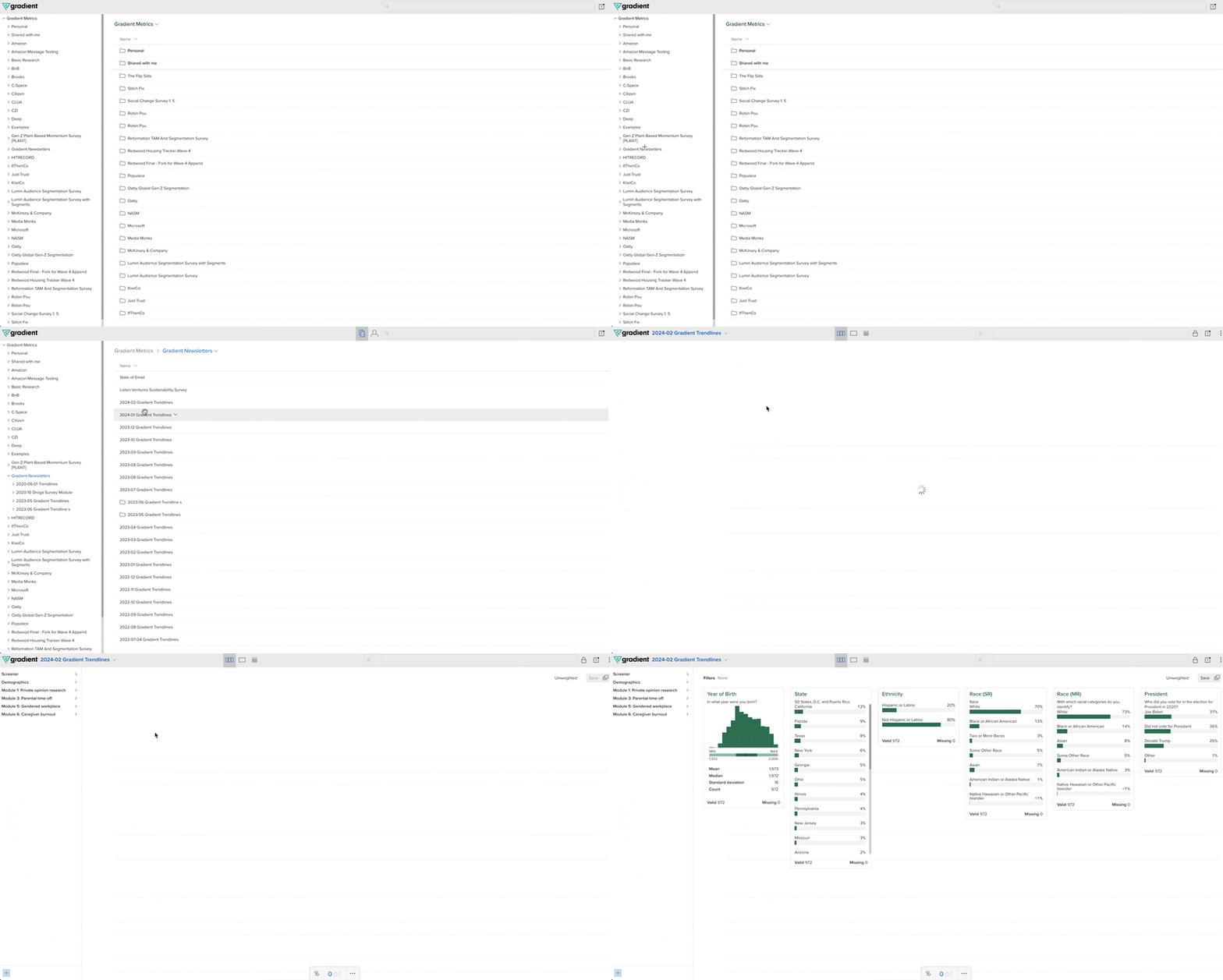
One of Crunch.io’s core benefits is the ability to explore the summary data for all the responses collected in the project-related survey.
There are two main ways to view the summary data. As shown in the gif below, you can either scroll through pages of the summary statistics for a broad view of all the variables or select the name of a variable for a more focused view of a single variable.
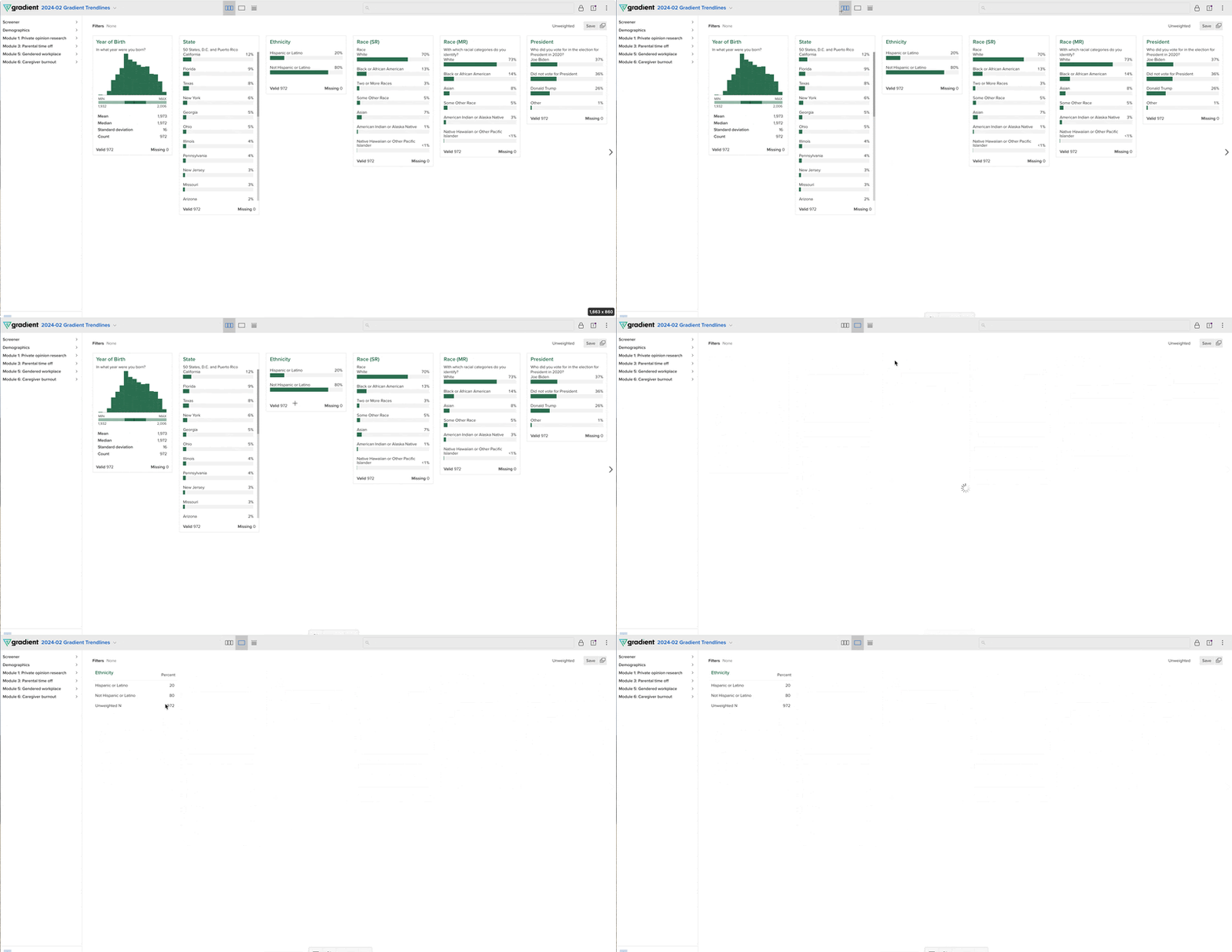
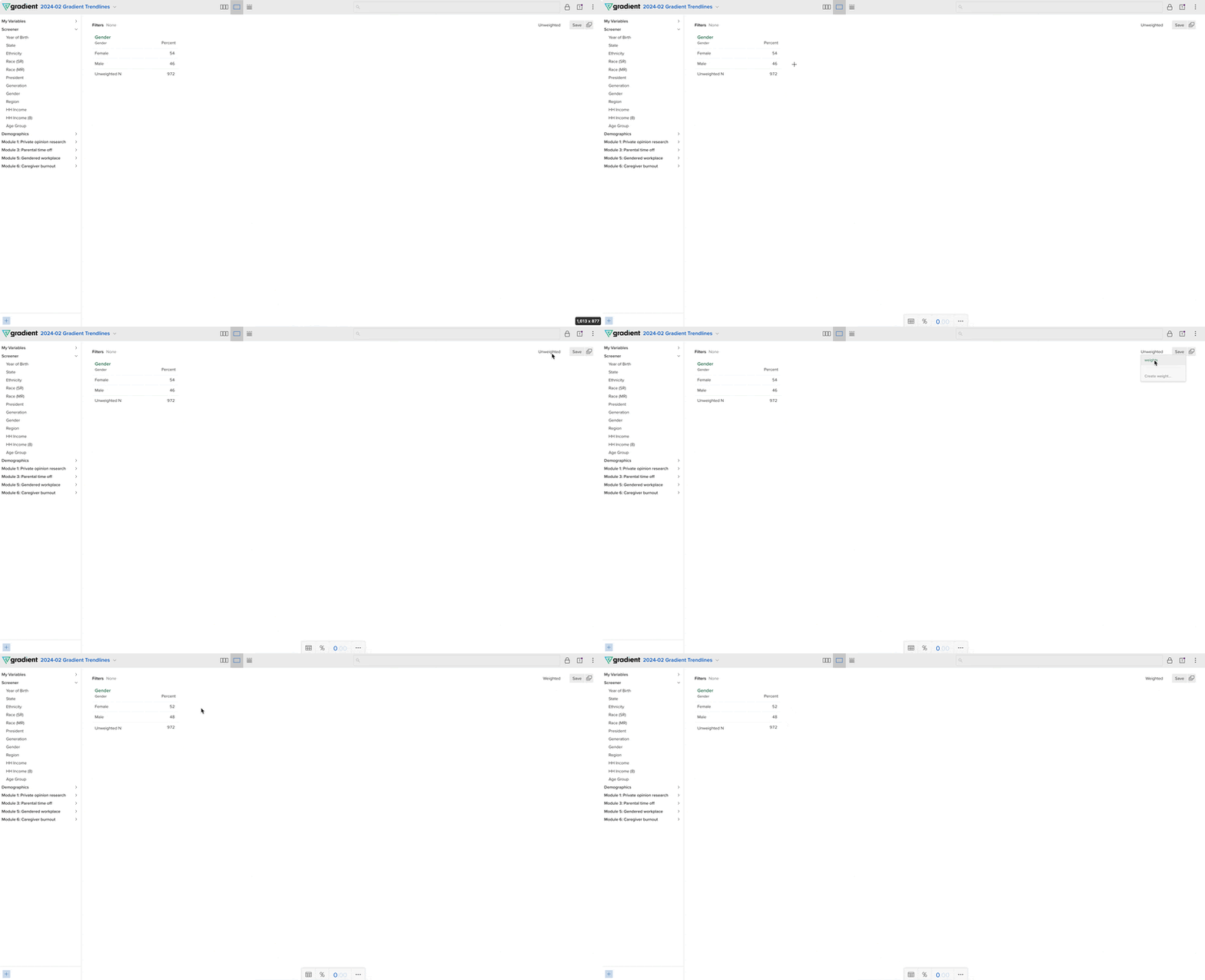
⚠️ Before you do any data exploration, ensure you apply the appropriate weight. This is especially important when working with Trendlines and other nationally representative data, as the data we report are carefully weighted to be representative of the national population. To toggle between unweighted and weighted data, click the word “Unweighted” or “Weighted” in the top right corner of the screen. The word on the screen indicates which type of data you’re looking at.
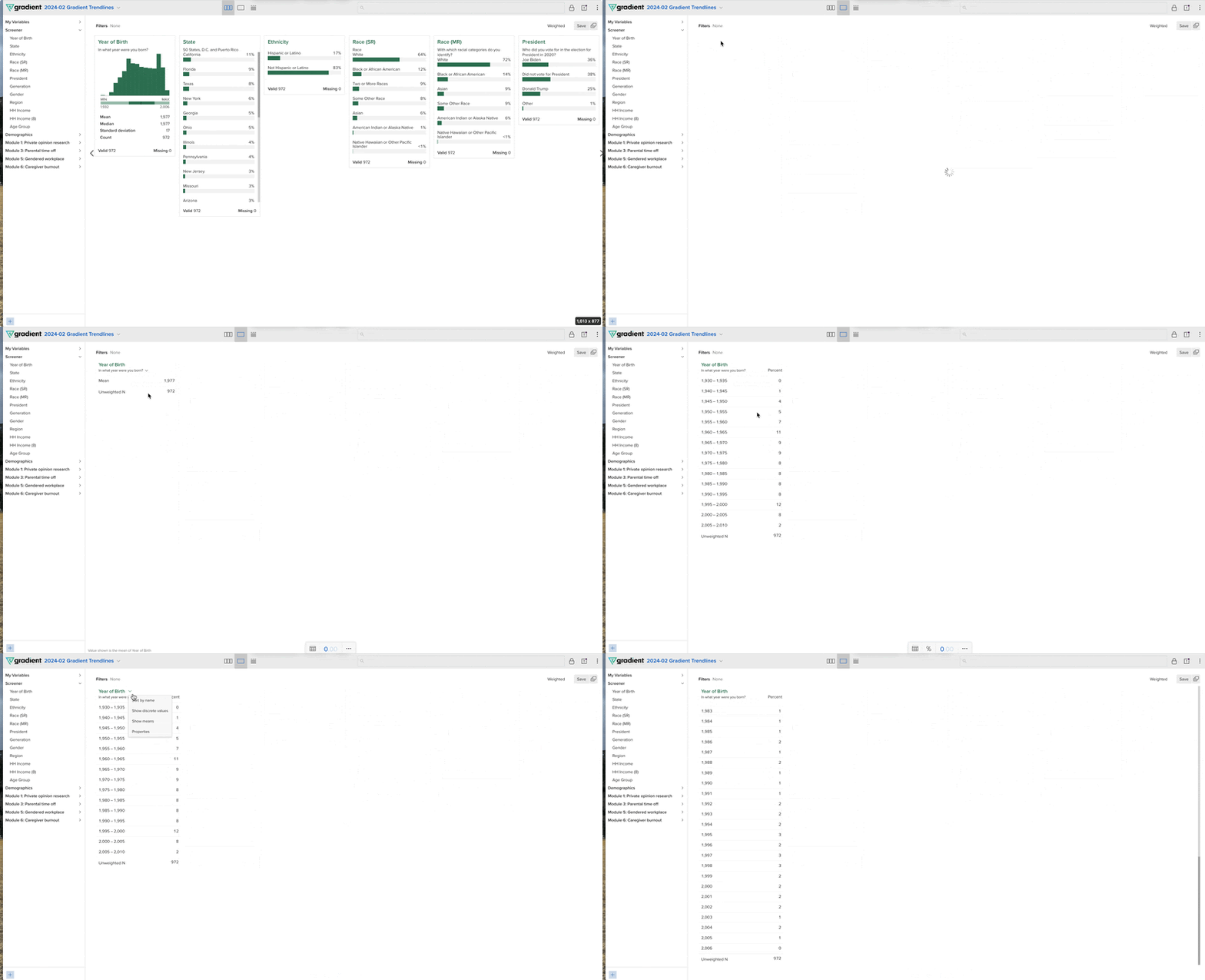
Summary statistics for numerical data display differently depending on whether you’re in the broad or focused viewer mode. In the broad viewer mode, you can see the mean, median, standard deviation, and count for numerical variables. By default, the focused viewer mode only shows the mean; however, you can also see the discrete values or ranges by clicking the arrow that appears when you hover over the name of the variable, followed by selecting “Show discrete values” or “Show ranges,” respectively.
In either viewer mode, you can add filters to the data to restrict the data summary to a specific group of interest. You can add temporary or saved filters.
To add a temporary filter, drag the question you want to filter the variable from the left-hand side of the screen into the center. You’ll see several boxes appear where you can drag the variable. To make a filter, you’ll want to drag the variable to the top of the screen where it reads, “Filter by [name of the variable you’re dragging].”
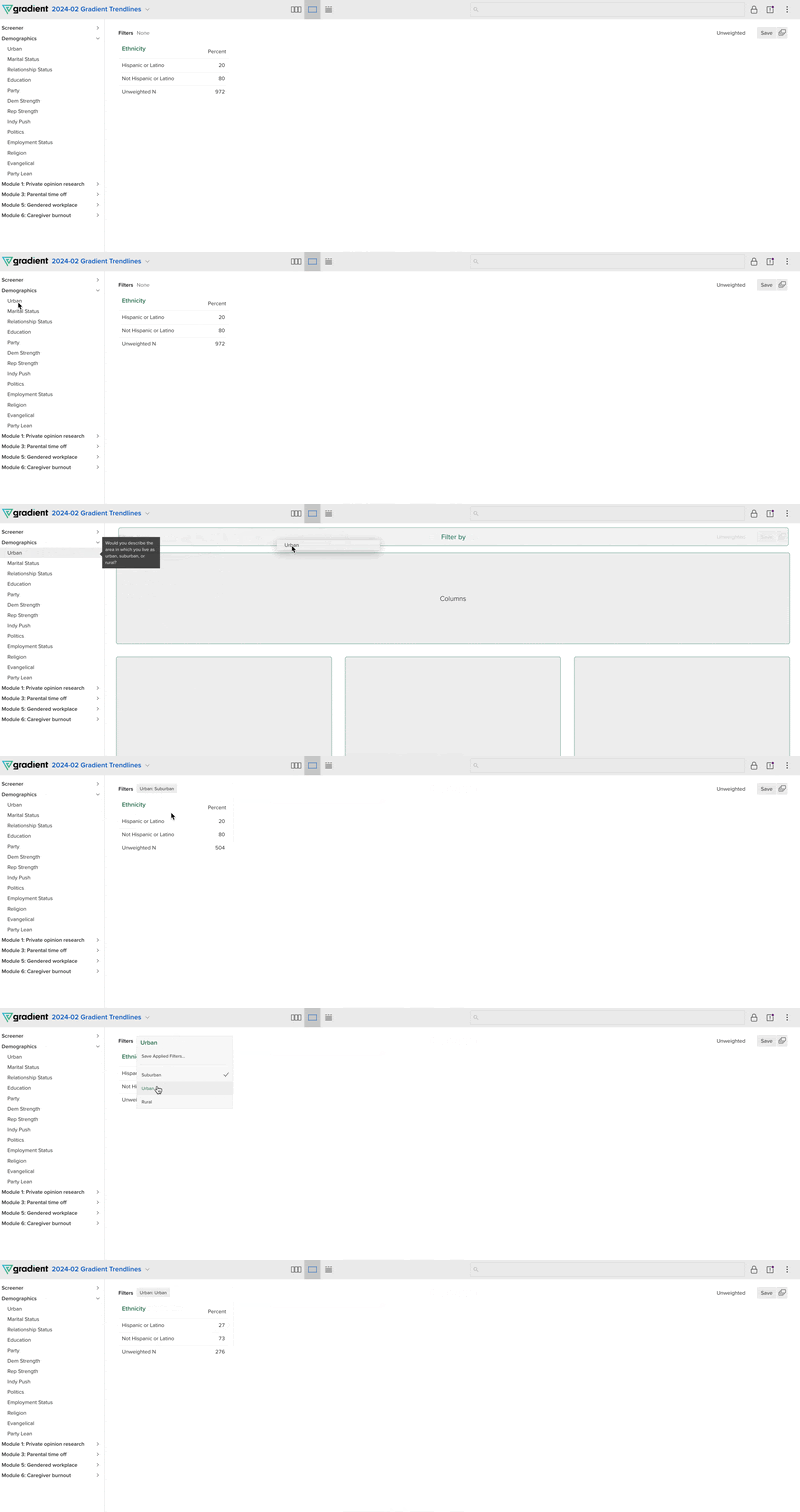
After doing so, you should see all the variable categories at the top of the page, where it reads “Filter.” You can switch between the categories to change the filter by clicking the gray box next to the “Filter” text. We consider these types of filters temporary because you will lose access to them as soon as you click on another variable.
Unlike temporary filters, you can access saved filters at any time without recreating them. To create saved filters, click the word “None” on the right side of the “Filter” at the top of the page. Click the box that appears with the words “New filter…” You’ll be redirected to a new page that allows you to create the filters.
Start by naming the filter something related to the level of the variable you want to use for the filter. Next, drag the variable that contains the level you want to use as the filter into the gray box containing the words “Select or drag variable.” The levels of the variables will appear. Select the levels you want to use for the filter, then click “Save.” If you want to share access to this filter, click the drop-down menu in the upper right corner that reads “Shared with.” Select “Gradient” if you want to share the filter with other Gradient team members of “All dataset users” to allow both Gradient team members and the client access.
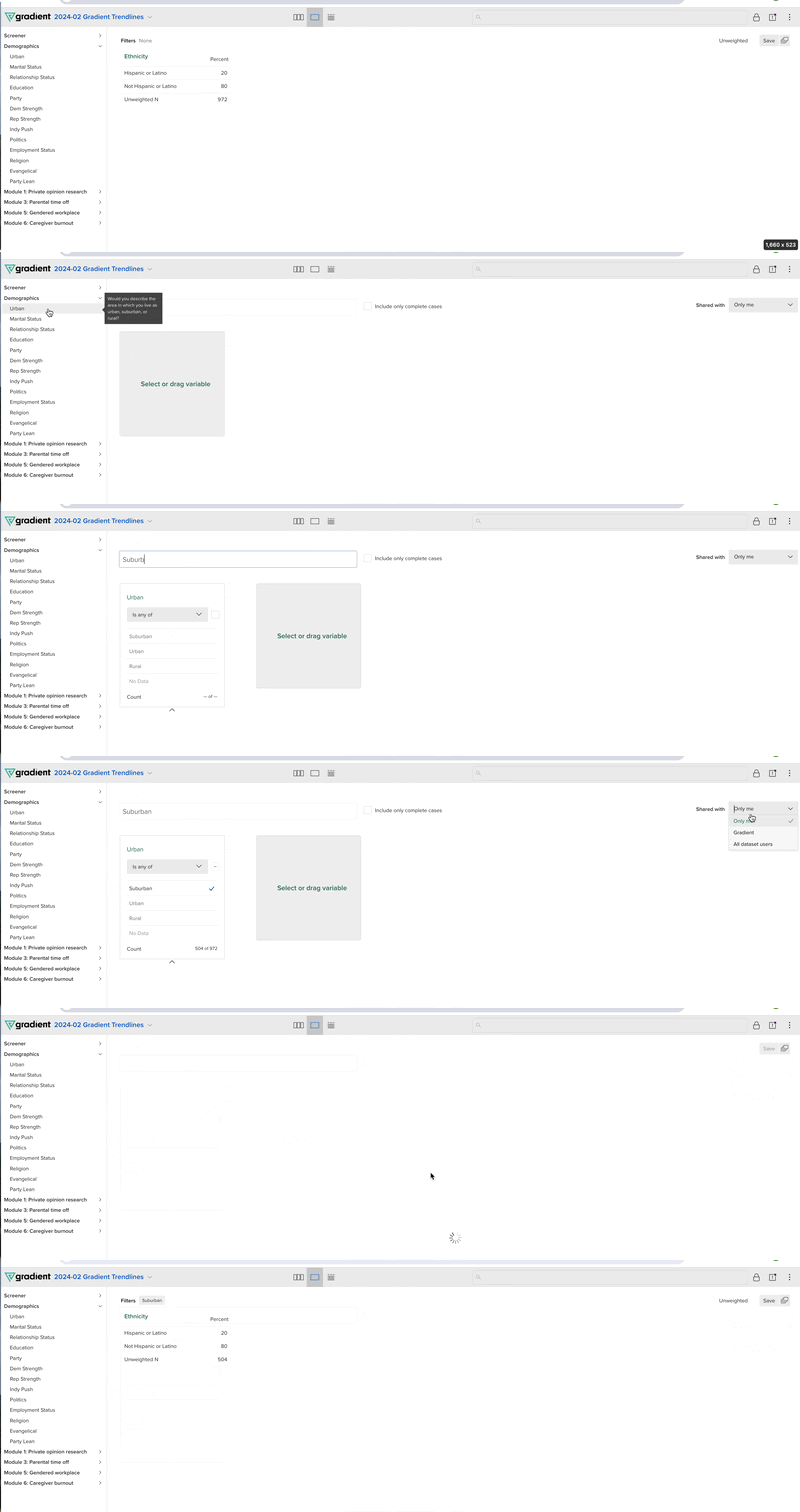
You can create as many filters as you like! Best of all, you can easily combine filters by using the “+” button next to the filter you select.
Often, you’ll want to go a bit deeper than exploring summary statistics by investigating the relationship between two variables. Creating crosstabs is as easy as dragging one variable from the left-hand column of the portal onto any variable in the center of the screen.
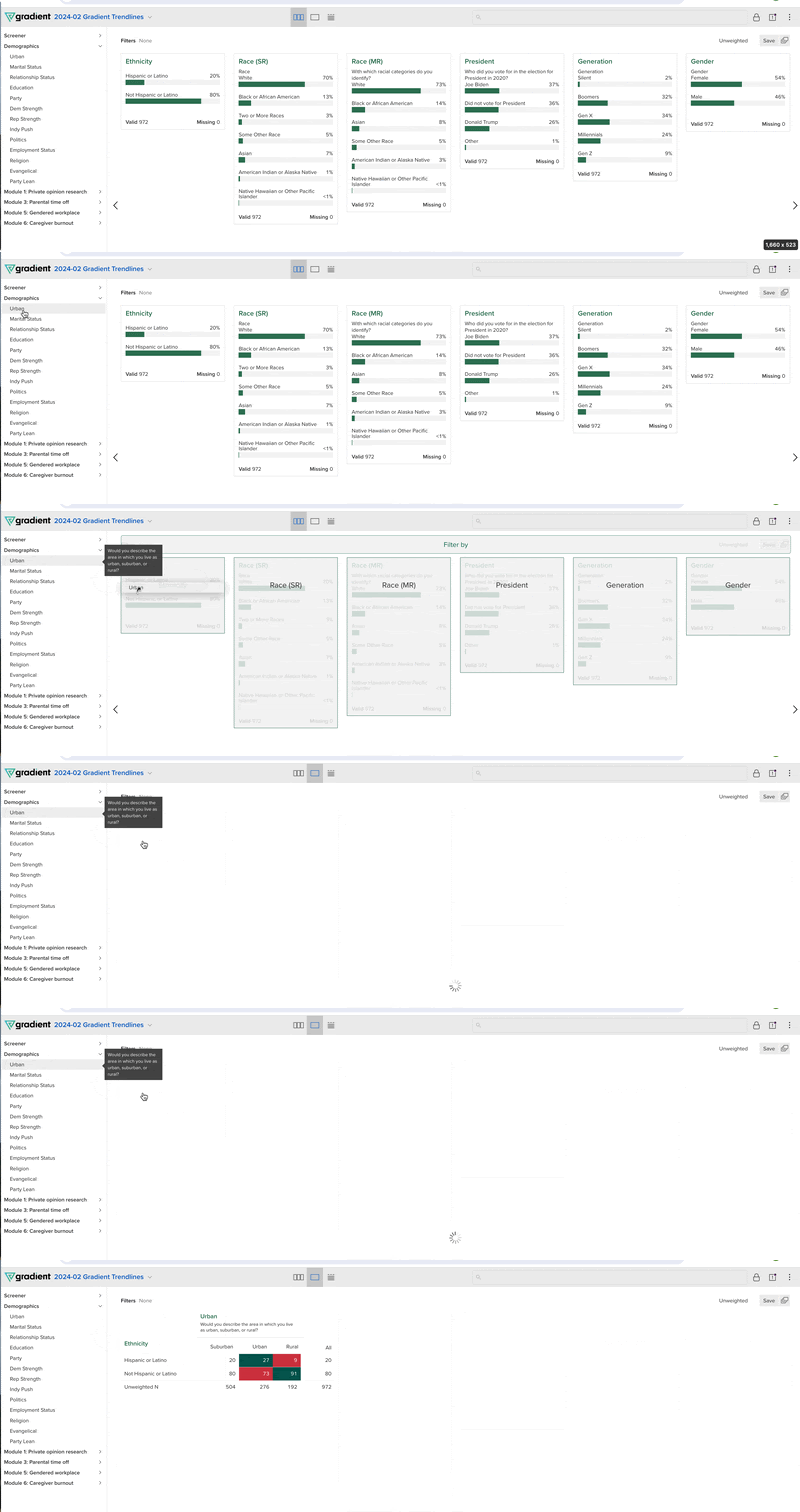
At the bottom of the screen, you’ll find some useful ways to alter the table that is created. We’ll briefly summarize the most used functions.
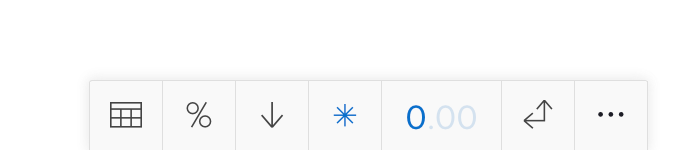
Changing Between Percentages and Raw Counts: The cells in tables can take the form of raw counts or percentages. The default is percentages, so to toggle between the two, click the “%” symbol followed by the “N.”
Direction of Summary: Select the single arrow to alter whether the cells are summarized by column or row. If you choose the arrow pointing downward, you’ll summarize the cells across columns. If you click the right arrow, you’ll summarize the cells across rows.
Significant Differences: You can choose whether significant differences across categories are displayed by clicking the “*” symbol.
Adjusting Decimal Places: To change how many decimal places are included in a percentage, click the grayed out zeros to the right of the blue “0.”
Swap Rows or Columns: To swap which variable is displayed as the column or row, simply click the button that looks like two arrows converging into a 90-degree angle.
You can explore multiple crosstabs simultaneously with the multitable view in Crunch. This allows you to select several variables as columns to see how each is distributed across another variable of interest.
To create a multitable:
- Navigate to the viewer modes at the top of the screen and select the icon with several horizontal lines.
- Drag the variables you want as columns into the box labeled “Drag variables here.”
- To hide a level of the variables, click its label. The label will turn light grey if successful.
- Continue adding variables and hiding levels until you have all the groups you want to compare.
- Add a title and click “Save” when you’re ready.
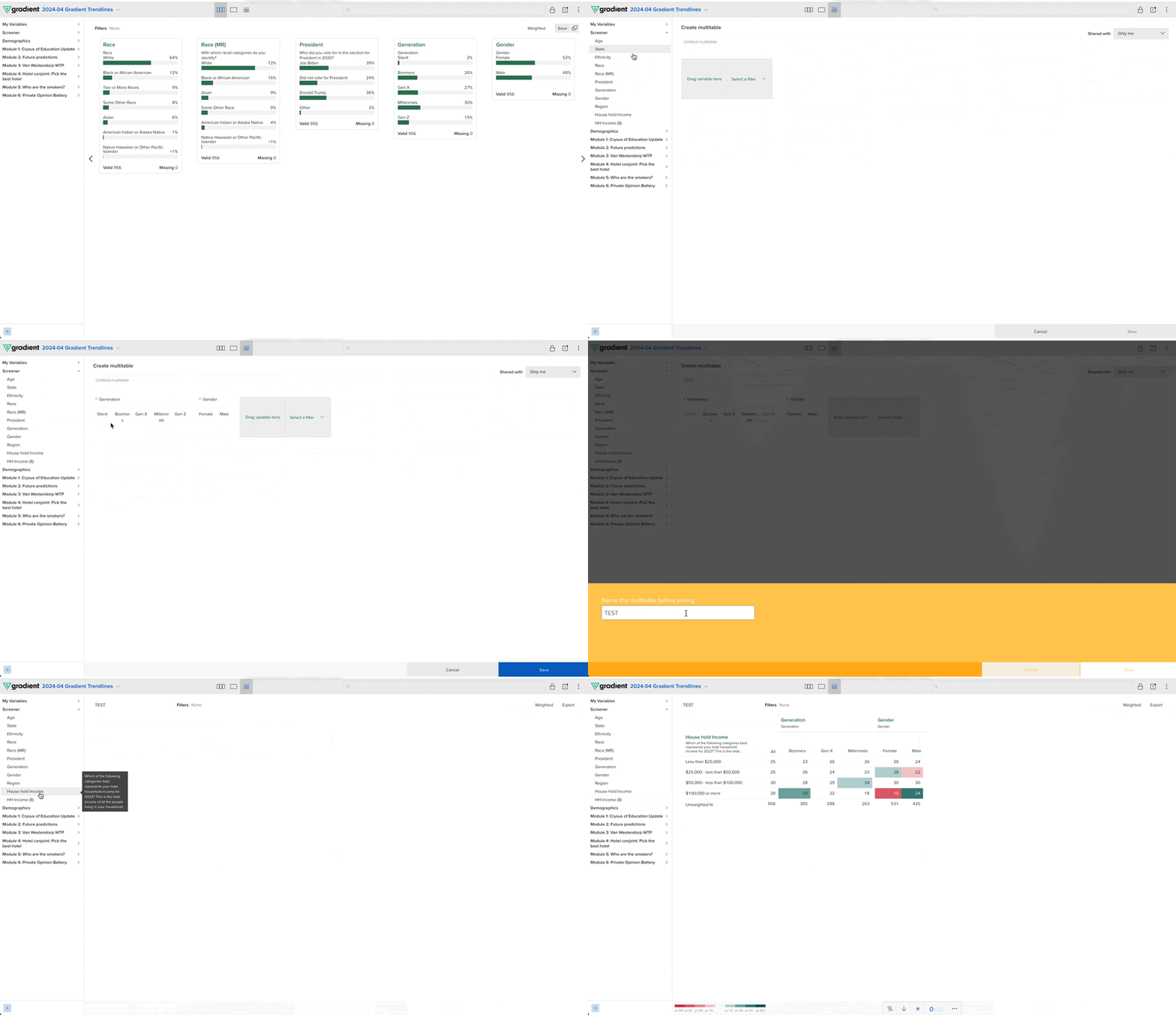
As you can see at the end of the gif above, one of the benefits of multitables is the population average for the rows is calculated across using all the groups in the columns of your multitable.
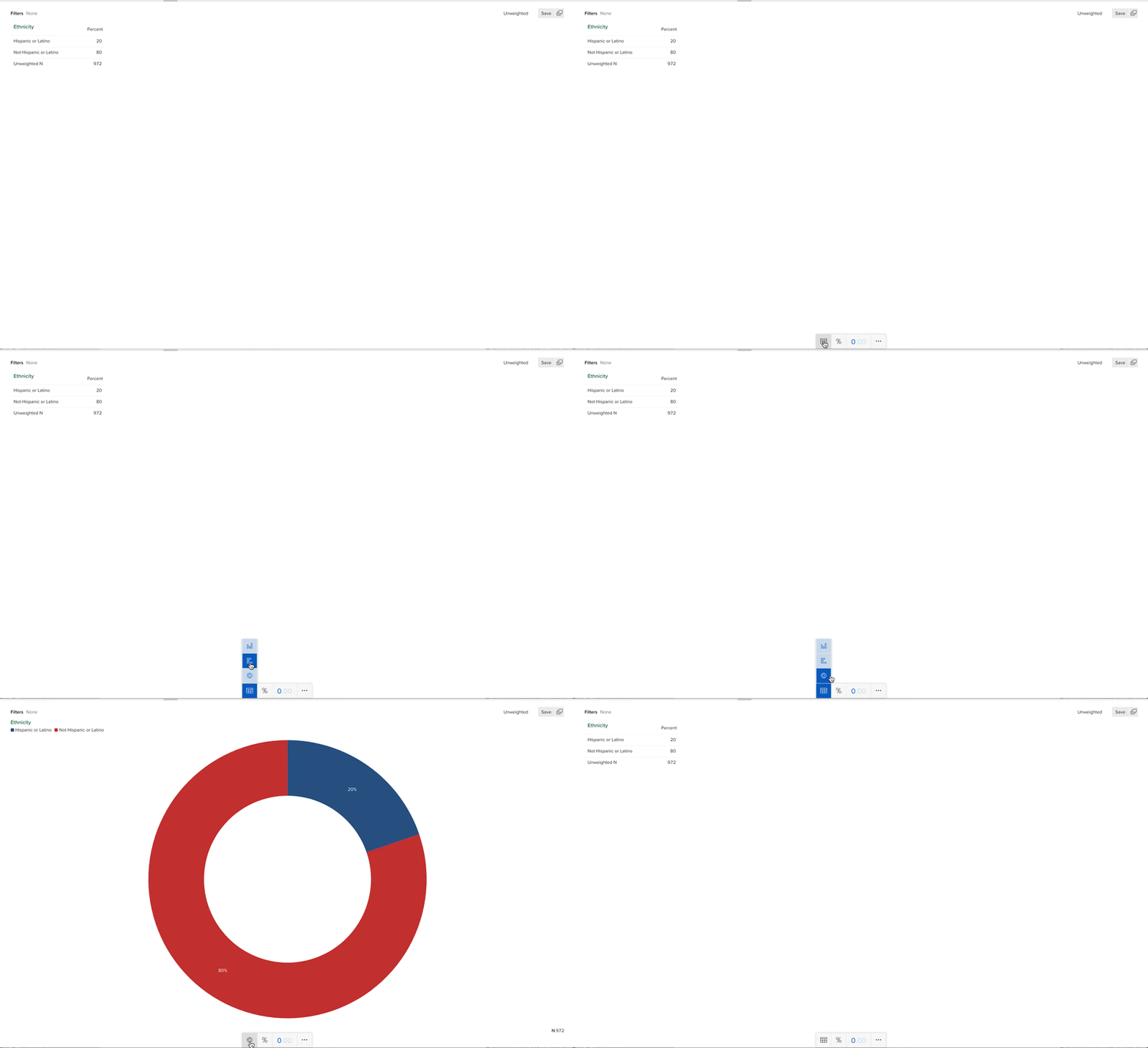
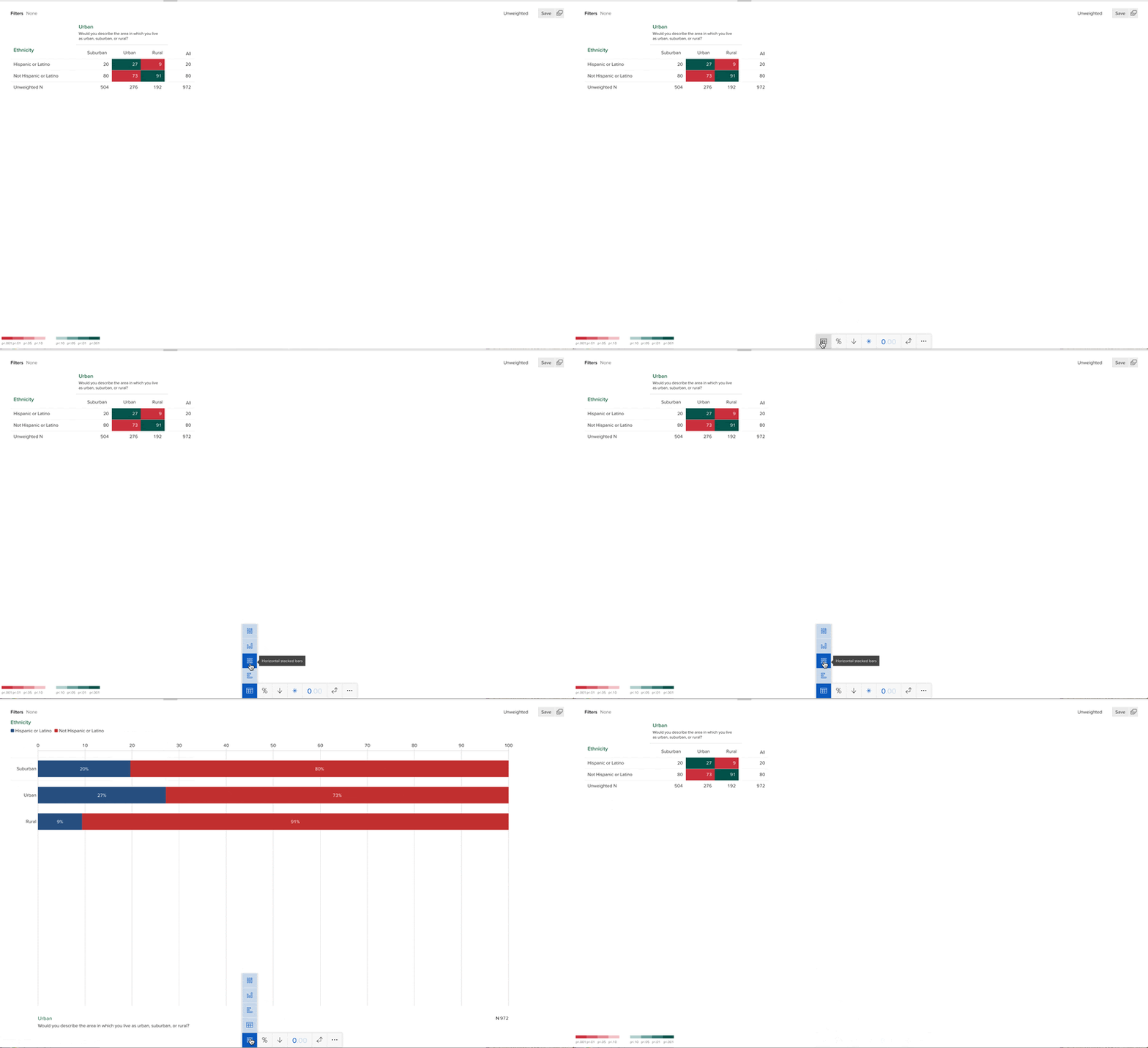
When in the focused view mode, you can create different types of plots by clicking the image of a table at the bottom of the screen. The options for plots depend on the structure of the data and whether you’re looking at the summary statistics for a single variable or crosstabs.
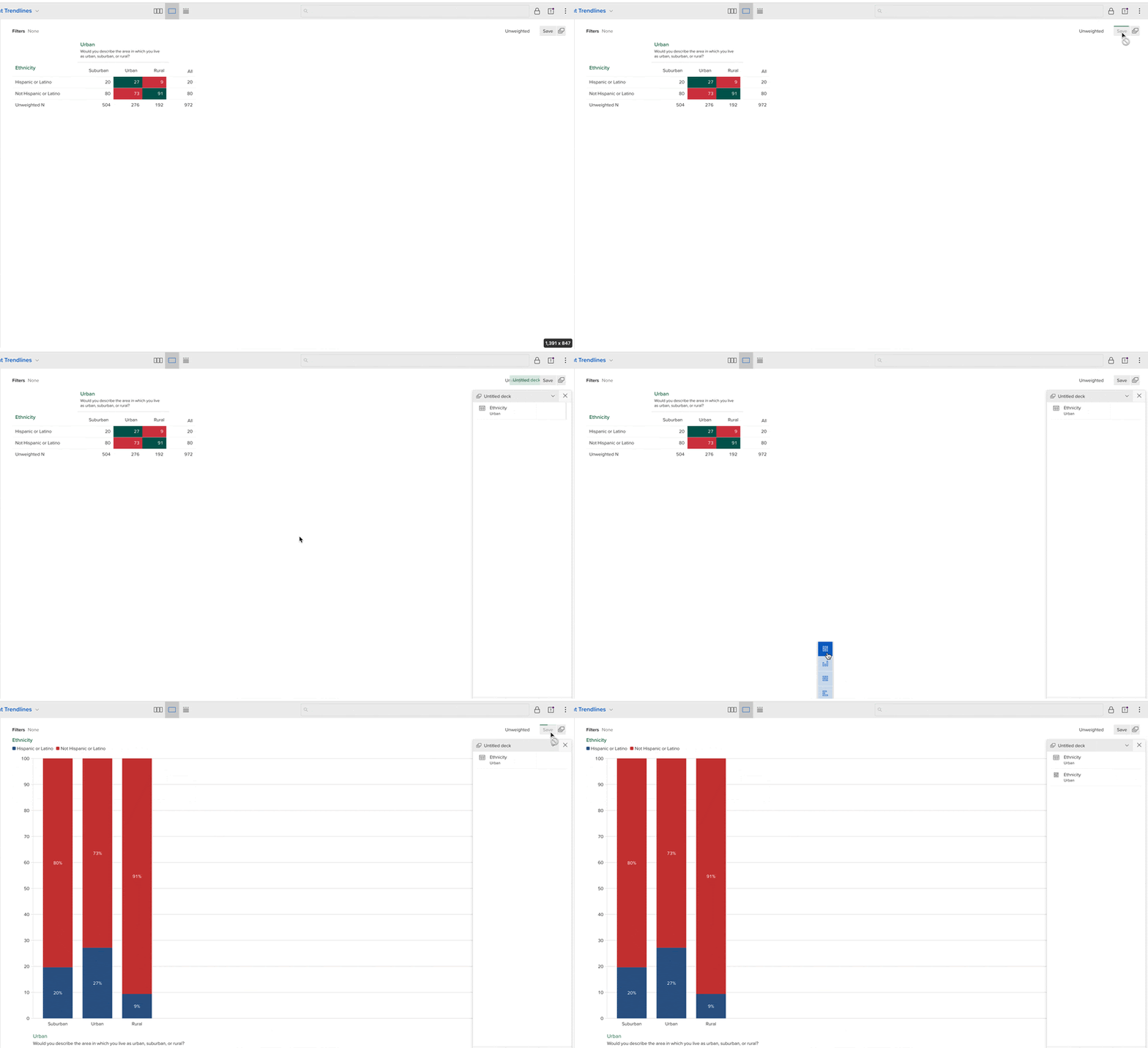
You can save important plots and tables you want to reference later or share directly with clients into what the Crunch.io portal calls “Decks.” To save a plot or table, click the “Save” button in the top-right-hand corner of your screen. After doing so, you should see the name of the variable(s) and an icon of the type of data saved (table or plot) in a box on the right side of the screen. This box is considered a deck.
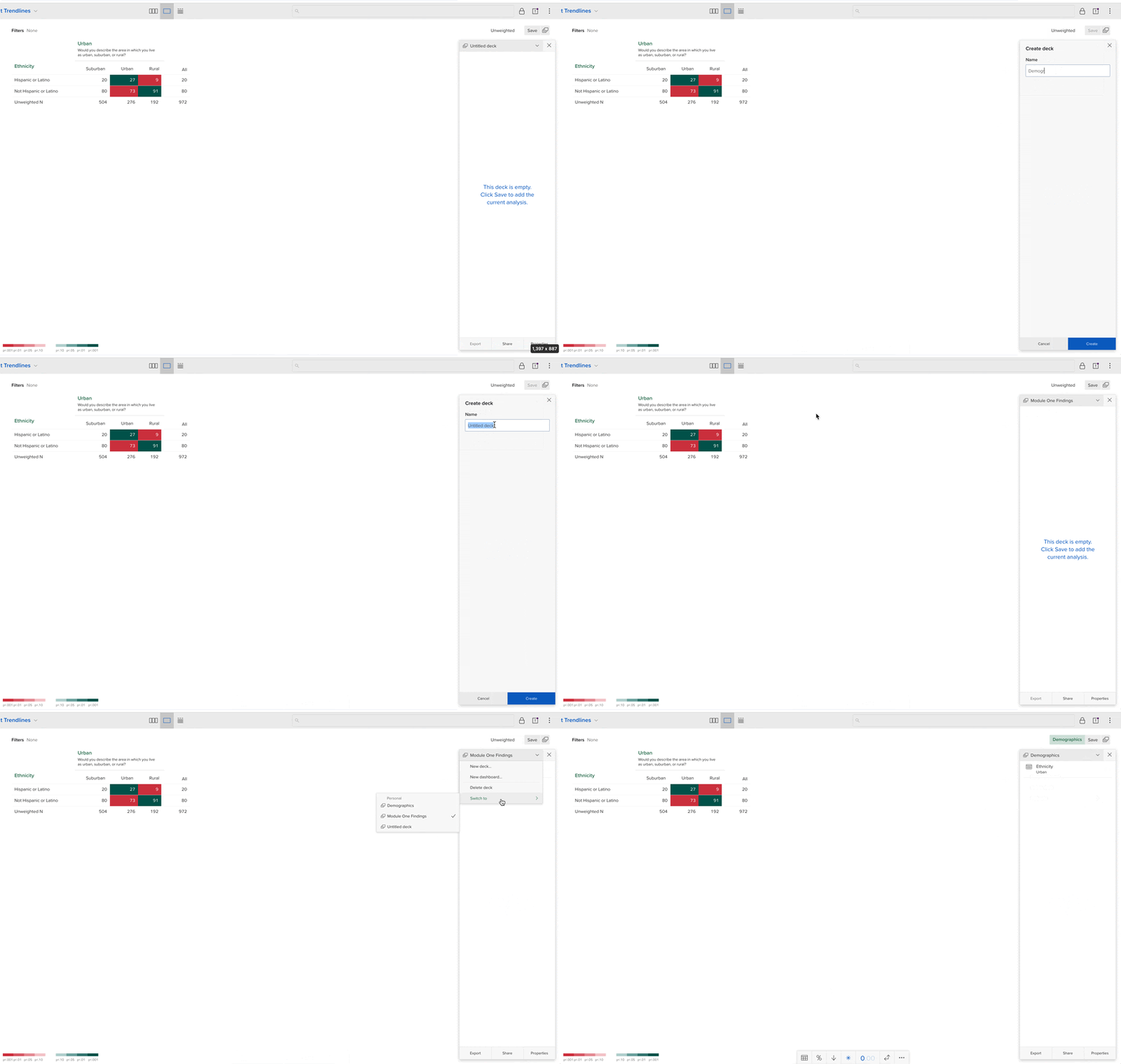
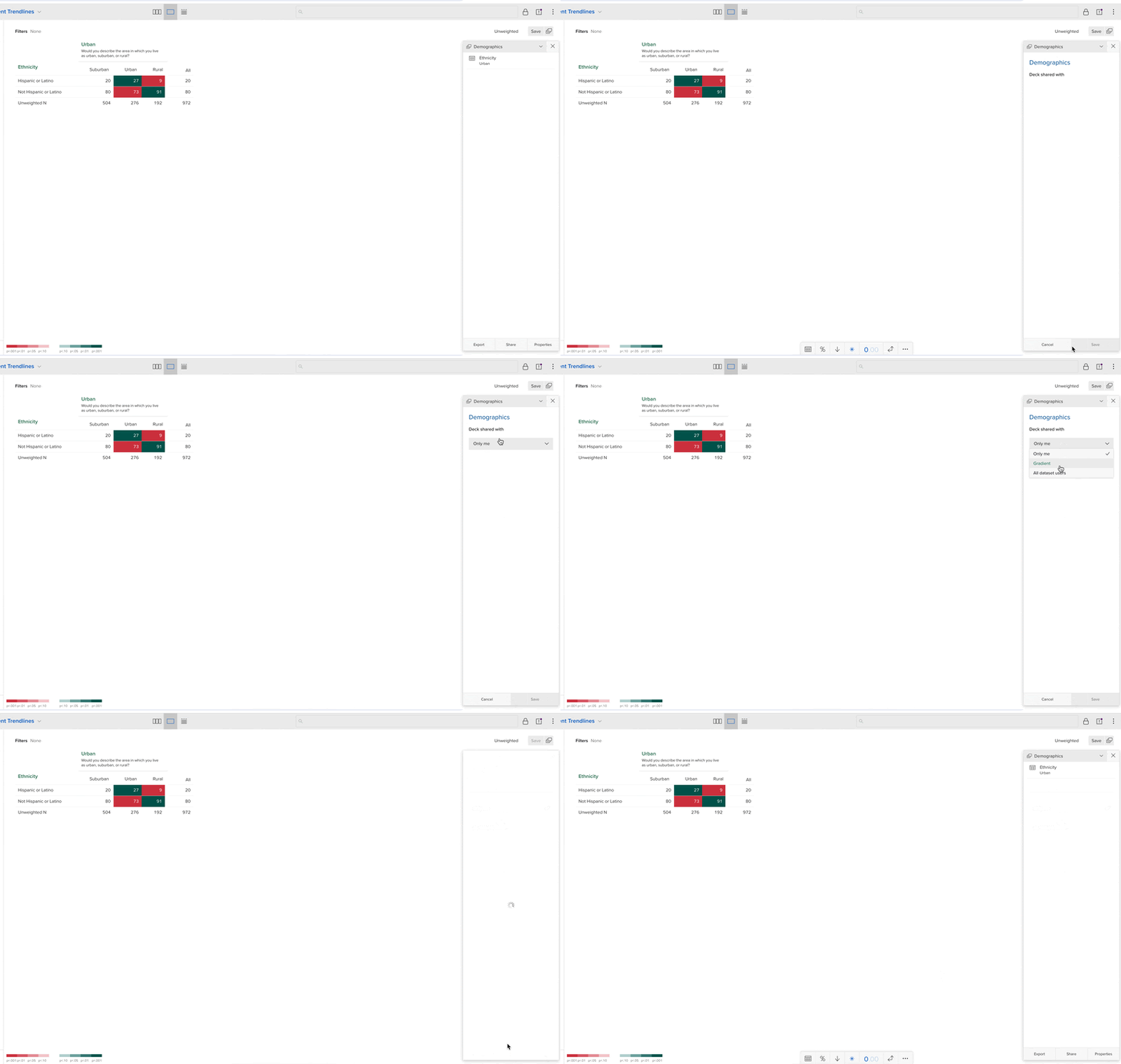
You can organize saved plots and tables into different decks. First, click on the image of the decks on the left side of the “Save” button to access the Decks menu. To create a new deck, click the title of the deck at the top and then select “New Deck.” You can name this deck something relevant to the types of tables and plots you plan to save there. When you have multiple decks, you can toggle between them by clicking the name of the deck and then selecting the “Switch to” button. When you click the “Save” button, the plot or image will be saved in whichever deck is currently open.
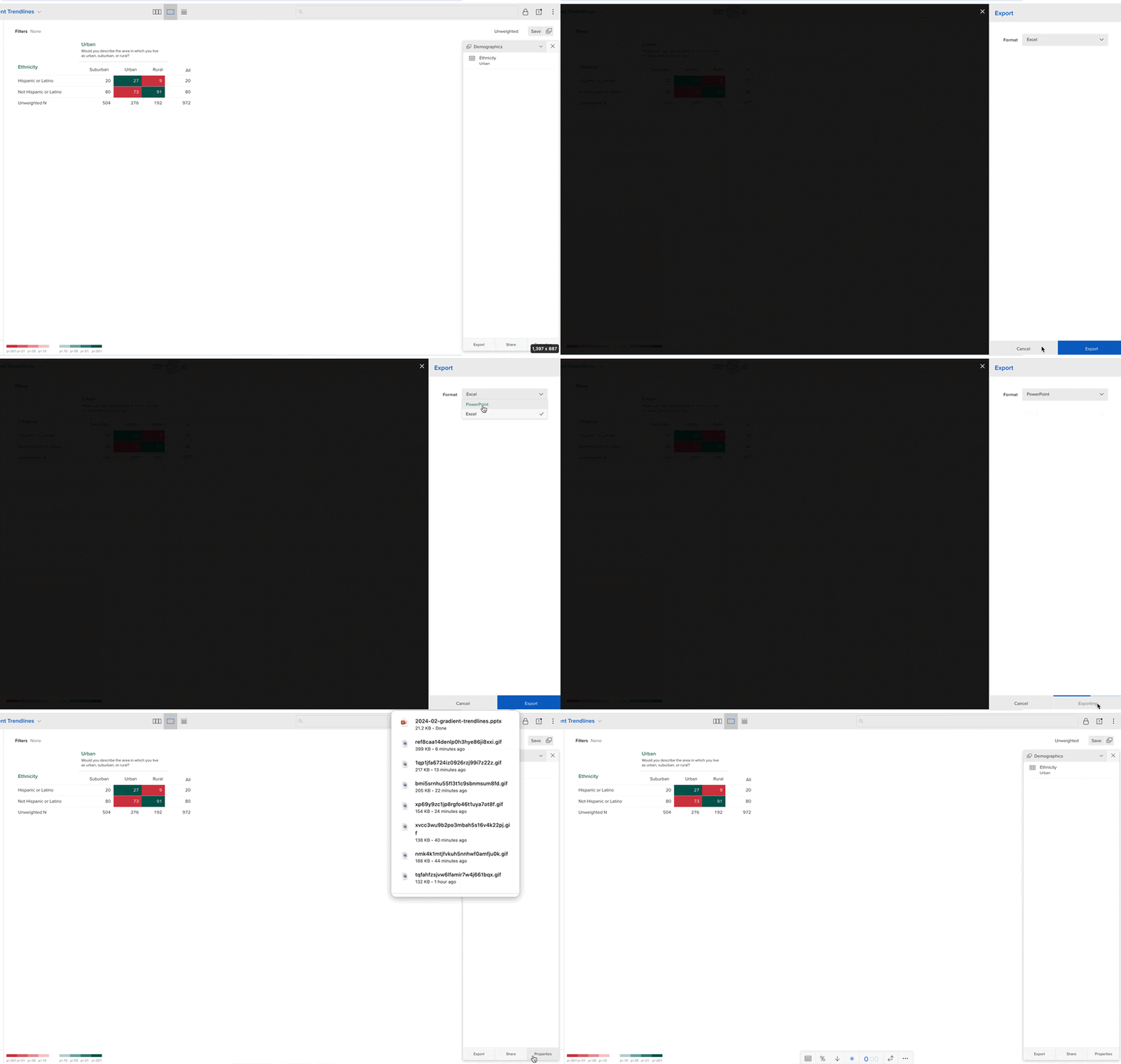
Decks can be exported into Excel or PowerPoint documents to share with relevant parties. Alternatively, you can share decks with team members or clients within the Crunch.io platform. To export or share decks, click either the “Export” or “Share” button at the bottom of the deck. Remember, the action you select will only apply to the deck you have open.
Another helpful feature of the Crunch.io platform is the ability to recode and create new variables based on existing ones. Most commonly, we create variables by combining categories in a single variable or by creating categorical variables based on rules across multiple variables.
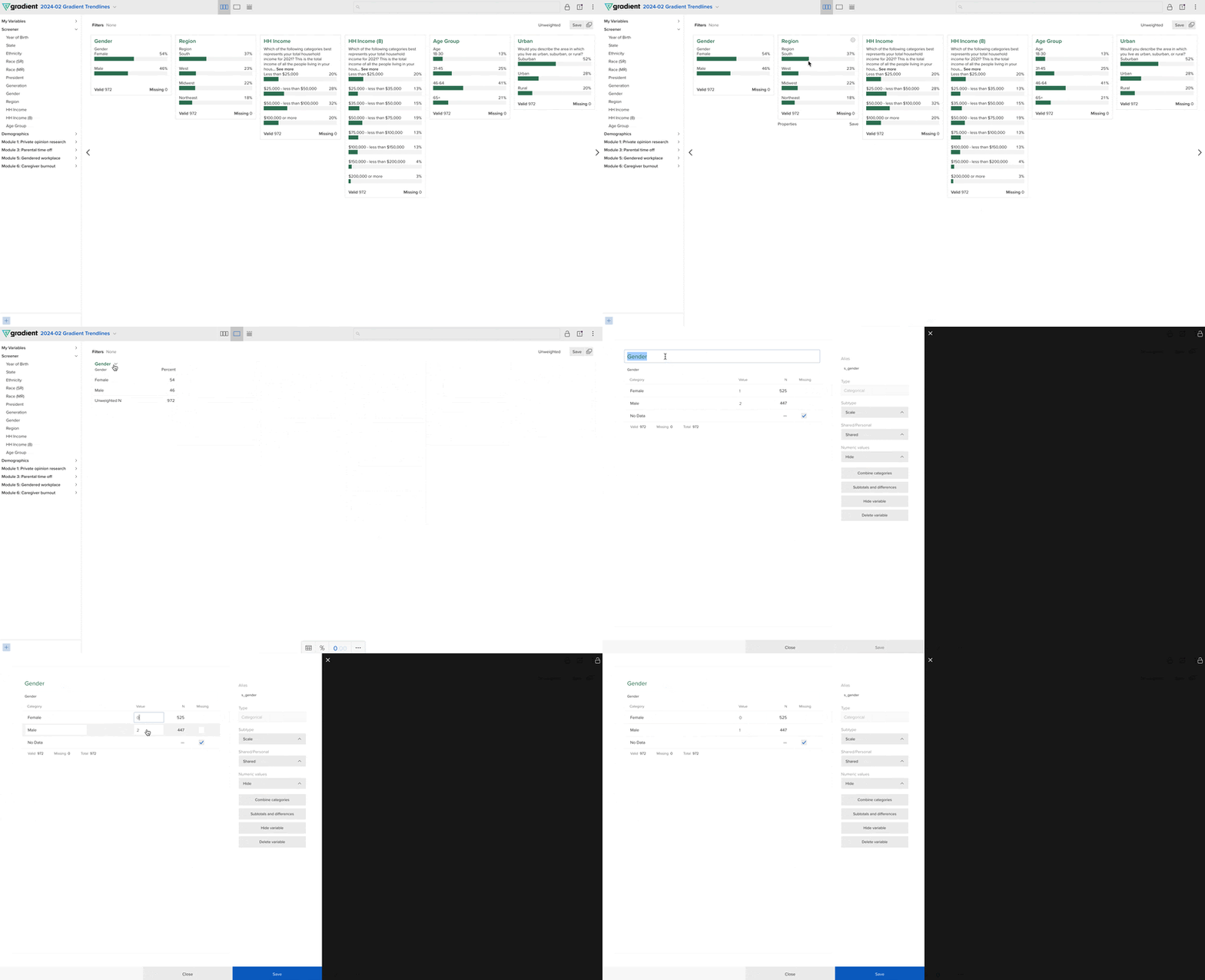
To recode a variable or change the name of a level, you’ll first need to unlock the dataset. To do so, click the icon that looks like a lock in the upper right corner of the screen. Next, double-click the variable you’d like to edit so you’re in the focused view mode. Then, hover over the name of the variable until an arrow appears. Once you click the arrow, select “Properties.” The screen that appears will allow you to edit the name of the variable, the name of the levels, the value of the levels, and the Ns per level. After you make your adjustment, remember to click “Save” at the bottom of the screen.
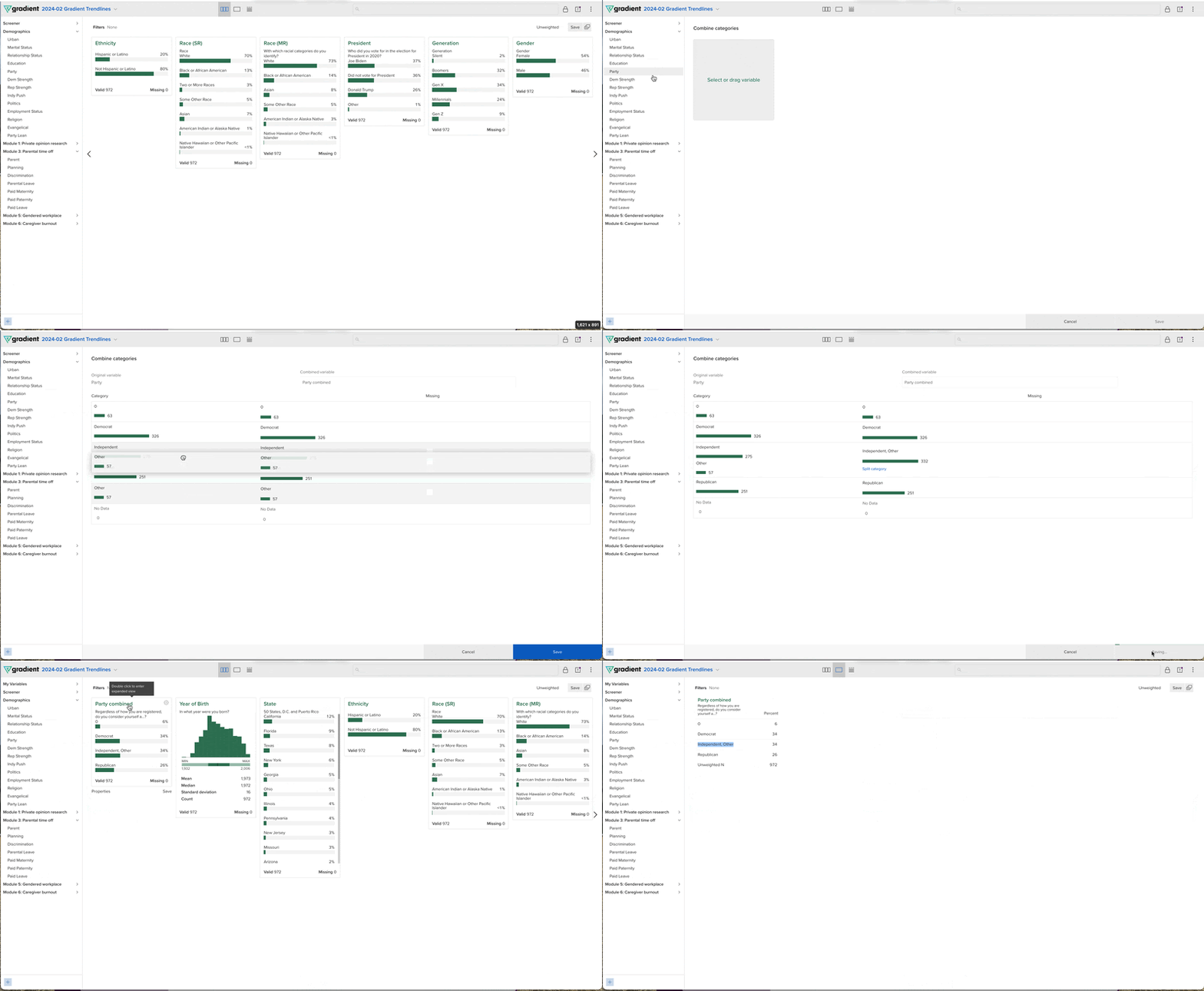
To combine categories to create a new variable, click the “+” sign at the bottom left-hand side of the screen. Several options will appear – choose the box that reads “Combine categories.” Next, drag the variable that you want to have condensed categories into the box that says “Select or drag variables.” The levels of the variable will populate the screen. Drag the levels you want combined on top of each other. Be sure to name the variable at the top of the page before clicking “Save” at the bottom of the screen.
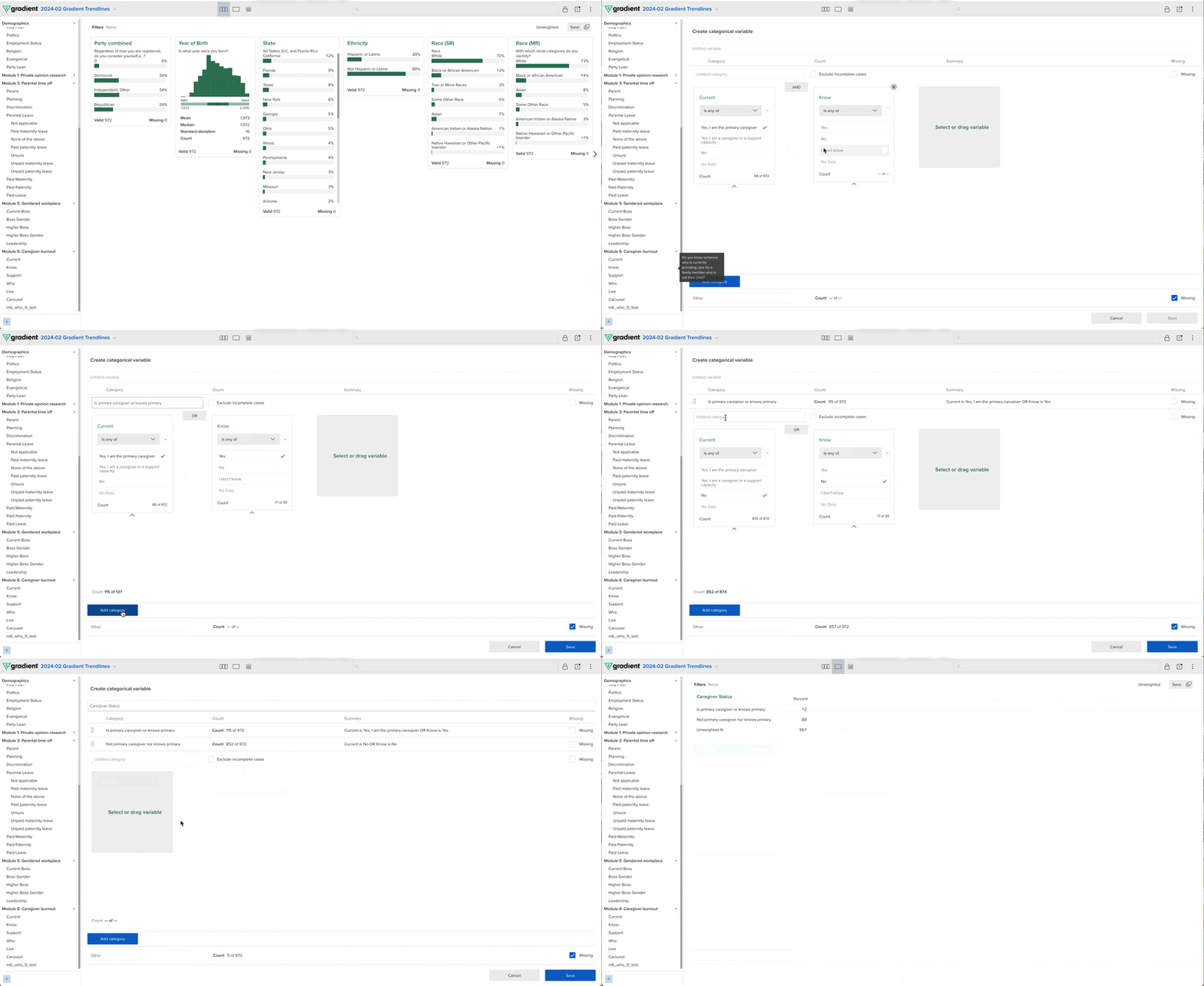
To create a new categorical variable, click the “+” sign at the bottom left-hand side of the screen. Several options will appear – choose the box that reads “Categorical variable.” Next, drag the first variable of interest into the box that says “Select or drag variable.” You can either select a level of a single variable to be a level of the new categorical variable you’d like to make or select levels across variables based on a set of rules (“and” / “or” rules). Either way, you need to create one level of the new variable at a time by selecting the “Add category” button at the bottom of the page once you select the level(s) of the existing variable(s) you want to make up the level of your new categorical variable. Categorical variables are “single select” variables, so respondents can only be assigned to a single category — the first created level that applies to them.
Be sure to name each new category so the levels make sense to you, other team members, and clients. Additionally, you’ll need to name the new variable before clicking the “Save” button at the bottom of the screen.
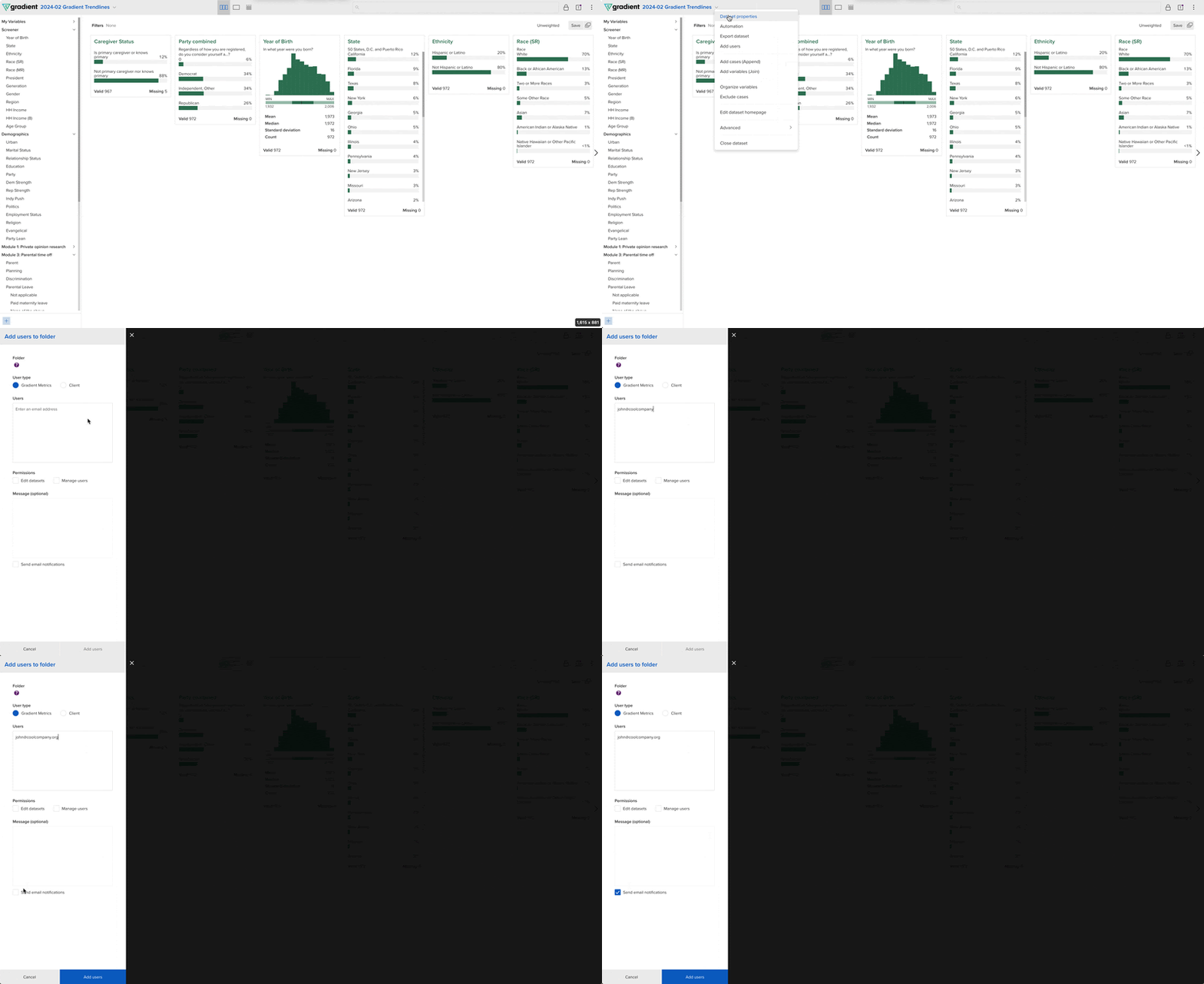
Often, research managers will be tasked with sharing Crunch.io portals with clients. To do so, click the arrow on the left side of the data set name in the top right corner of the screen. Next, select “Add users” from the drop-down options. On the page you’re redirected to, be sure to select ”client” under “User type.” Next, type in the email address of the client you wish to have access. Do not select either of the boxes under “Permissions.” Finally, select the box that reads “Send email notifications” before clicking the “Add users” button at the bottom