JIRA User Management
This page is meant for JIRA Admins and presents the content of the User Management panel.
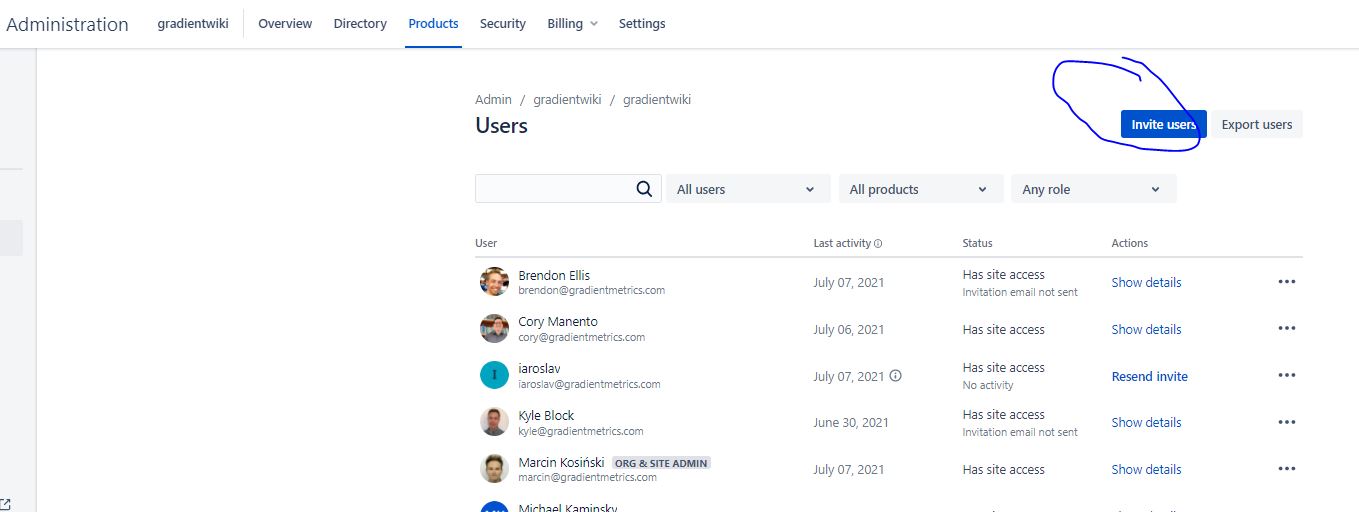
Go to the
User Management panel and invite users with the Invite users button.
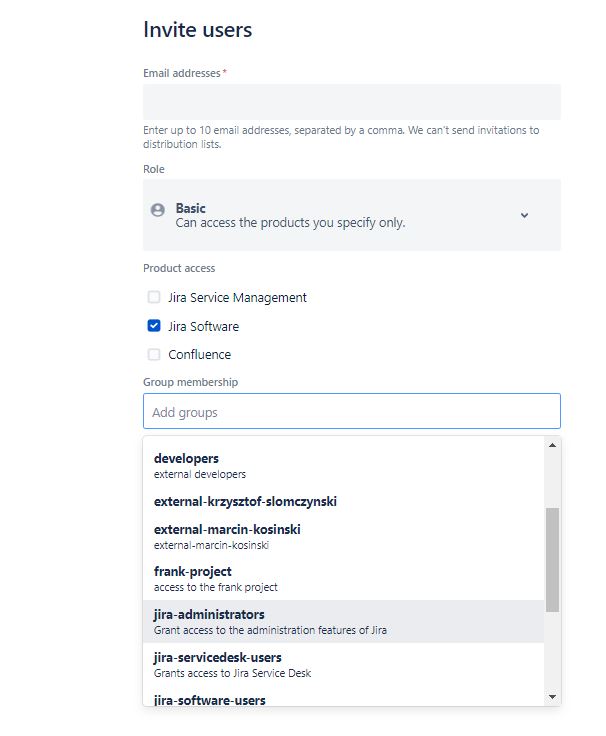
On the next screen you can pass a user’s e-mail and invite them to the jira-administrators group that allows access to all projects.
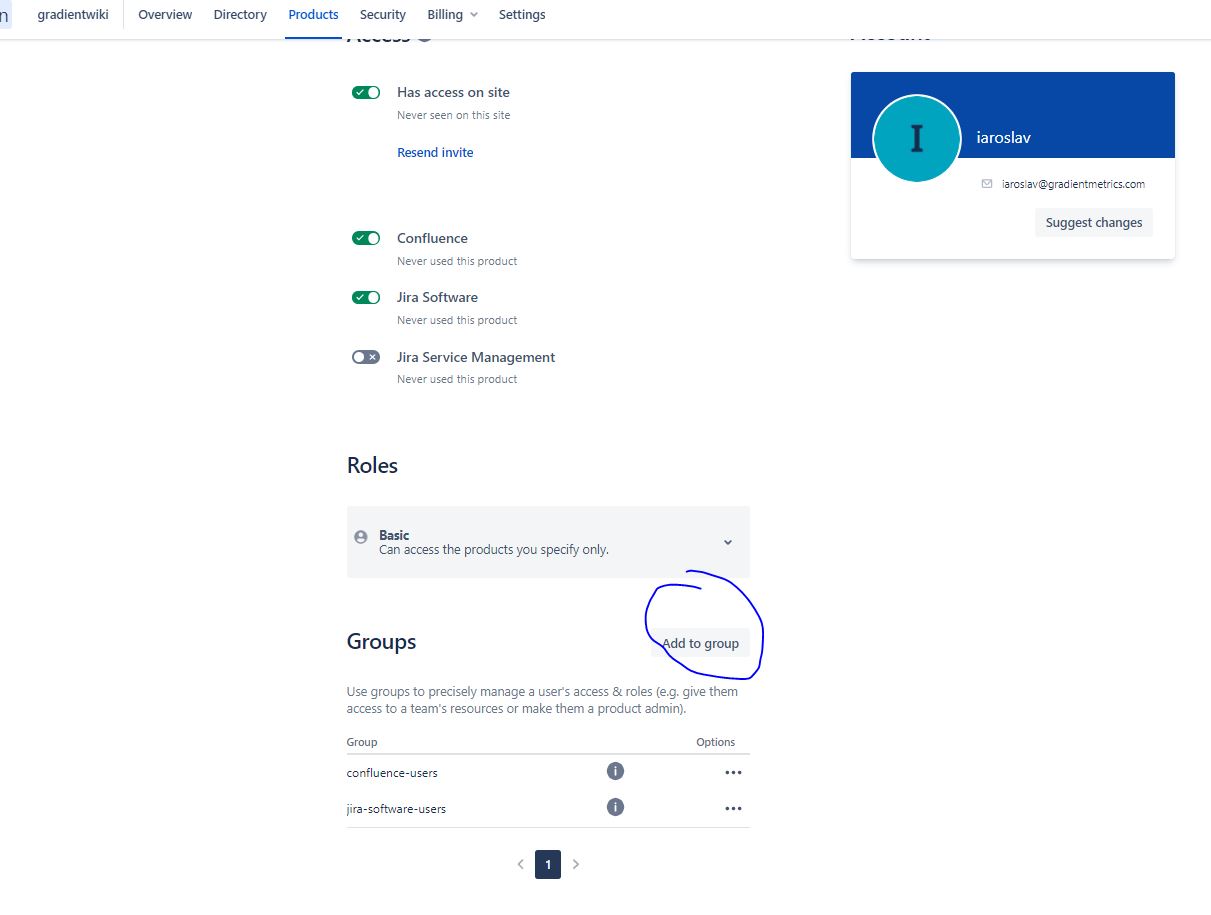
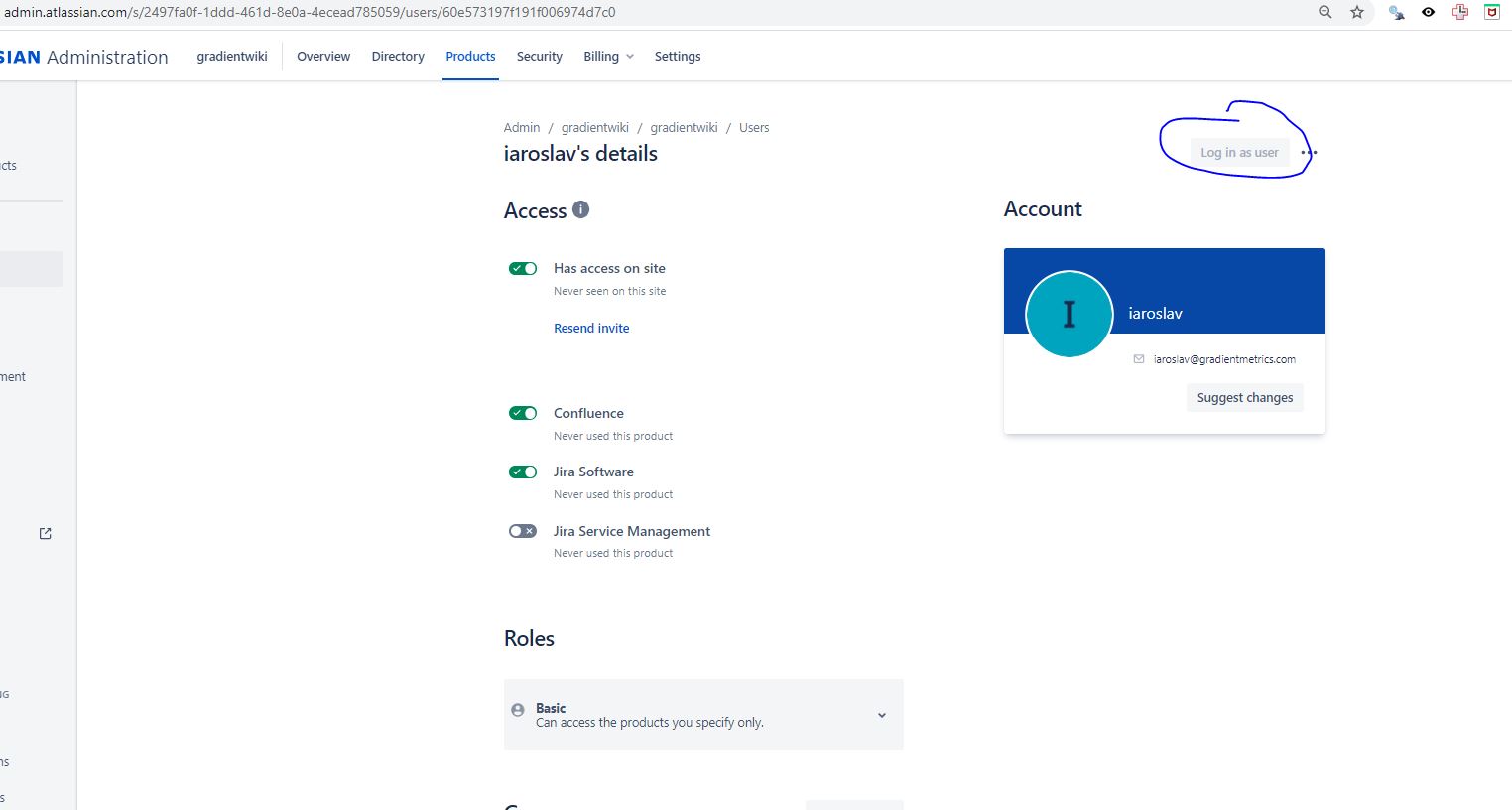
If you did not add a user to any specific group or if you want to invite a user to a privileges group just click on the user name in the
User Management panel. Groups limit or extend user access to specific projects or products. For a given user you can click Add group to extend user’s access with group privileges.
You can also log in as another user to see what they see. This is super useful to help a new employee get started with managing their Jira environment.
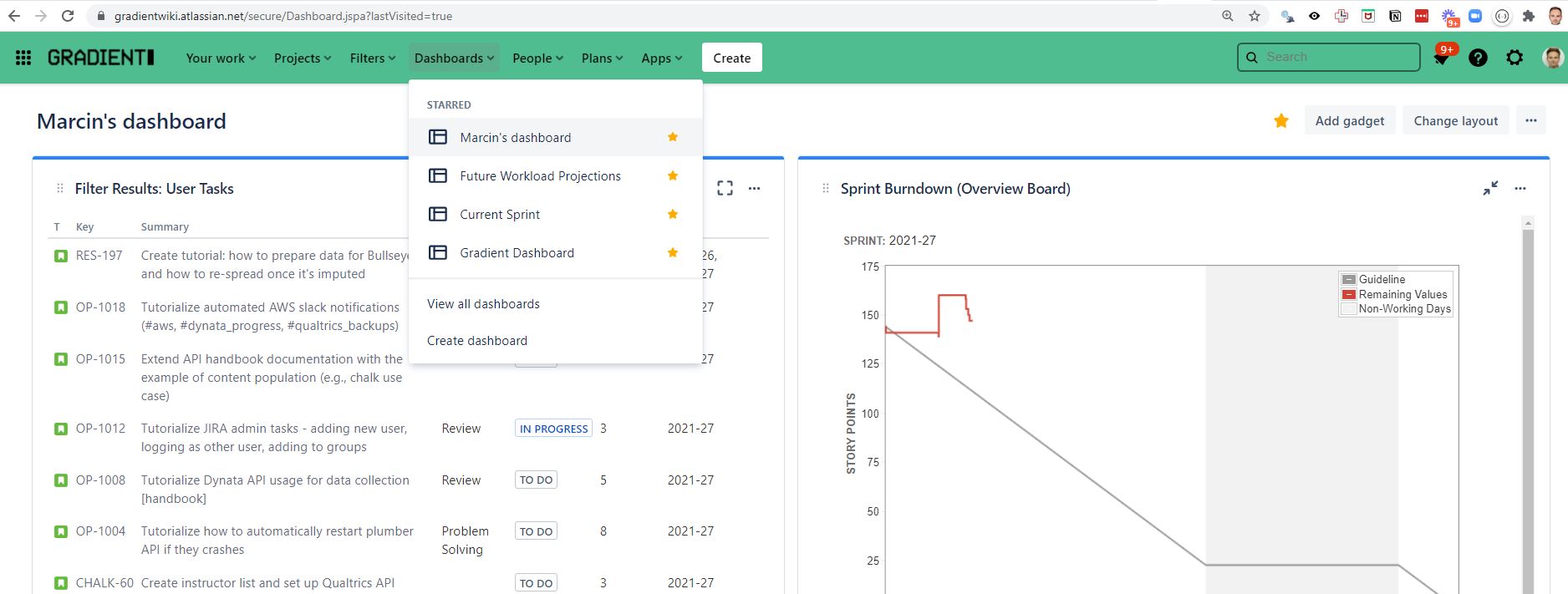
We have created a default Gradient Dashboard that pre-filters to show issues of the logged-in user. If you’d like to further customize a dasboard to your preferences, you are highly encouraged to do so!
In the main page of JIRA you can select the Dashboards menu to create a personal Dashboard. It allows to present summary statistics of the worked assigned to you. It also allows to list results of filters that present cards assigned to you.
The internal recommendation is to have the following widgets
- Filter Results with
User Tasksfilter - Sprint Burndown chart for Overview Board
- Filter Results with
Assigned to Mefilter - Activity Streams